Tokens
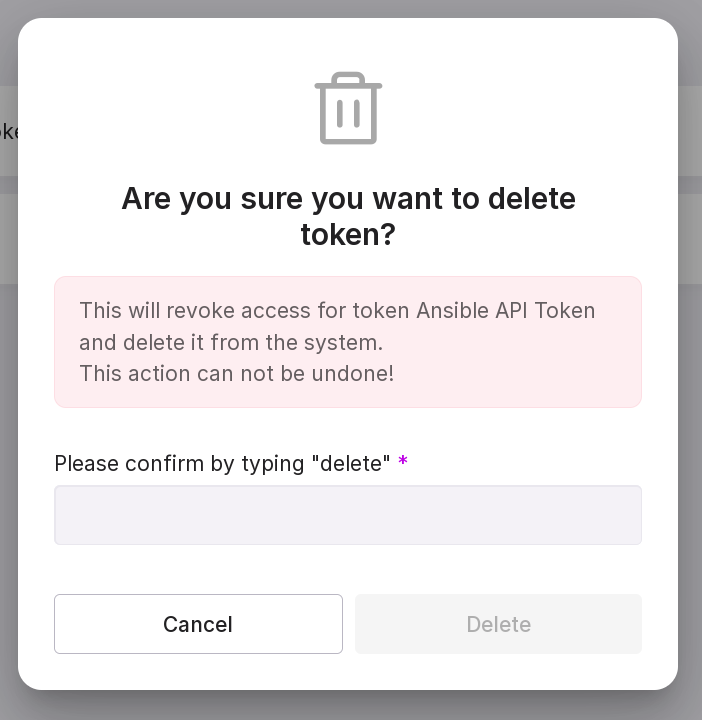
To go to tokens, click “Tenant configuration” → “Tokens” in the left panel.
Adding a new token
To create a new token, follow these steps:
Click ‘Add New Token’ in the upper right corner of the page or in the center of the page if you don’t have any tokens yet.

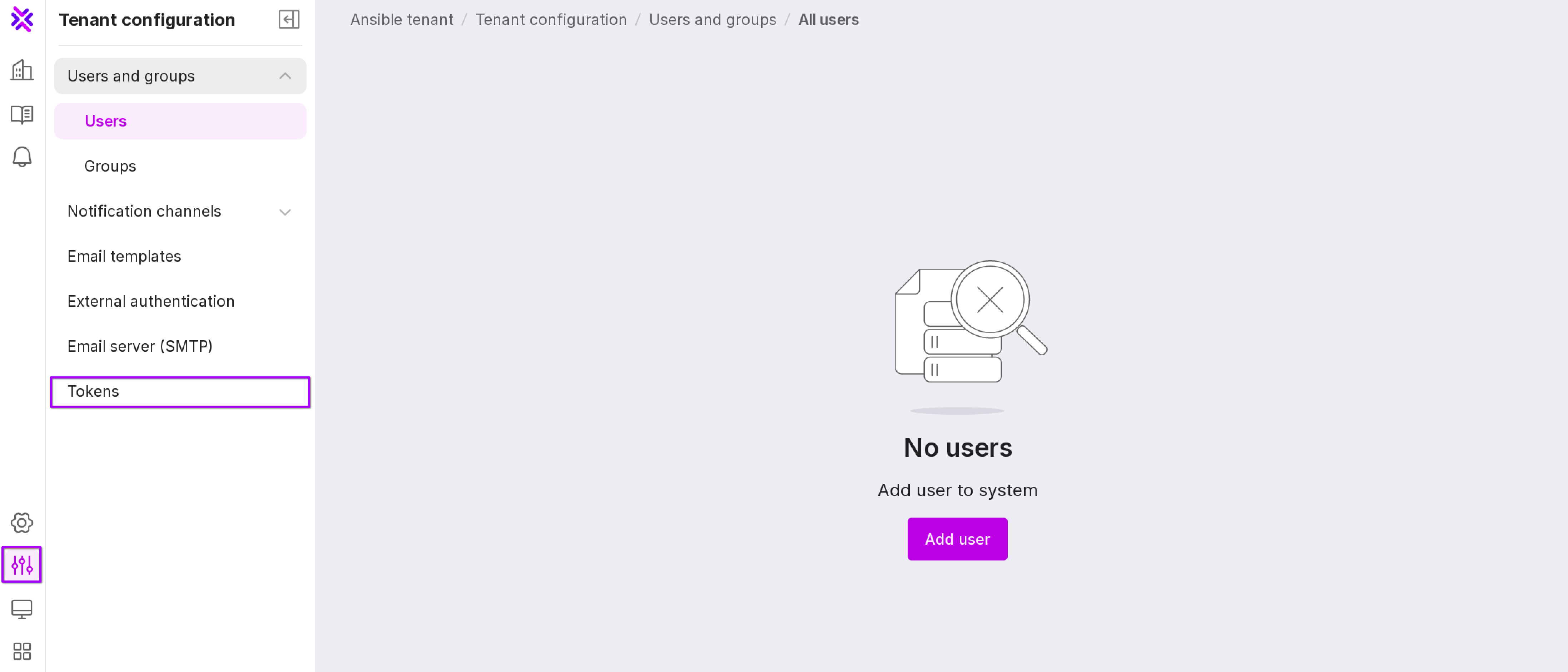
Fill in the fields in the opened modal window:
enter the token label — its name;
select the token expiration date;
Select the token type from the drop-down list:
“Metrics” — provides rights to receive Platform metrics via REST API.
“Installation” - grants rights to register an agent on Platform and use service methods to validate the installation of Agent.
“Public API” — provides rights to use Platform’s available API methods.
“Dataset” — grants rights to use API methods that can be used to export data from Platform for integration with BI.
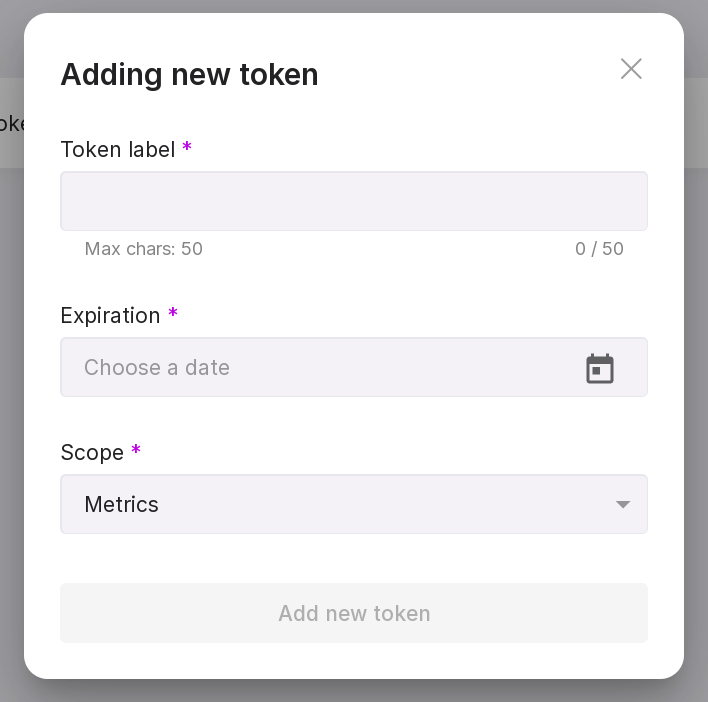
Click “Add New Token”. After that, a modal window will open with the token itself and a warning that it will no longer be visible. By clicking the button at the bottom of the window, “Copy to clipboard and close,” you will copy the token to the clipboard and close the window without the ability to view the token text later.
Deleting a token
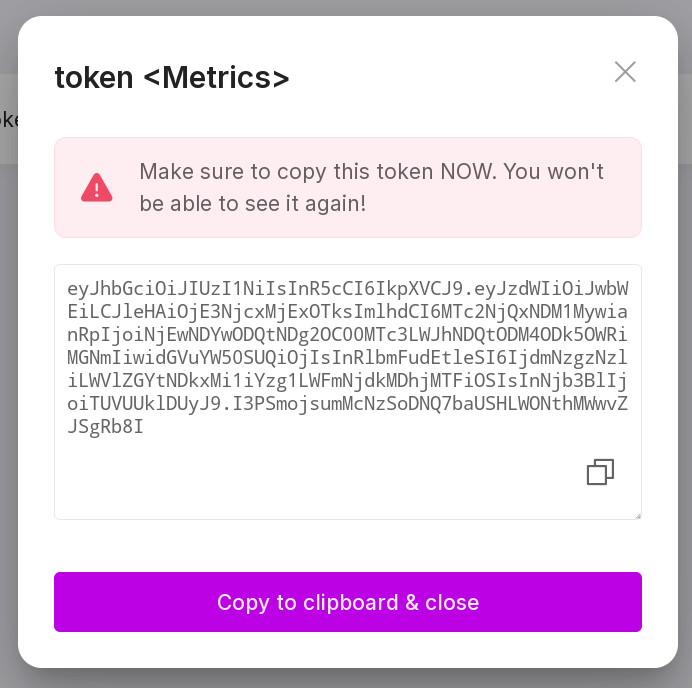
To delete a token, click on the trash can icon to the right of the token line.
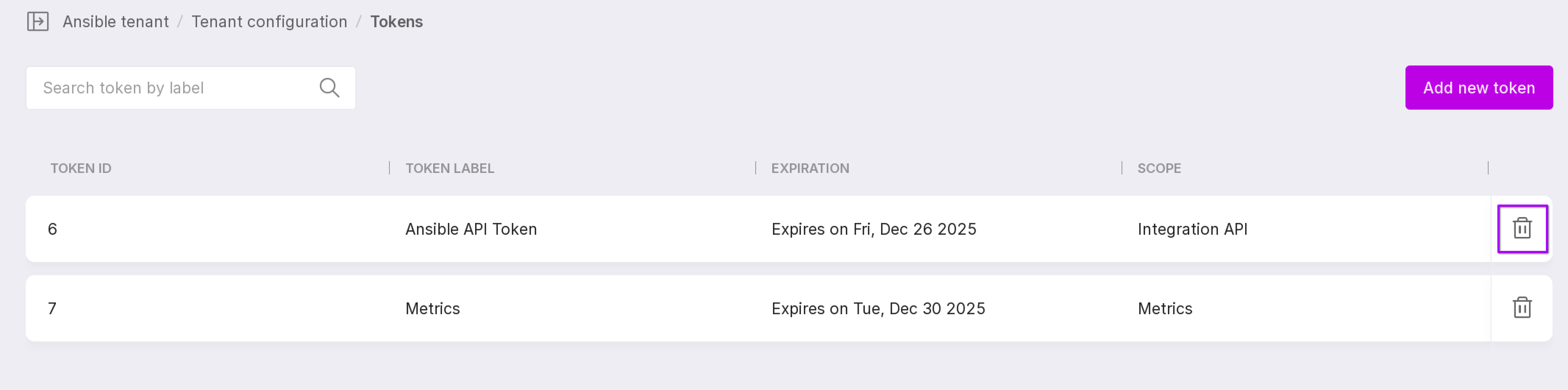
The token removal window will open. Type “delete” in the text field and click “Delete”.