Platform Control Panel
Components of Platform Control Panel:
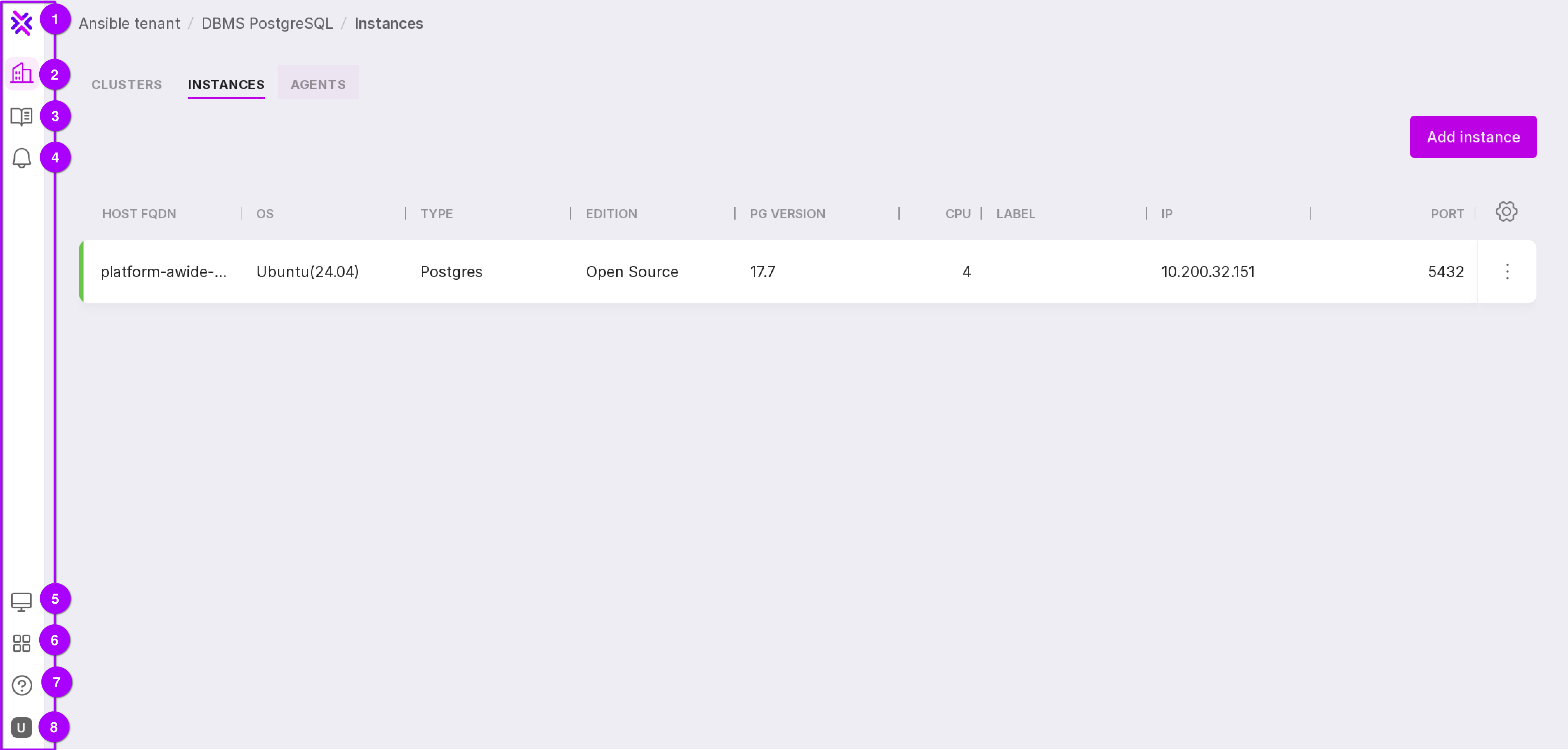
Button to go to the tenant list.
Button to go to the tenant namespaces.
Event log — opens a page with logs of events related to this tenant.
Alerts — opens the ‘Alerts’ window with the following options:
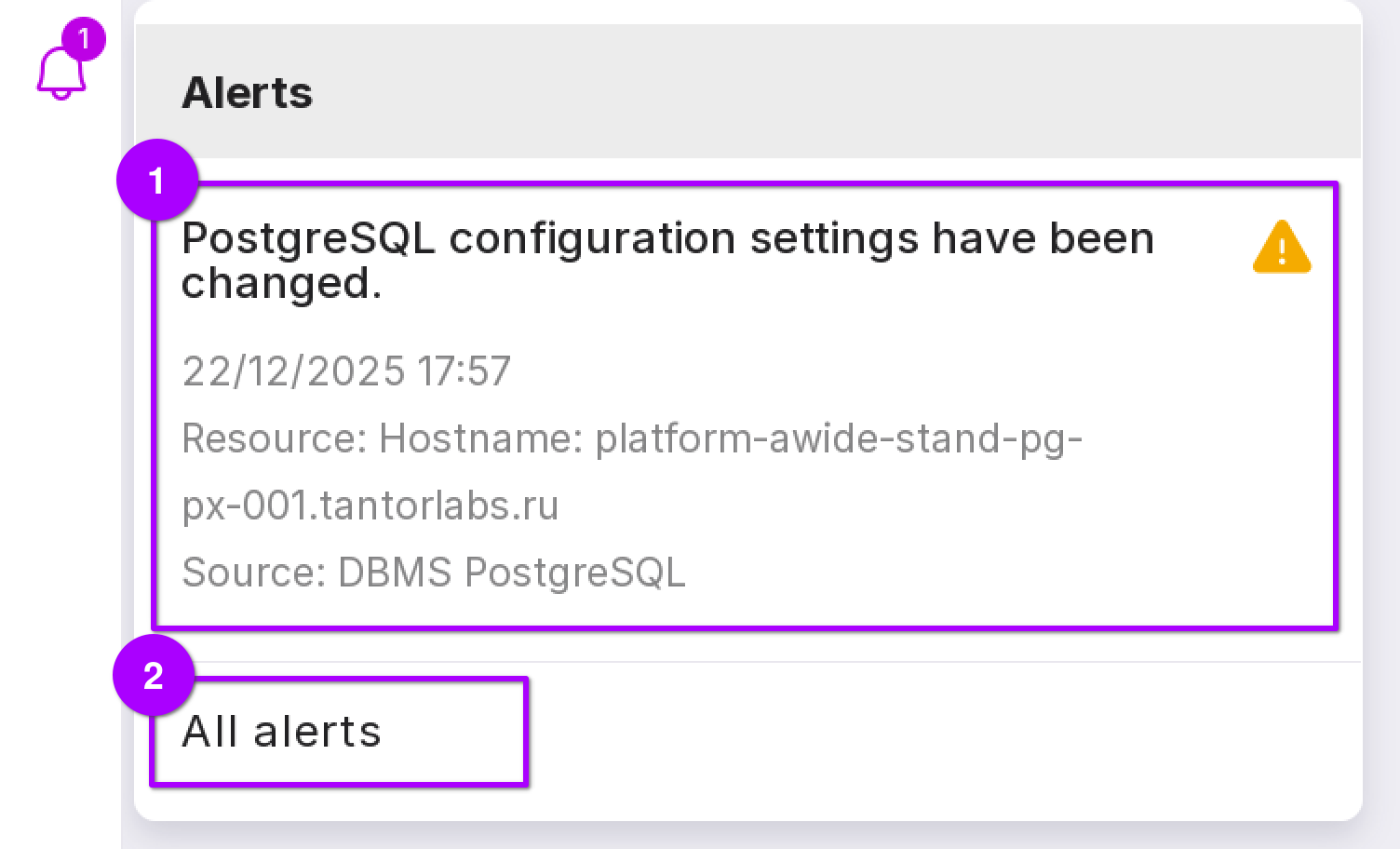
Clicking on an alert opens a page with the specific alert (number 1 in the figure above);
Clicking the ‘All alerts’ button will open the ‘Alerts’ page with a list of all alerts related to this tenant (number 2 in the figure above).
Theme — allows you to choose one of Platform’s themes:
light;
dark;
system — automatically changes Platform’s design to light or dark depending on the theme on your PC.
Help — allows you to go to the Knowledge Base and documentation of Platform, as well as opens a window with information on the installed version of Platform.
Platform modules:
Query plan analysis — opens the description of the query plan (module pg_explain).
SQL Editor — opens the database connection window.
Data schema — opens the database connection window.
Tasks — opens the list of tenant tasks.
Swagger — opens the documentation page in Swagger for the existing API methods related to Platform:
agents,
instances,
groups,
metrics,
tenants,
users,
namespaces.
All modules — opens the page with Platform modules.
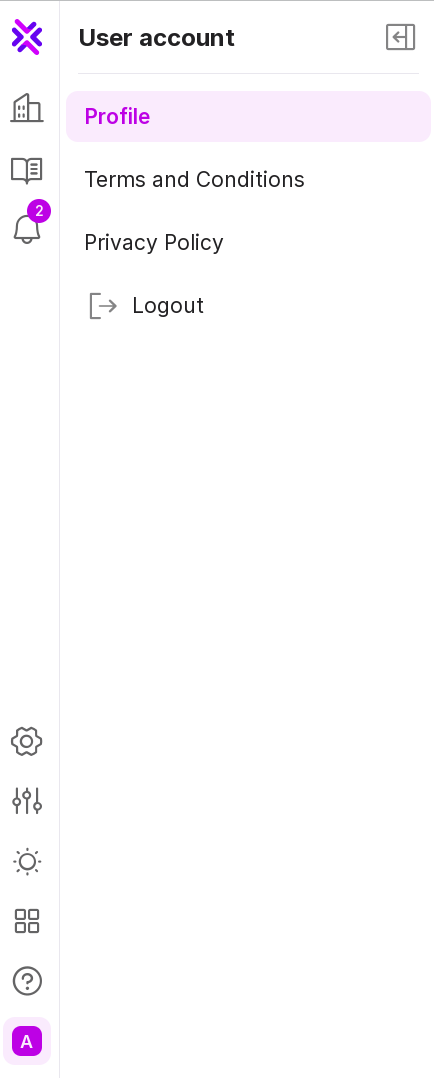
Account — opens the panel with the following options:
Profile — opens the user profile settings page;
License agreement — opens information on Platform’s licensing policy;
Logout — logs out of the profile.
Account page
This page contains the basic information on the user:
User ID.
Name — the name under which the user is registered. It can be changed.
Email address — the email under which the user is registered.
Is owner — the user’s state regarding whether they are the Owner of the tenant or not.
Is system owner — the user’s state regarding whether they are the Owner of the system or not.
Language — the interface language of Platform.
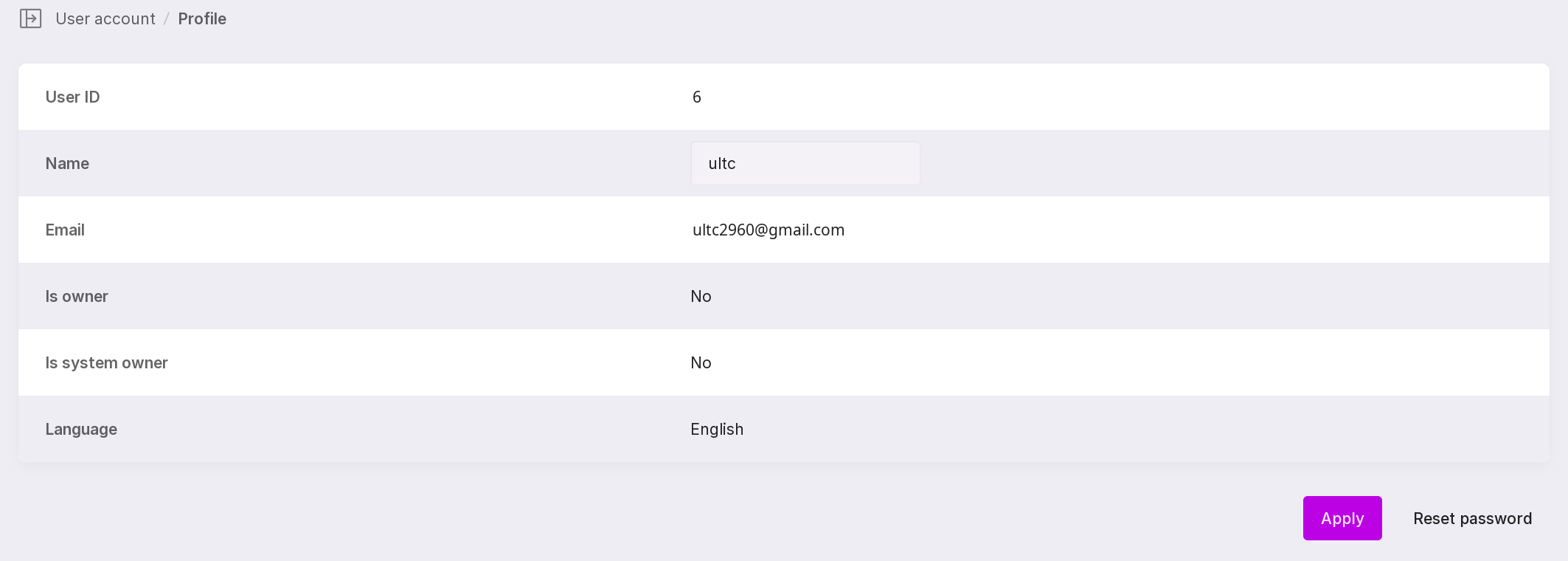
The “Apply” button saves the changes.
The “Reset password” button changes the user’s password.