Telegram
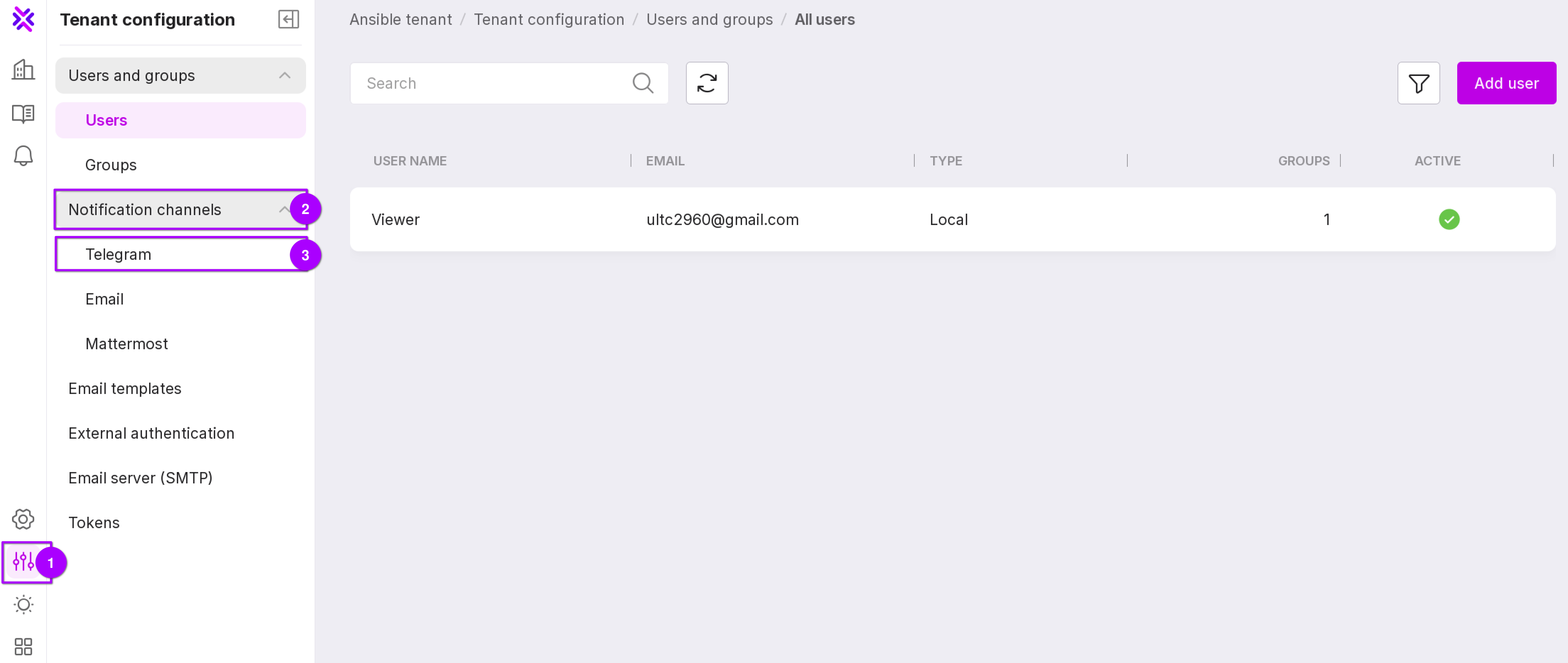
To open this page in the left panel, click “Tenant configuration” → “Notification Channels” → “Telegram”.
The Telegram page displays a list of channels for sending messages and tools for creating and managing channels:
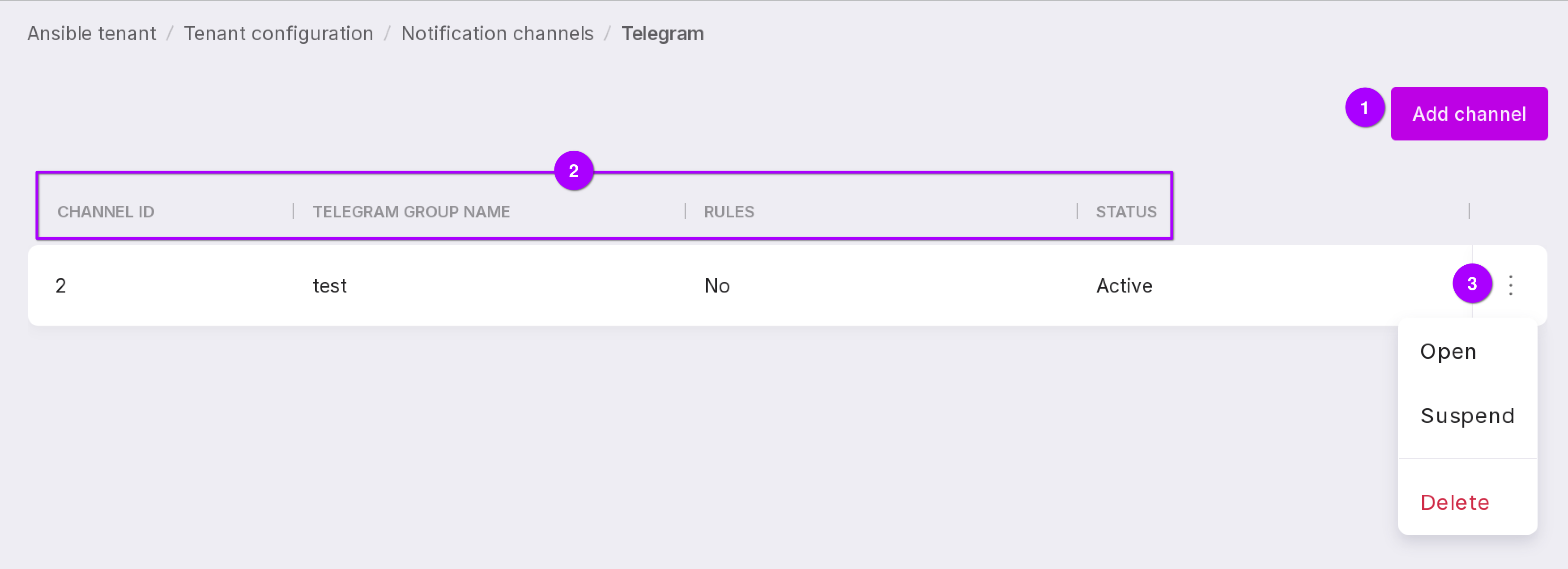
The “Add Channel” button opens a window to add a new channel. The following data on the added channels will be displayed:
Channel ID — the identifier of the channel;
Telegram group name;
Rules — whether there are added rules for the channel;
Status — active or disabled.
The “Menu” button allows you to manage the selected channel. Three options are available in the menu:
“Open” — opens the page of the selected channel;
“Activate/Suspend” — resumes/suspends the use of the selected channel for message transmission;
“Delete” — deletes the selected channel.
Note
To configure and ensure the proper functioning of the integration with Telegram, access to telegram.org is required.
Preliminary actions
Before starting the integration with Telegram, you need to create a group, obtain its identifier, and create a bot.
Creating a public Telegram group
To obtain the group identifier:
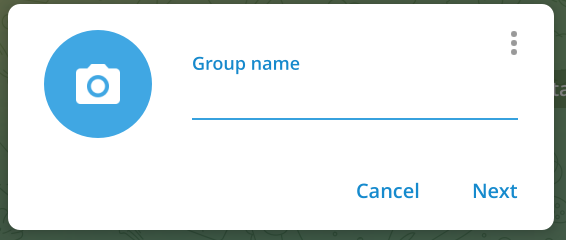
Create a Telegram group. Set its name.
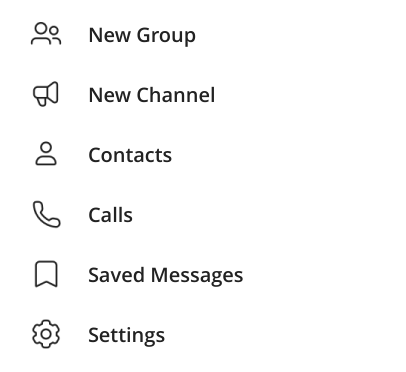
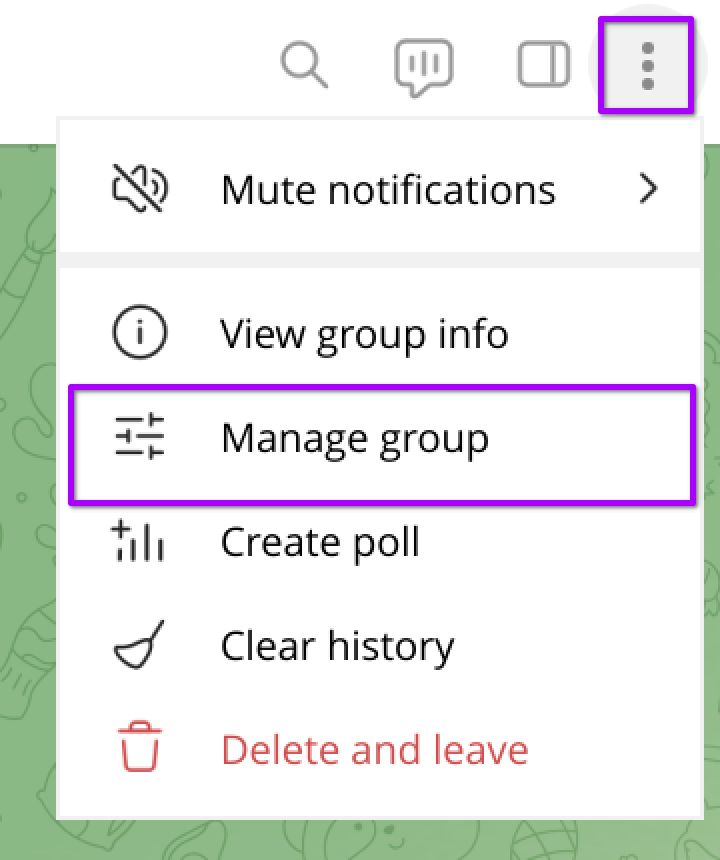
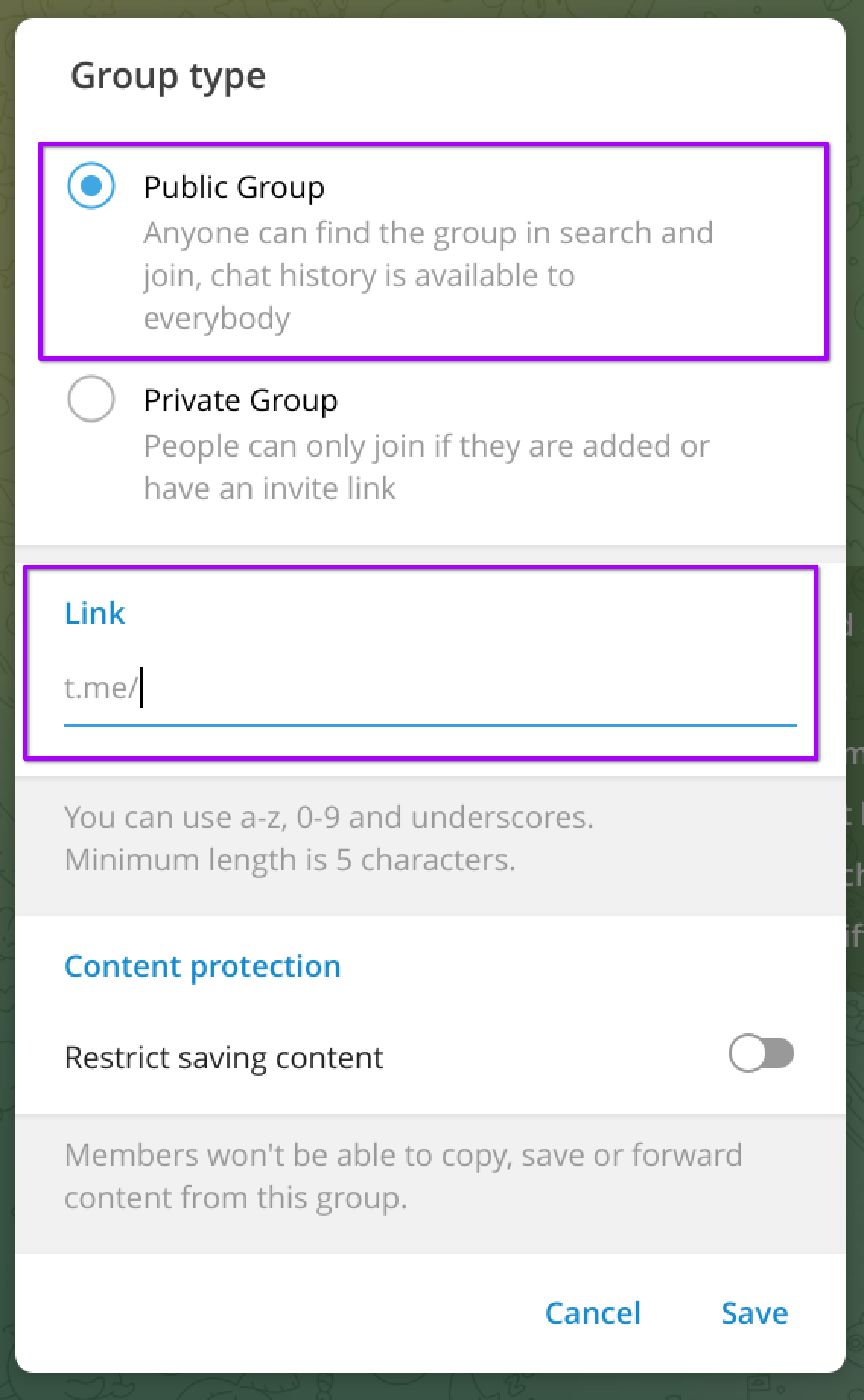
In the upper right corner, click “Settings” (“Three dots”) → “Manage group” → “Group Type” → “Public”. Create a link to it.
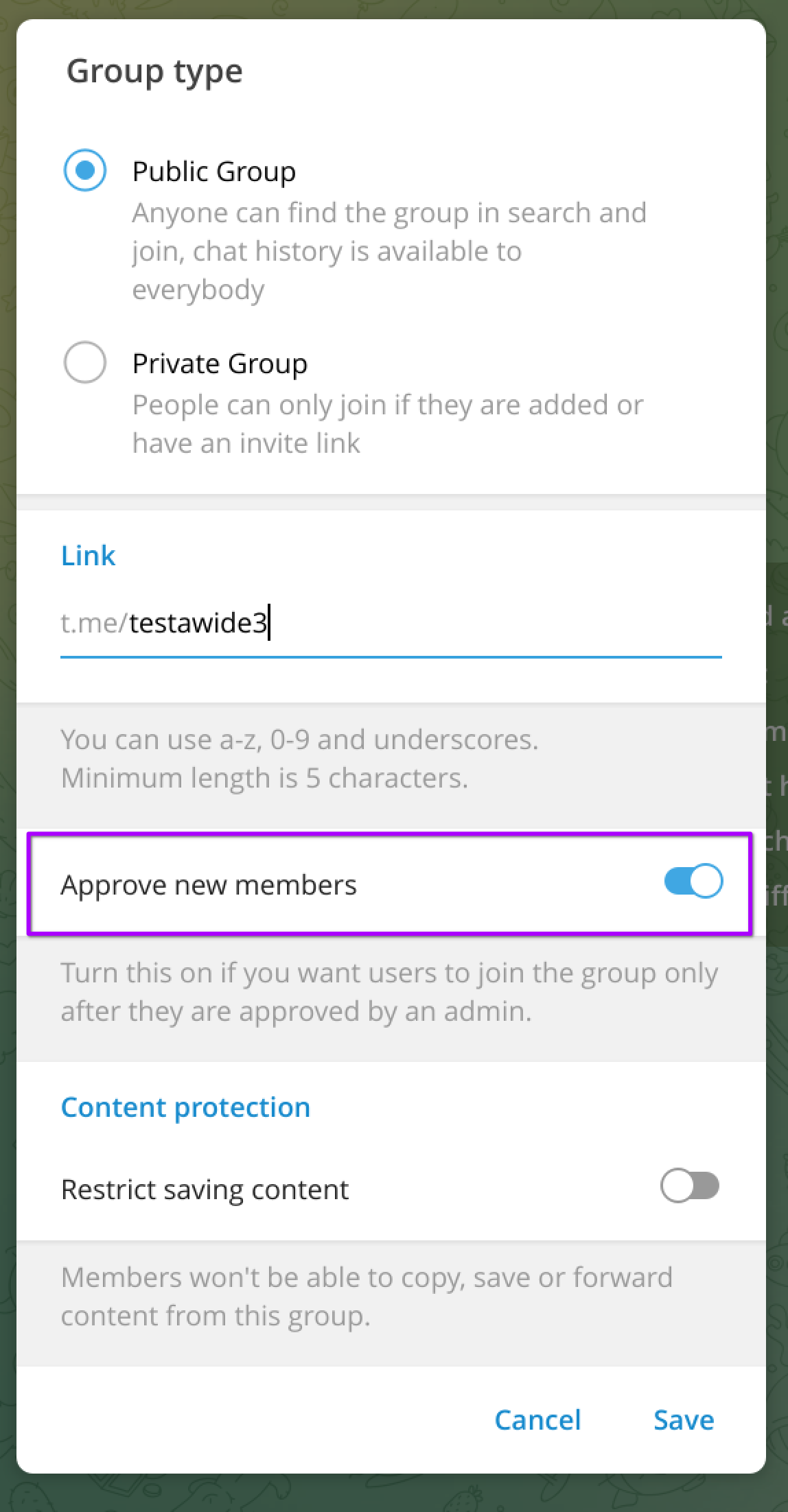
Note
It is recommended to set the “Approve new members” toggle to the right position (“on”). This setting will appear after you set the group type to “Public”, save the result, and go back to “Manage group” → “Group Type”.
Getting the Telegram group ID
To obtain the group identifier:
In the Telegram search field, type and search for LeadConverterToolkitBot (open).
Click on the bot”s name in the search results. The bot will be launched.
Click the button Start.
Go to the group whose ID you need to obtain.
Add LeadConverterToolkitBot bot to the group members.
Note
A message will appear saying “Unknown action”
Enter /get_chat_id command in the group chat. In the response message, the bot will display the group ID. The group ID should be structured as -{13 digits}. For example -1234567898654.
Save the group ID for future use.
Remove the bot LeadConverterToolkitBot from the group members.
Creating a Telegram bot and obtaining a token
To create a bot and obtain a token:
In the Telegram search field, type and search for botfather.
Click on the bot”s name in the search results. The bot will be launched.
Click Start button. #. Type /newbot command in the chat.
Further, type in the name of the new bot and its username. In the response message, you will receive the address (link) of the new bot and its API token.
Save the token of the new bot and its address (link) for future use.
Add the bot to your Telegram group members.
Adding a new channel
To add a new channel:
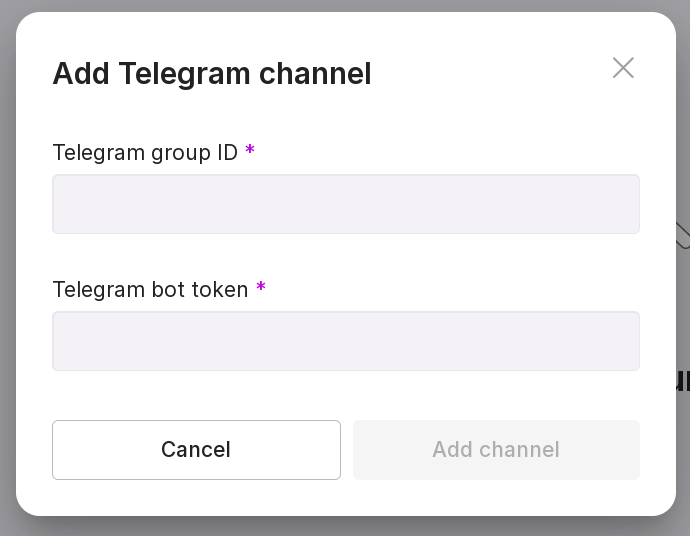
Click “Add channel”.
Type the Telegram group ID in the “Telegram group ID” field.
Type the Telegram bot token in the “Telegram bot token” field.
Click “Add channel”.
Channel activation
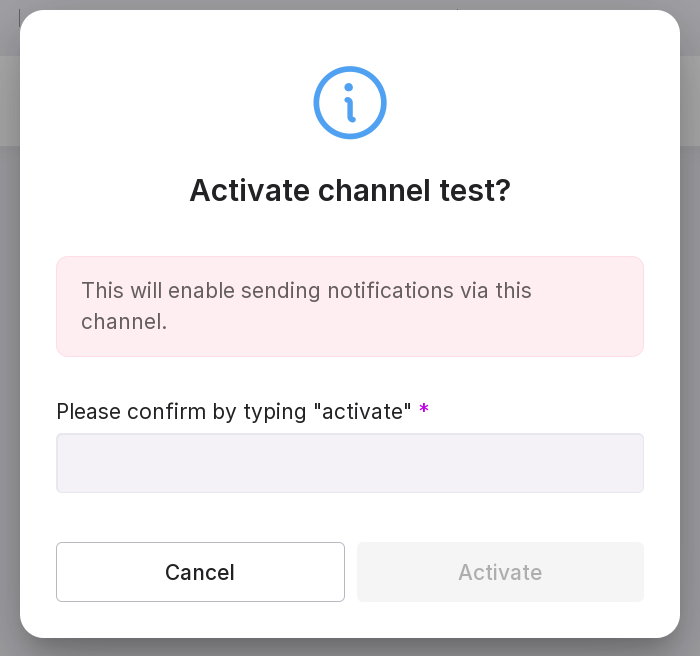
The “Activate” option resumes the use of the selected channel for message transmission.
To activate the channel:
Type “activate” in the text field of the modal window.
Click “Activate”.
Channel deactivation
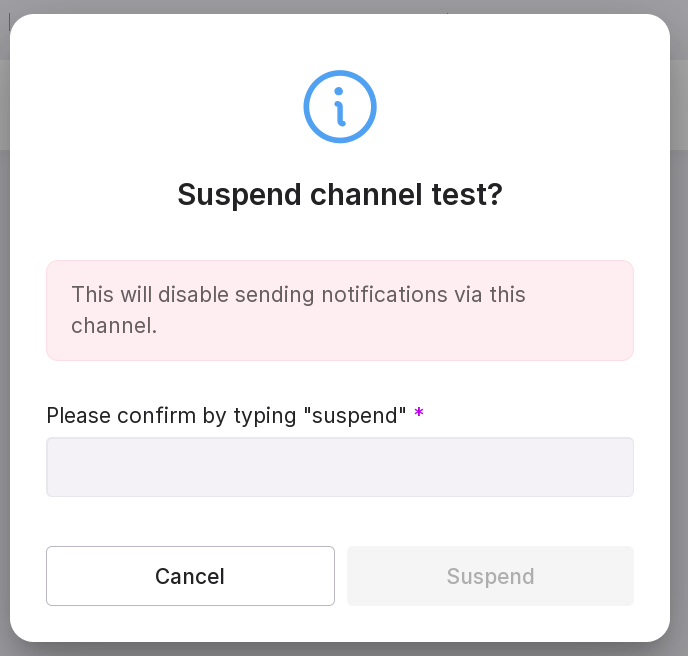
The “Suspend” option stops the use of the selected channel for message transmission.
To suspend the channel:
Type “suspend” in the text field of the modal window.
Click “Suspend”.
Deleting the channel
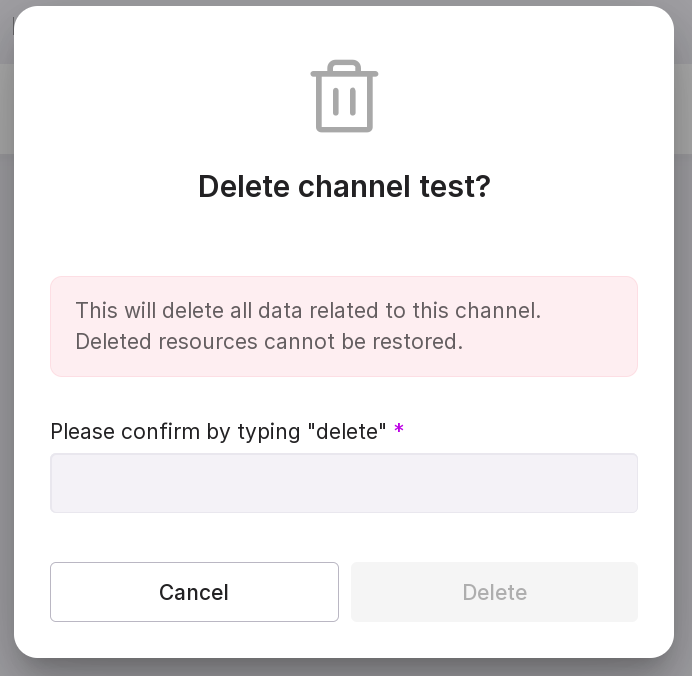
The “Delete” option removes the selected channel.
To delete the channel:
Type “delete” in the text field of the modal window.
Click “Delete”.
Managing the Telegram channel
To go to the Telegram channel management page, click on the corresponding channel in the list or click “Open” in the menu button.
You can manage the channel using the menu.
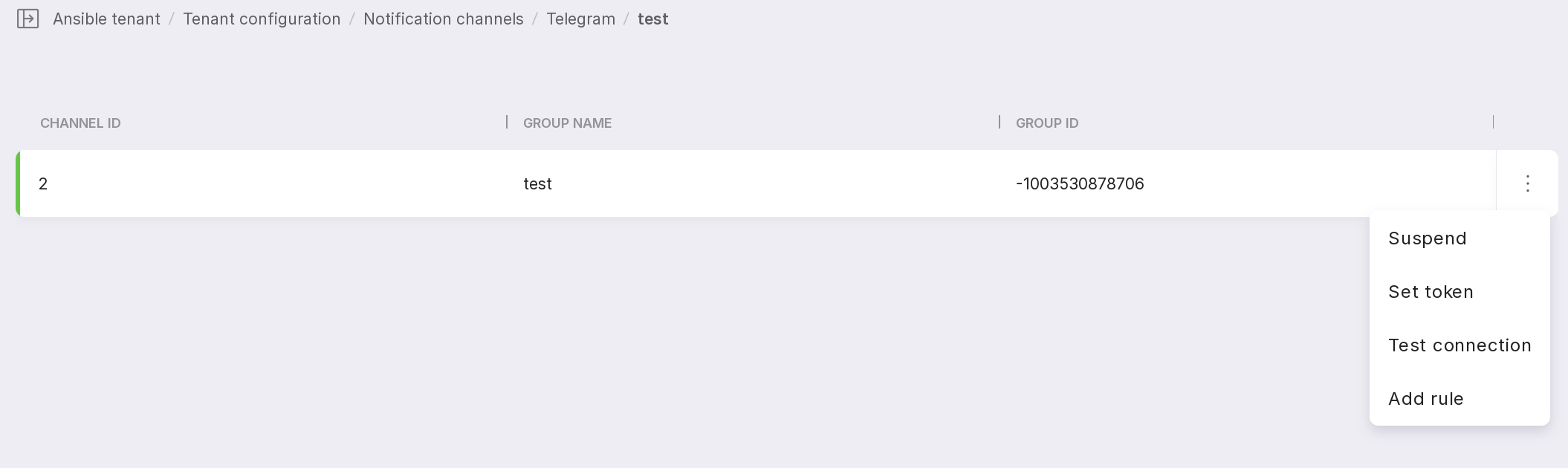
The channel menu contains the following options:
“Activate/Suspend” — resumes/suspends the use of the selected channel for message transmission;
“Set token” — changes the Telegram token;
“Test connection” — sends a test message to the specified Telegram channel;
“Add rule” — allows you to add a rule for sending messages to the Telegram channel.
Setting the token
The “Set token” option allows you to change the Telegram token.
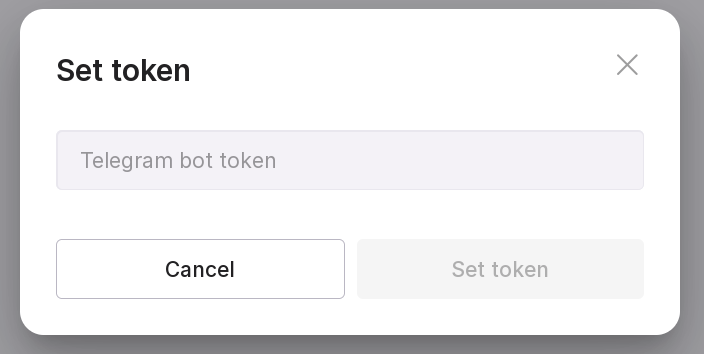
To set the token:
Type in new token in the text field of the modal window.
Click “Set token”.
Test connection
The “Test connection” option sends a test message to the Telegram channel. After sending, a window will open with the check state:
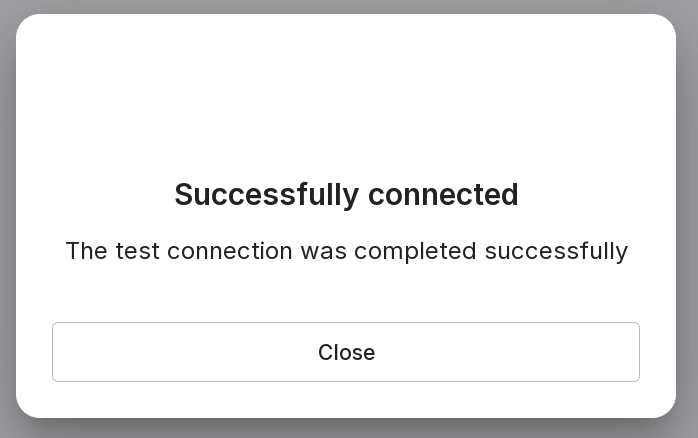
Adding a rule
The “Add rule” option adds a new rule for sending messages.
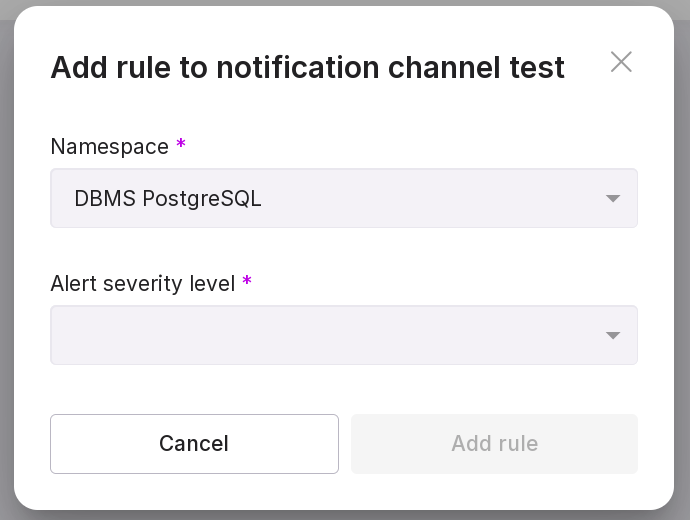
To add a rule:
Select a namespace.
Select the severity level of the alert: problem or warning.
Click “Add rule”. After adding the rule, you will receive relevant notifications in the selected Telegram channel.
Deleting a rule
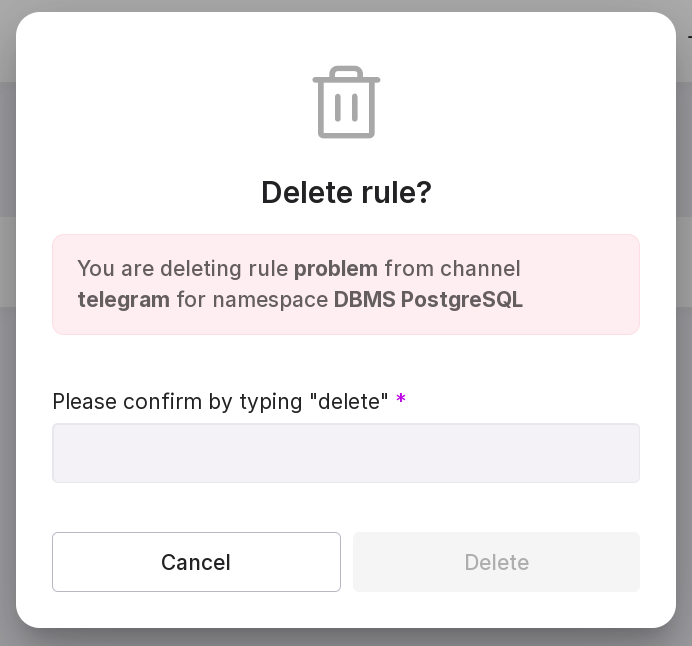
The “Delete rule” button allows you to delete a rule for message transmission through the channel.
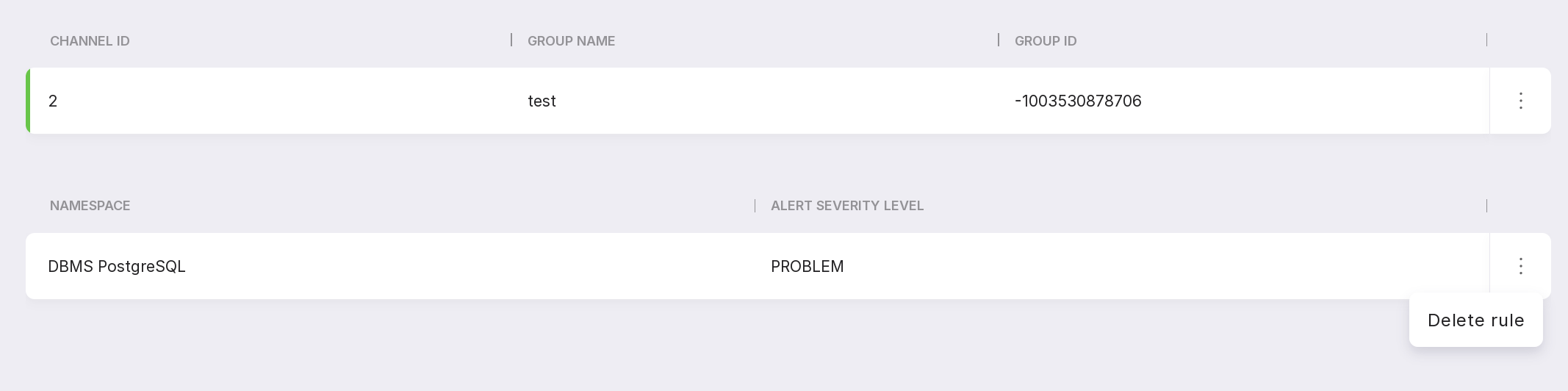
To delete a rule:
Type “delete” in the text field of the modal window.
Click “Delete”.