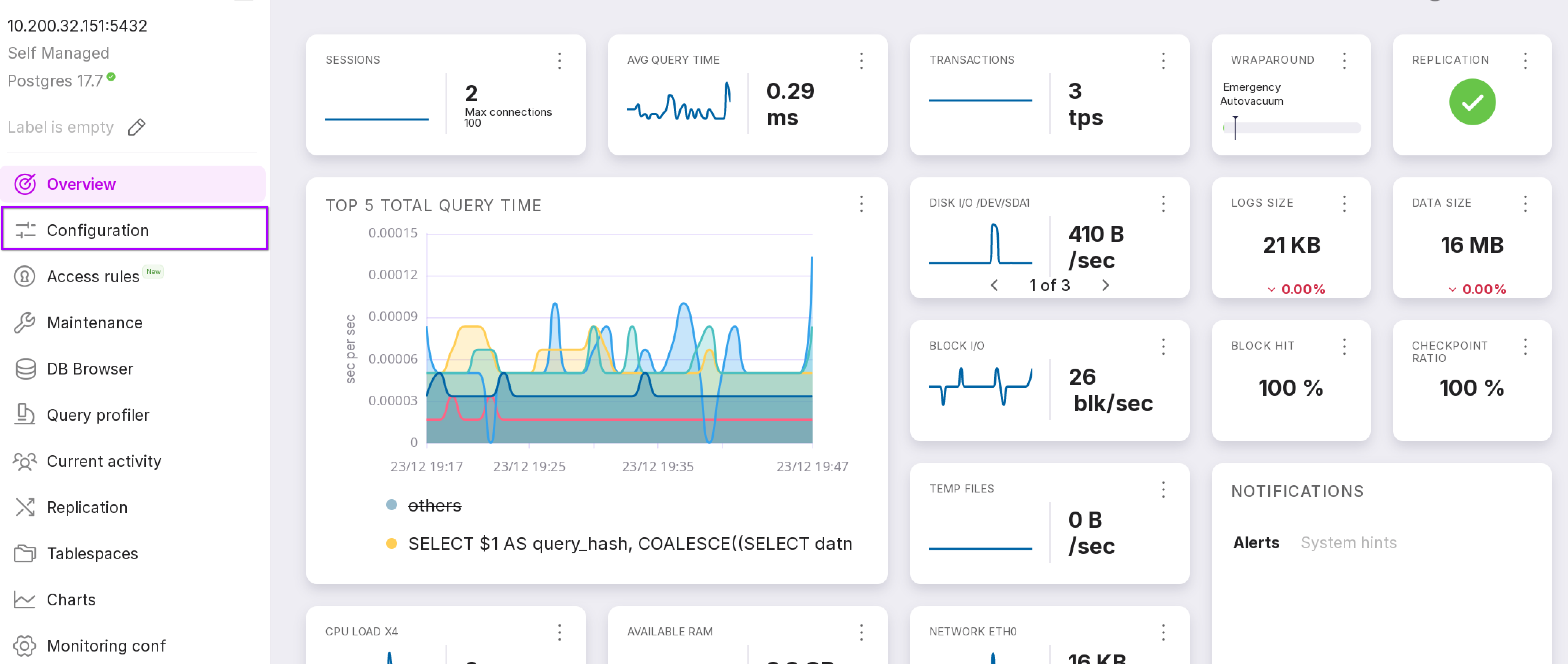
The “Configuration” page of the instance
The “Configuration” page allows you to manage the configuration of instances. To open this page, click on “Configuration” in the left menu panel of the instance.
Warning
For a user with “Viewer” role, the section is available in read-only mode.
The “Parameters” tab
The “Parameters” tab shows the postgresql.conf file.
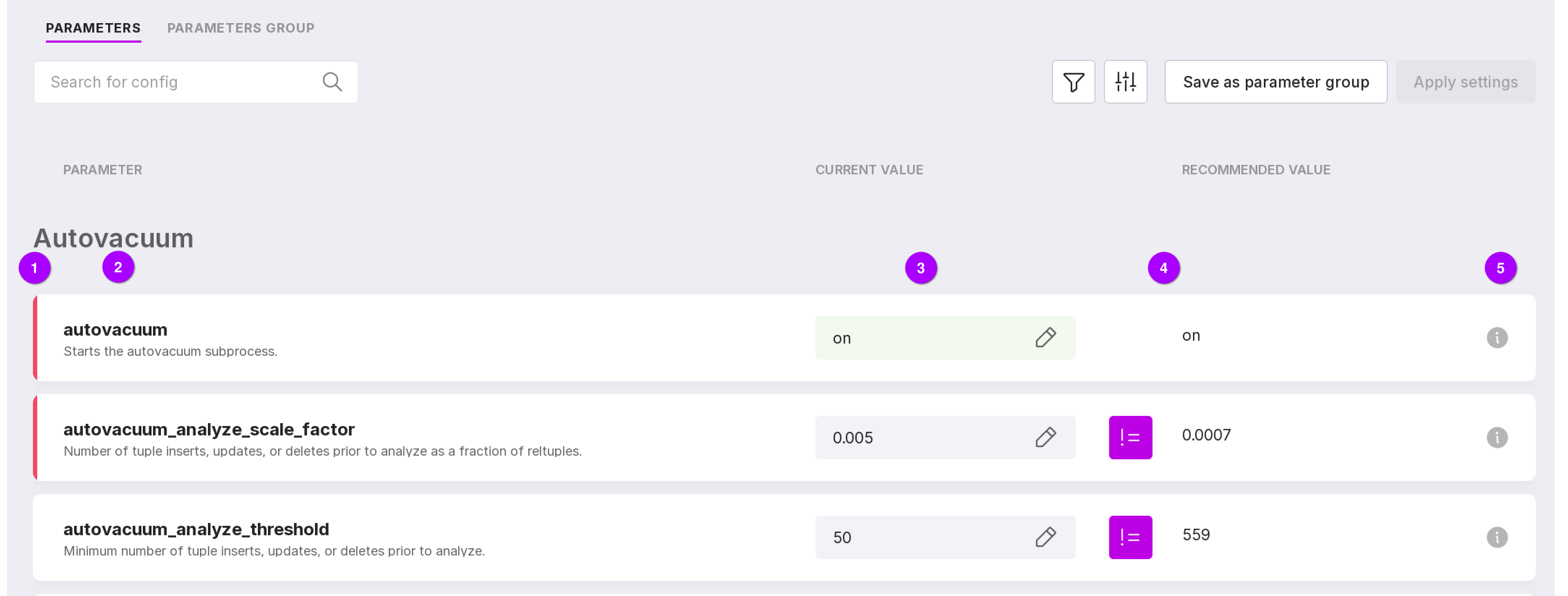
Parameters are presented in a table with the following information:
Color coding of parameters:
white — default value;
green — the parameter has been changed and is in effect;
yellow — the parameter has been changed, but a server configuration reload is required;
red — the parameter has been changed, but an instance restart is required.
The name and description of the parameters.
The current values of the parameters. If the field with the parameter value is green, it means the current value matches the recommended one. To edit values manually, click on the pencil icon.
Note
Some parameters are read-only. Such parameters do not have a pencil icon in the value window. These settings cannot be changed directly; they reflect internally defined values. Some of them can be configured by rebuilding the server with different configuration parameters or changing the parameters passed to initdb.
There are four types of parameter change windows:
Boolean type parameters have two value options: on and off.
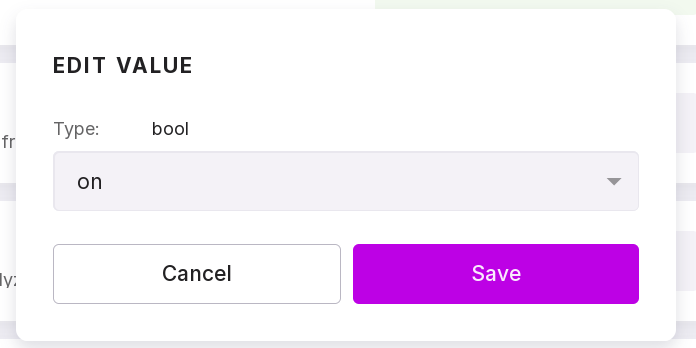
For enumeration type parameters, you can select a value from a dropdown list.
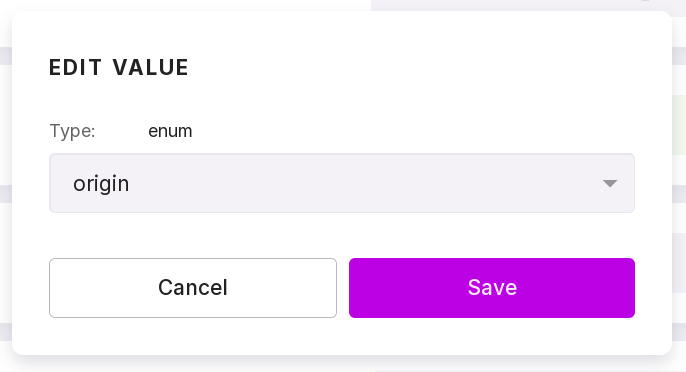
For numeric parameters, you can manually specify numbers from the allowed range.
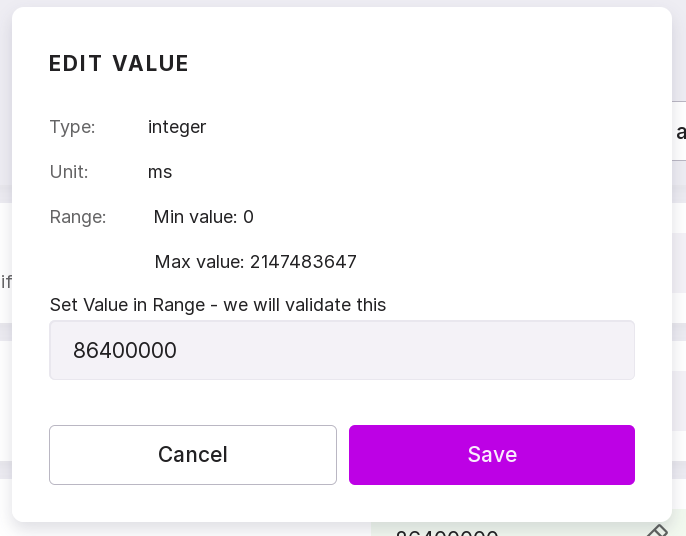
String parameters can be represented by any text value.
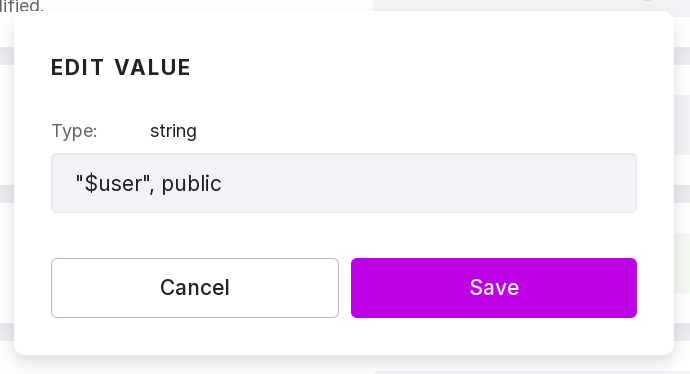
After changing each parameter, you can click “Save” to save the change or “Cancel” to discard the change.
Recommended parameter values for Postgres configuration. Recommendations are provided for 80–100 parameters, depending on the version of PostgreSQL.

The button marked with the number 1 in the figure above indicates that the current value is not equal to the recommended one. When this button is pressed, the current parameter value will change to the recommended one.
The button marked with the number 2 in the figure above indicates that the current value is equal to the recommended one. When this button is pressed, the current parameter value will change to the last manually changed value that is not equal to the recommended one.
These buttons do not make changes to the configuration file.
Parameter descriptions. To open the parameter description, click on the icon with the letter i. Below is an example:
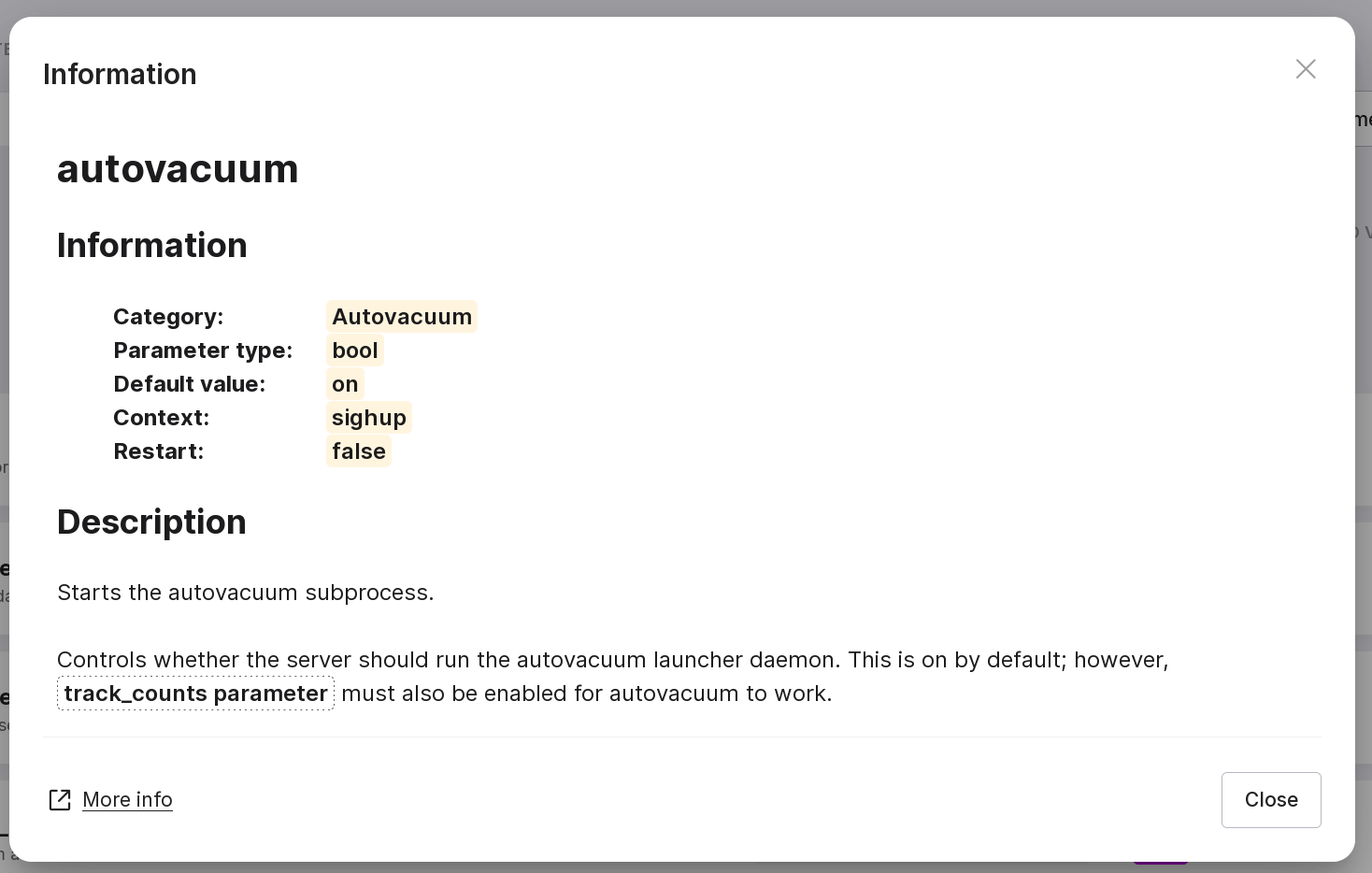
When the “Details” button is pressed, Platform knowledge base will open.
If you have changed parameter values, click “Apply settings” to save the changes. After that, a window will appear with a complete list of changes.
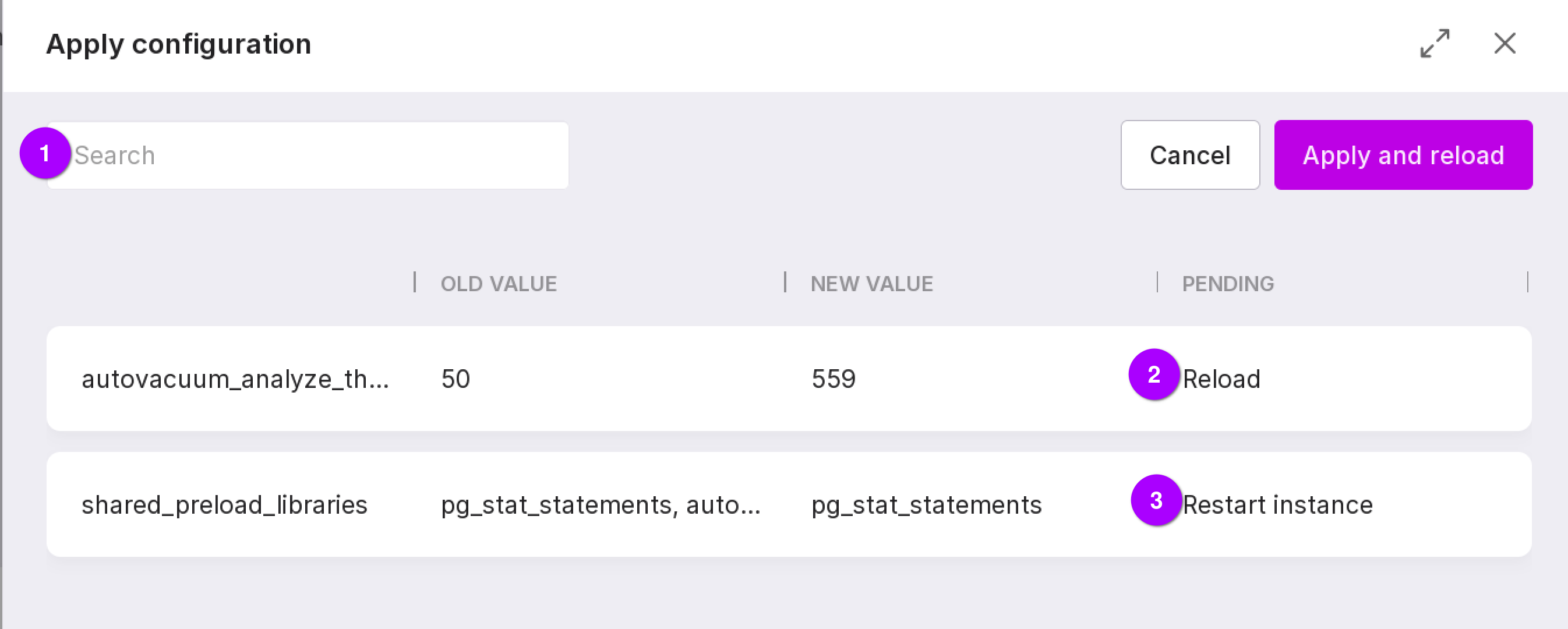
This modal window displays the following information:
Search bar that allows you to search for parameters by name.
If the value expects a re-read of the configuration file, it will be applied automatically after clicking “Apply and Reload.” In this case, no downtime is expected.
If the value expects a restart of the instance, click “Apply and Reload”, then restart Postgres using the command line.
Attention
If the instance has been synchronized with a specific group of parameters, the values of which differ from the newly set ones, a message will appear in the parameter changes window indicating that applying the changes will desynchronize the instance from the parameter group.
Filtering parameters
To open the configuration parameter filter panel, click the Filter button.
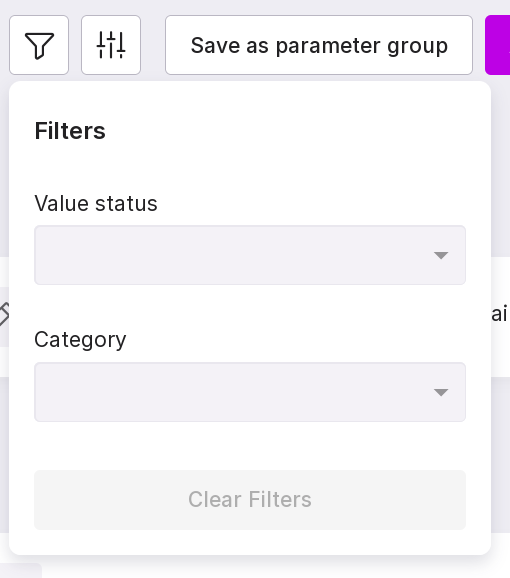
Parameters will be filtered immediately after selecting a value from the dropdown list. A red badge with the number of applied filters will appear on the Filter button.
To clear only the “Value State” or “Category,” select the value — —.
To remove all filters at once, click on “Clear Filters.”
Filtering is possible by the following parameters:
State of the set parameter value:
“Has recommended value” — displays parameters for which there is a recommendation from PGconfigurator.
Note
The PGconfigurator tool is a configurator for critical performance parameters of PostgreSQL. It simplifies the process of creating a configuration file according to the system parameters and load profile for the monitored database instance.
The tool is available on the awide.tech website in the Resources → Tools section → PGconfigurator.
“Differs from the recommended” — displays parameters for which there is a recommendation from PGconfigurator and the current value differs from the recommendation.
“Default” — displays parameters that match the default settings of the monitored database.
Note
The default setting of the parameter is determined using the boot_val parameter of the system view pg_settings.
This parameter value is assigned when the server starts if the parameter is not specified otherwise.
“Changed values” — displays parameters that do not match the default settings of the monitored database and do not require a reload or restart.
“Changes pending reload” — displays parameters that require a reload of the configuration of the monitored database.
The filter is useful in cases where, after manually changing configuration files, using the
ALTER SYSTEMcommand, or by other means, the server may need to reload parameters for them to take effect.Note
After clicking the “Apply settings” button, a reload is not required, as pmaagent will execute the command to apply the new settings
SELECT pg_reload_conf();by itself.“Changes pending restart” — displays parameters that require a restart of the monitored database.
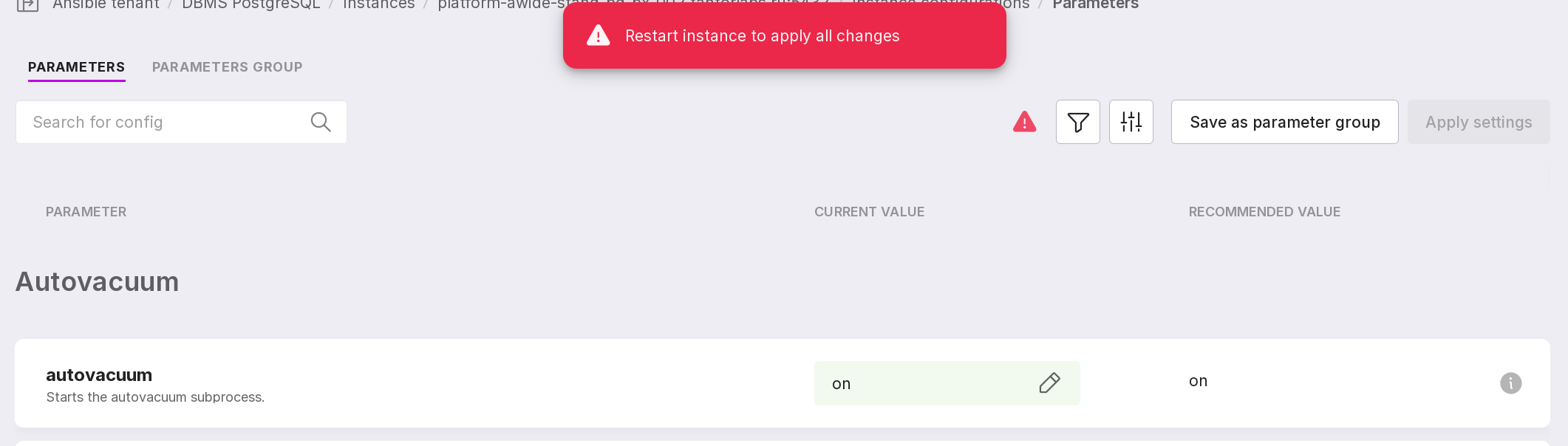
An icon of a red triangle will appear on the page if at least one changed parameter requires a restart of the database instance to take effect.
Important
Awide does not restart the monitored database — the database shall be restarted manually.
“Not applied” — displays parameters that have been changed by the user in the configuration section interface but have not yet been applied or saved. To apply the parameters, click “Apply settings”.
Category of parameters. For example: “Auto-cleaning”, “Default client connection parameters”, etc.
Saving the configuration as a group of parameters
To be able to apply the settings of the current database instance to other instances, click “Save as parameter group”.
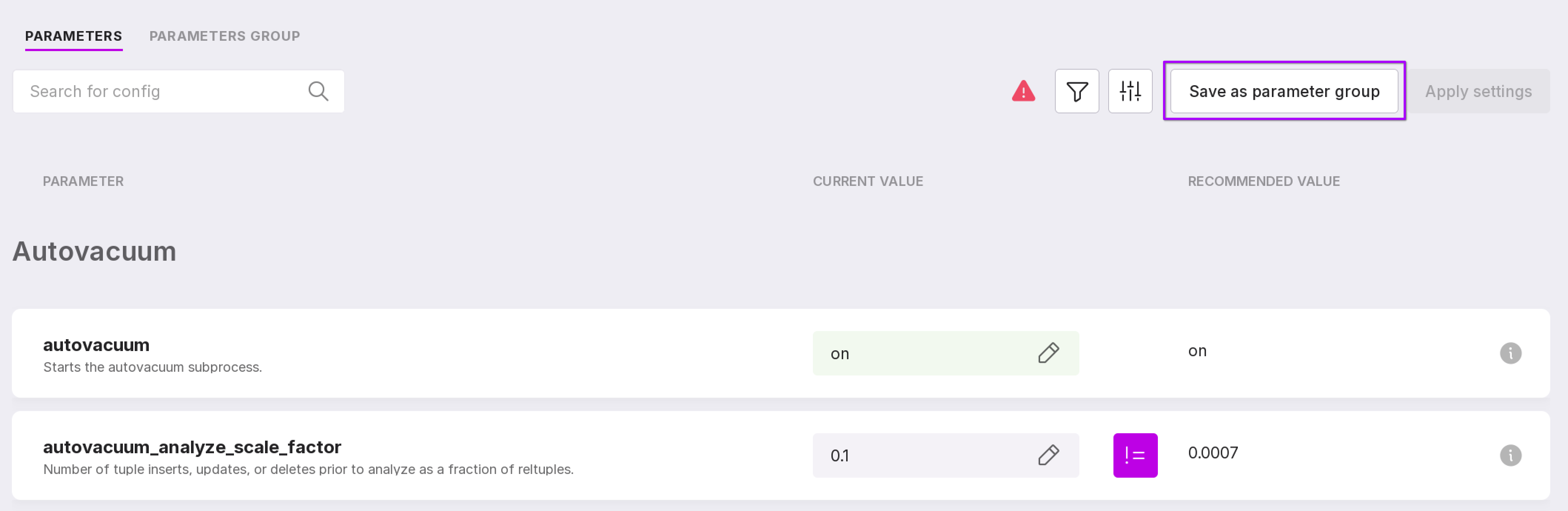
A modal window for creating a group of parameters will open.
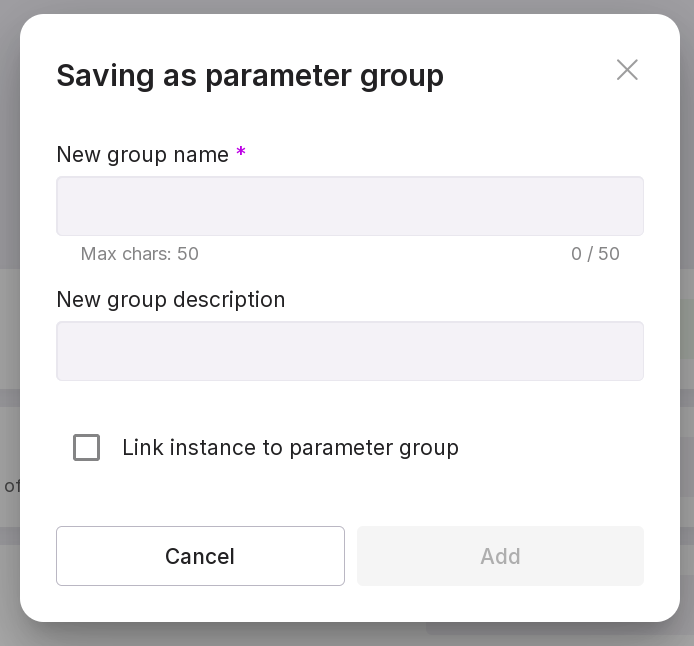
Type in name of the new group of parameters.
Type in description of the new group of parameters.
Check the box “Link instance to parameter group” to link the new group to the instance.
Note
If link instance to parameter group is checked, the database instance will be able to track differences in parameter values with the linked Parameter group.
On the “Parameter Group” tab of the instance, there will be an option to synchronize the current configuration with the configuration of the linked Parameter Group.
Click “Save”.
Instance settings
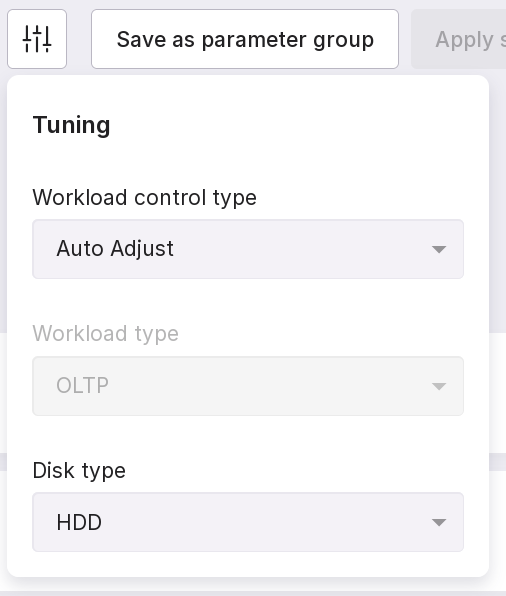
Using the settings menu, you can set:
Workload control type:
Automatic tuning — The platform automatically selects the load profile of the monitored database. The currently automatically selected profile is indicated in the “Workload Type” selector and is not available for modification.
Manual tuning — allows you to manually specify a specific load profile for a specific database instance using the “Workload Type” selector. For example, for the 1C database, the most effective profile may be the “ERP1C” profile.
Workload type:
OLAP — Online analytical processing — a load profile typical for analytical systems. Allows executing one-time, but very complex queries using a large number of rows from different schemas and tables of the database.
OLTP — Online transaction processing — a load profile typical for most applications. Allows executing a large number of transactions in real-time for a greater number of users.
Mixed — suitable for databases with mixed load.
ERP1C — suitable for working with 1C databases.
Disk type:
SSD (“Solid State Drive”),
HDD (“Hard Disk Drive”),
Network storage (“Network storage”).
The “Parameter Group” tab
Instance parameter groups are part of the “Parameter Groups” tool of Awide.
The operation of the “Parameter Groups” tool and the tab “Instance Parameter Group” is described in more detail on the “Parameter Groups” page.