List of instances
The “Instances” page contains a list of PostgreSQL instances. This section contains descriptions of the working elements of the page.
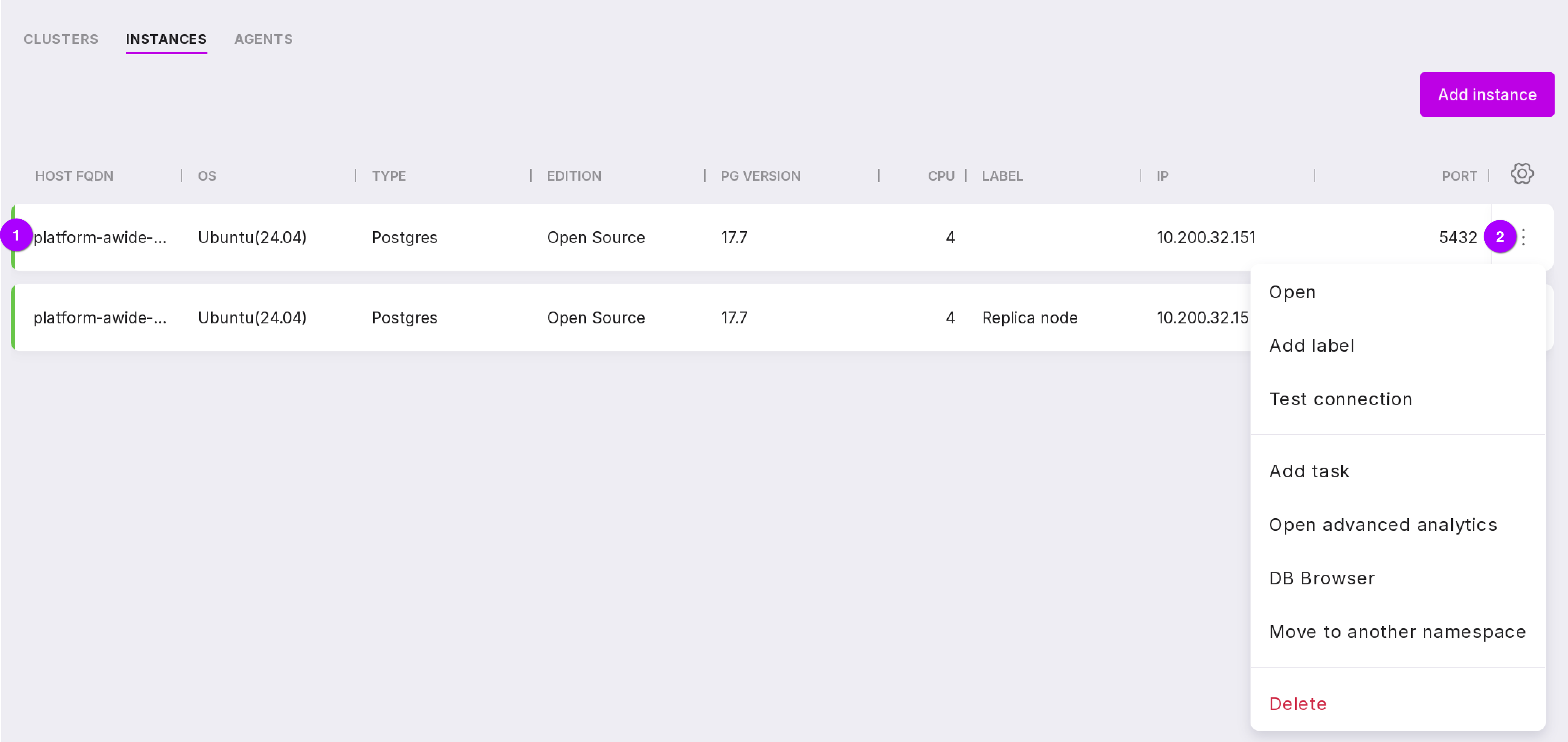
Instance state color indicator:
red line — the instance has a problem alert;
yellow line — the instance has a warning alert;
green line — the instance has no alerts.
The icon with three dots opens the instance menu. The number of options in the instance menu depends on the presence of a cluster in the instance and the user’s access level:
If the instance is part of the Patroni cluster, then the System Administrator and User with namespace administration rights will have the following options in the instance menu:
“Open” — opens the “Instance Overview” page.
“Add Label” — allows you to add a label or description to the instance to identify it. For example, “Primary” or “To be deleted”.
“Edit Label” — allows you to edit the added label or description.
“Test Connection” — allows you to check if Platform can connect to your instance. If there are connection issues, a window will open with a description of the problem.
“Add Task” — adds a new task related to the instance.
“Open Advanced Analytics” — opens the log analysis module.
“DB Browser” opens a connection window to the database. Detailed information can be found here DB Browser. This module is available under an additional license.
“Reload” — restarts the instance without fully stopping it.
“Reinitialize” — allows you to reinitialize the instance.
“Restart” completely stops and restarts all components of the instance.
“Delete” removes the instance.
If the instance is not part of the Patroni cluster, the menu for the System Administrator and User with namespace administration rights will not have the options “Restart”, “Reinitialize”, and “Reload”, but will add the option “Move to another namespace”, allowing the instance to be moved to another namespace.
For the User with view-only rights, the instance menu will always have two options — “Open” and “Open Advanced Analytics”.
Adding labels to the instance
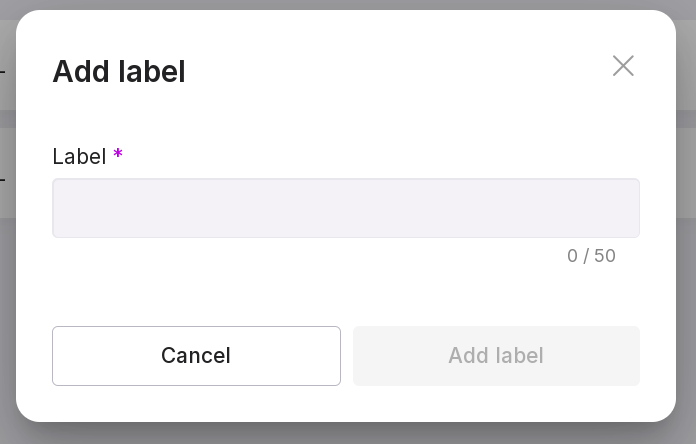
To add a tag, select “Add Label” in the instance menu. In the opened window, enter a label in the text field that uniquely identifies the instance. Then click “Add Label”.
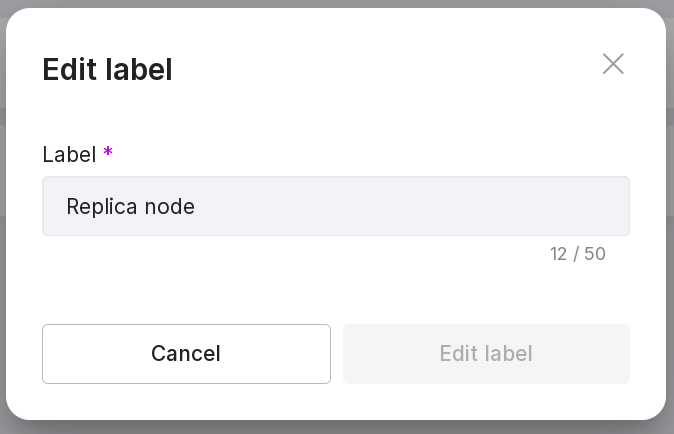
To edit the added label, select “Edit label” in the instance menu. In the opened window, change the text in the text field and click “Edit label”.
Deleting the instance
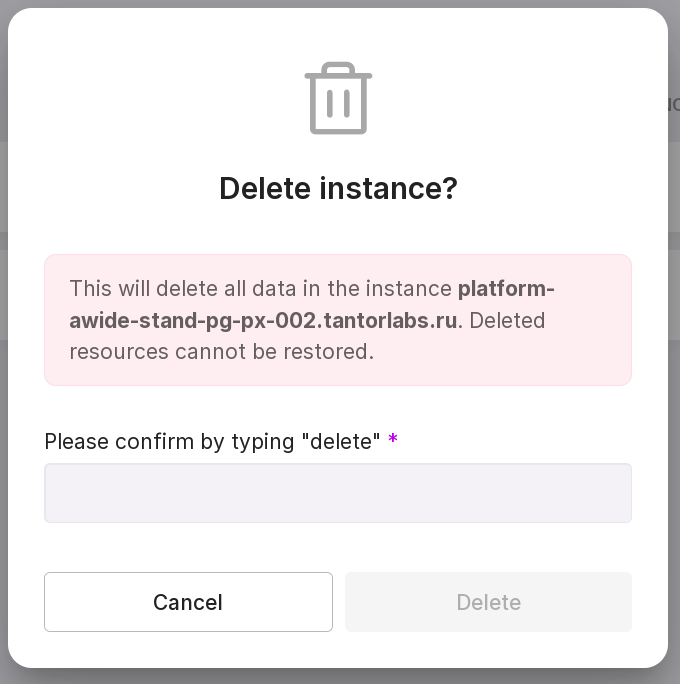
To delete the instance, select the “Delete” menu item. In the opened window, type in “delete” in the text field and click “Delete”.
Ttesting the connection
The “Test Connection” option will help test the connection between the installed Agent and Platform.
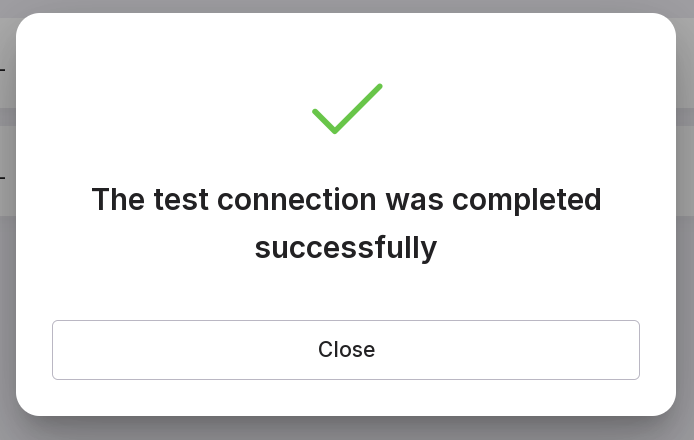
If a “Warning” window appears, check if PostgreSQL is running. If a window with the message “Successful connection” opens, it means the connection between Agent and Platform is working.
If there is a problem with the credentials, a window will appear asking to update the credentials.
To update the credentials:
enter a valid database name in PostgreSQL;
enter the username with superuser rights. If you haven’t changed anything in Agent’s configuration, use the default username created during installation;
enter the password for the specified user;
click “Test Connection”.
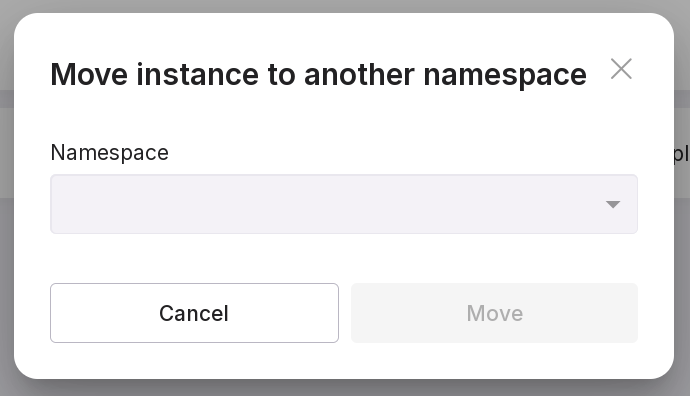
Moving the instance to another namespace
To move the instance, select “Move to another namespace.” In the opened window, select the name of the namespace from the available ones in the tenant from the dropdown list and click “Move”.