Maintenance
Note
The maintenance page is available for primary and standalone PostgreSQL instances and is not available for Hot Standby instances.
To open this page, click on “Maintenance” in the left menu panel for instances.
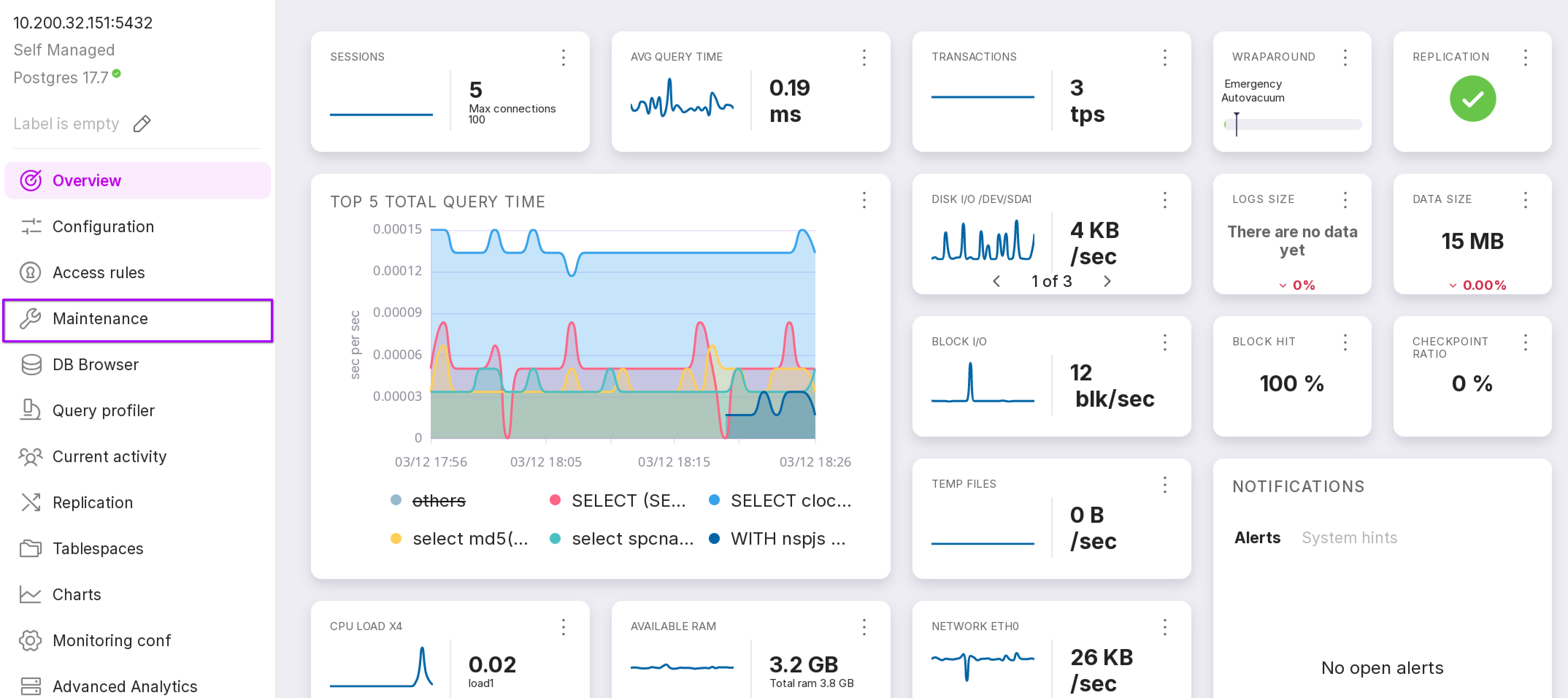
The “Maintenance” tab
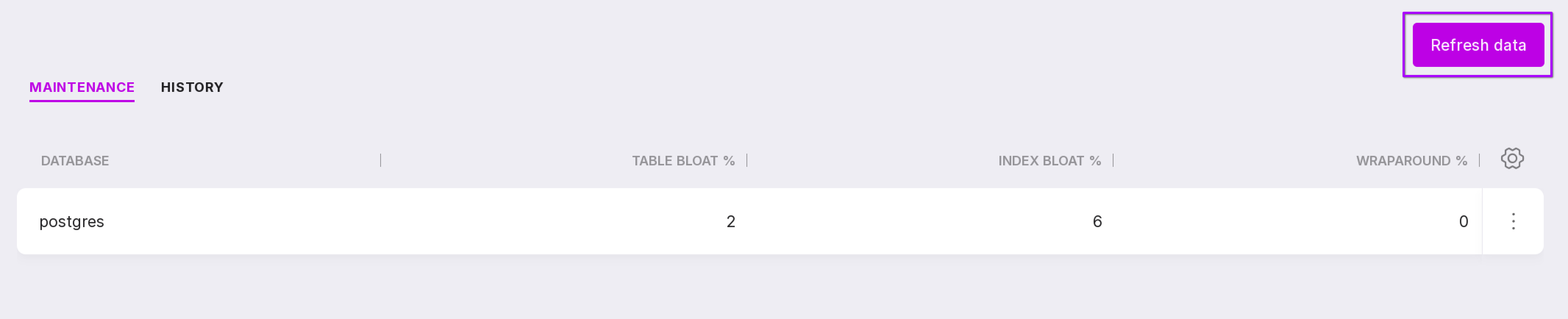
When navigating to the page, the “Maintenance” tab opens by default with maintenance options. To display database information, click “Collect Data”.

The “Refresh Data” button can be used to load the most recent column values.
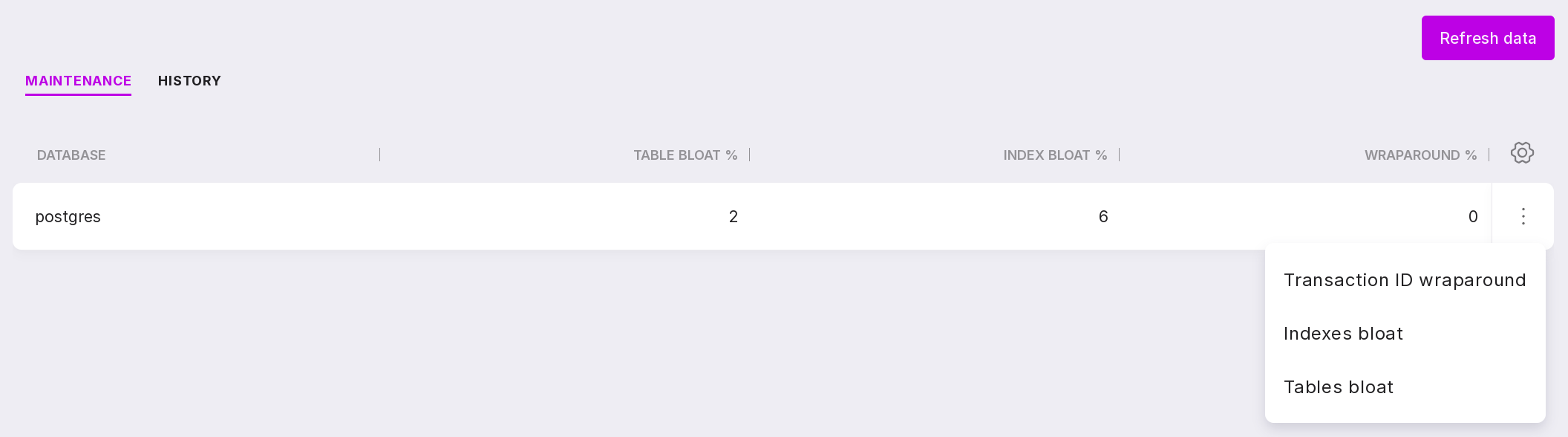
After collecting data, a list of databases and the percentage of Tables Bloat, index bloat, and wraparound will be displayed. In the database menu, there are three options:
Transaction ID wraparound,
Index bloat,
Tables Bloat.
The “History” tab
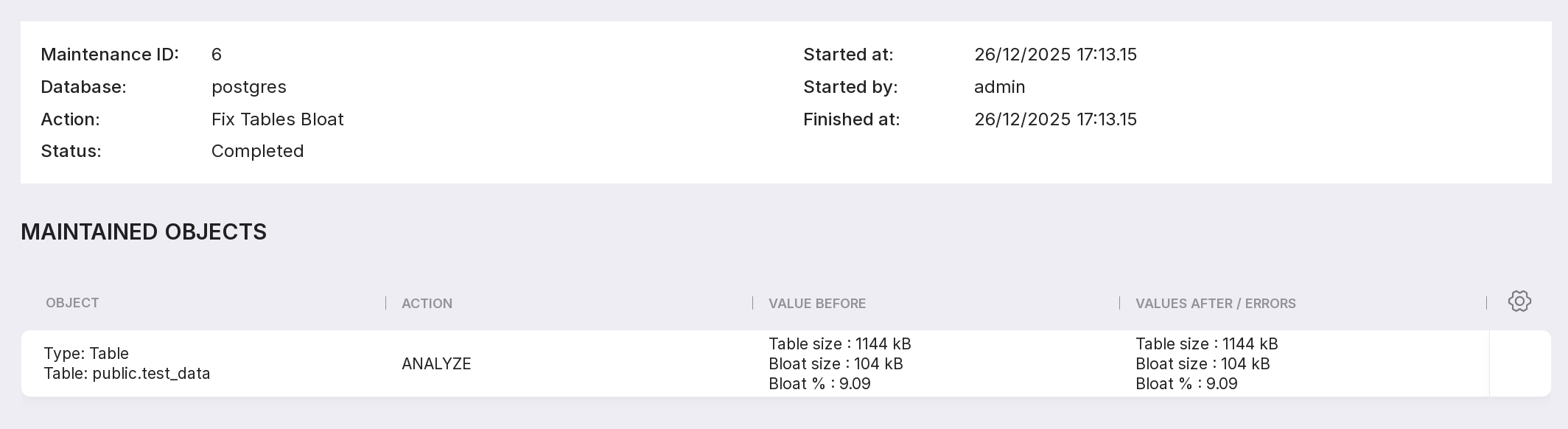
The “History” tab contains the maintenance history — a list of past maintenances. To open a detailed overview of a specific maintenance, select “Open” from the menu.

The detailed overview displays information on the maintenance and the maintained object.
Transaction ID wraparound
The “Wraparound Stats” page presents a list of tables in the selected database.
To normalize the wraparound for a specific table, check the checkbox next to it. You can select multiple tables at once. To select all tables, check the box in the top checkbox.
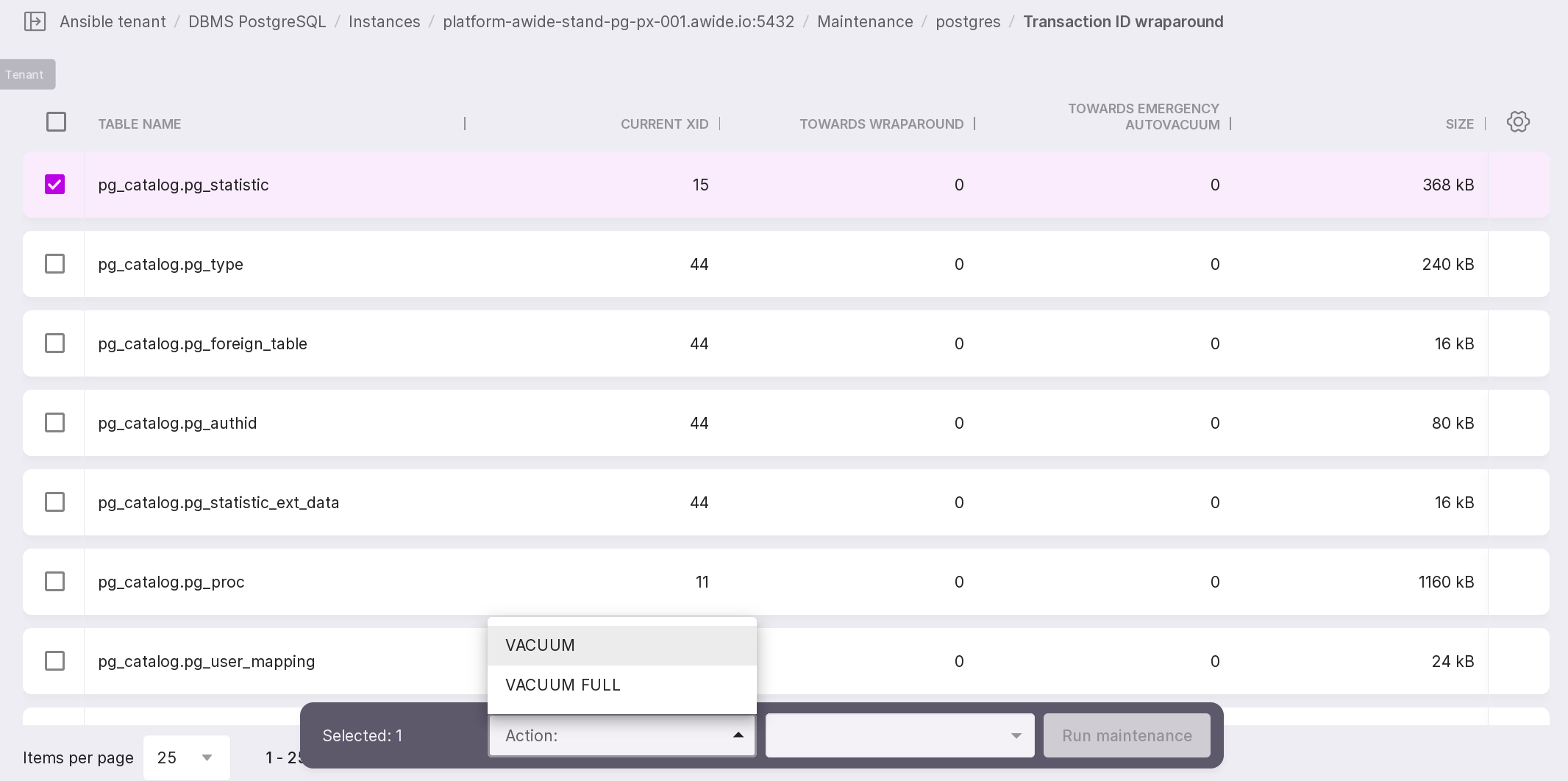
After selecting a table, a window will appear with the following actions:
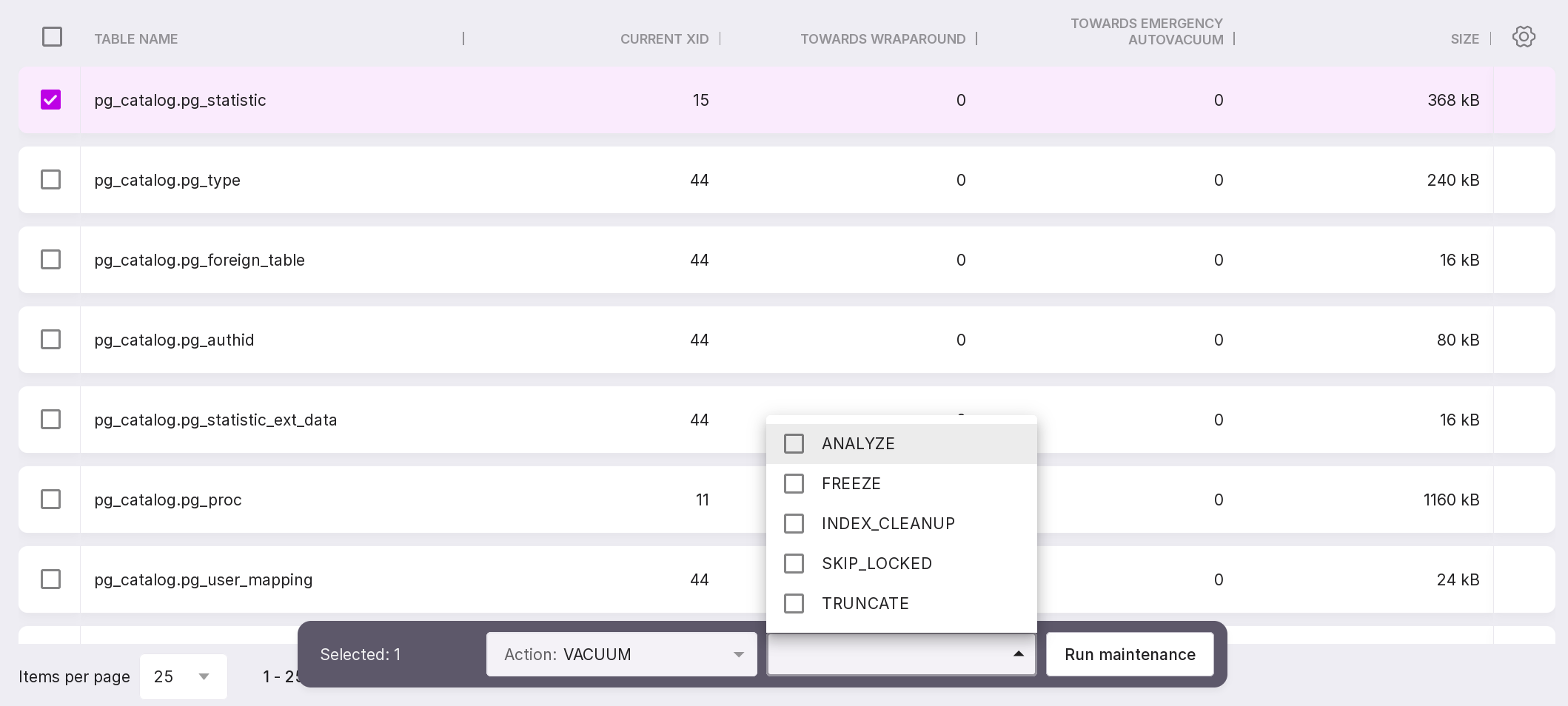
VACUUM — can be executed with the following parameters:
ANALYZE,
FREEZE,
INDEX_CLEANUP,
SKIP_LOCKED,
TRUNCATE.
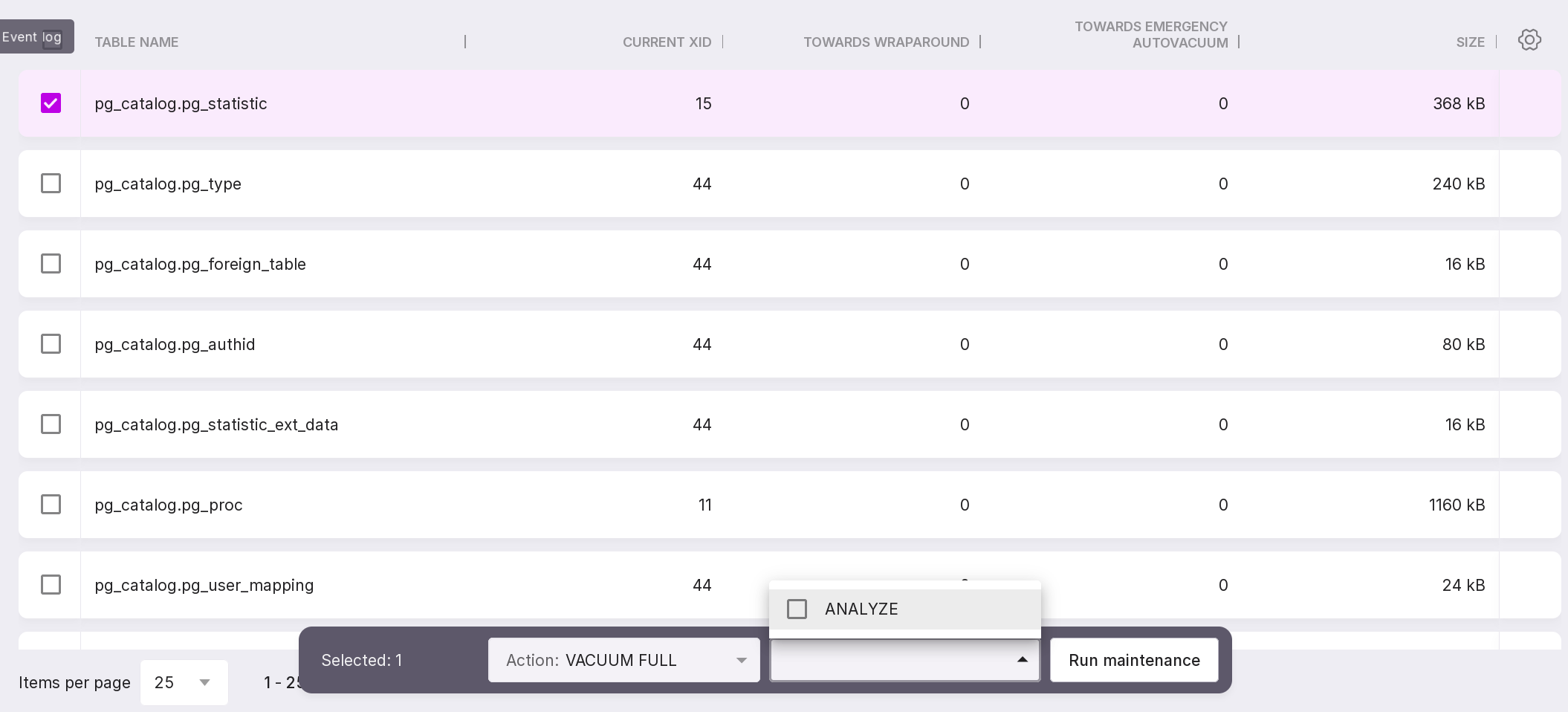
VACUUM FULL — can only be executed with the ANALYZE parameter.
After selecting all necessary options, a button “Run maintenance” will be activated, which can be used to start maintenance according to the selected actions and parameters.
Indexes Bloat
The list of indexes in the selected database, sorted by bloat size, is presented on the “Index Bloat” page.
To maintain a specific index, check the box next to the selected index. You can select multiple indexes at once. To select all indexes, check the box in the top checkbox.
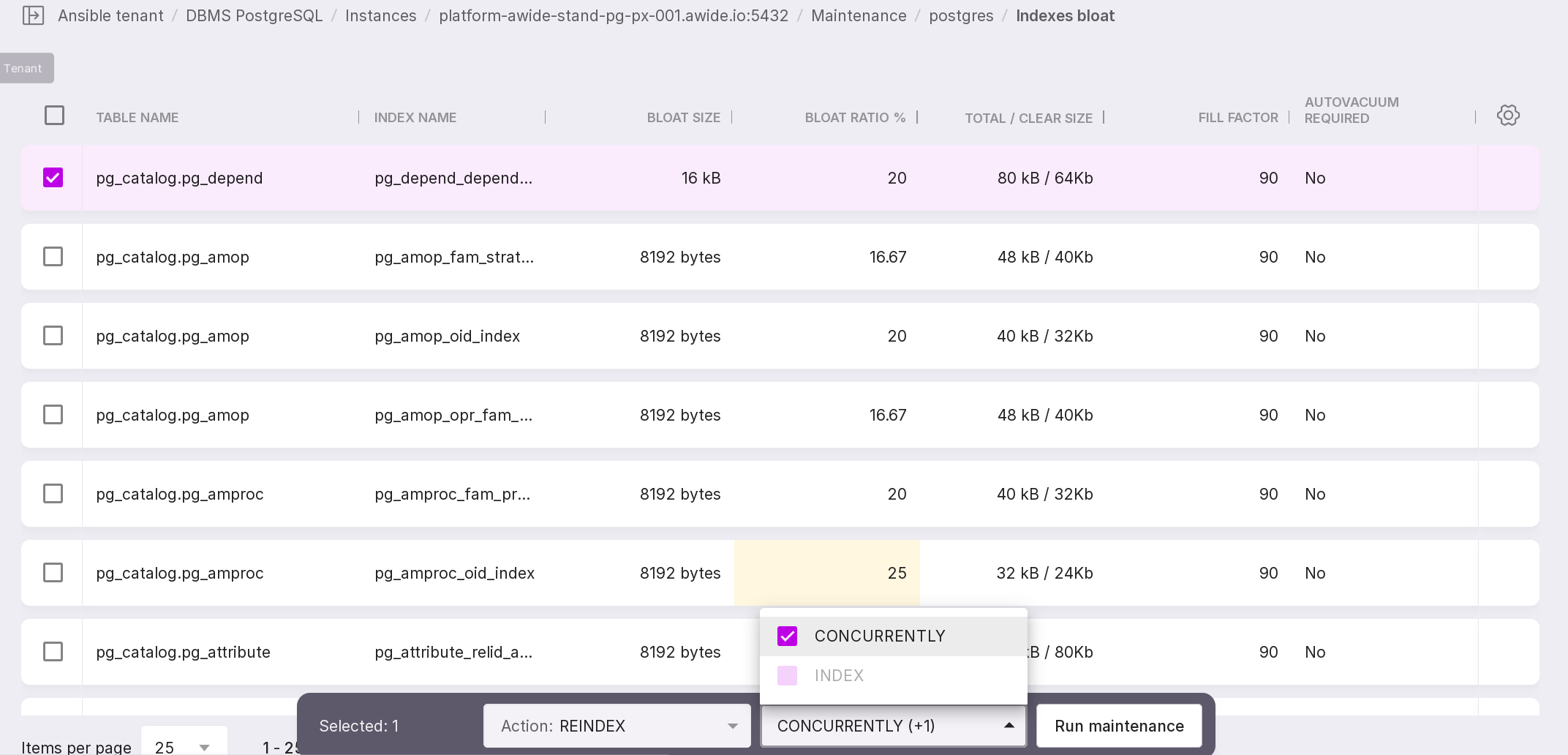
After selecting an index, in the appearing window, select the action “REINDEX” <https://www.postgresql.org/docs/current/sql-reindex.html>. After that, select the execution parameters “INDEX” or “CONCURRENTLY” and click “Run Maintenance”.
Tables Bloat
The “Tables Bloat” page presents a list of tables in the selected database.
To maintain a specific table, check the box next to it. You can select multiple tables at once. To select all tables, check the box in the top checkbox.
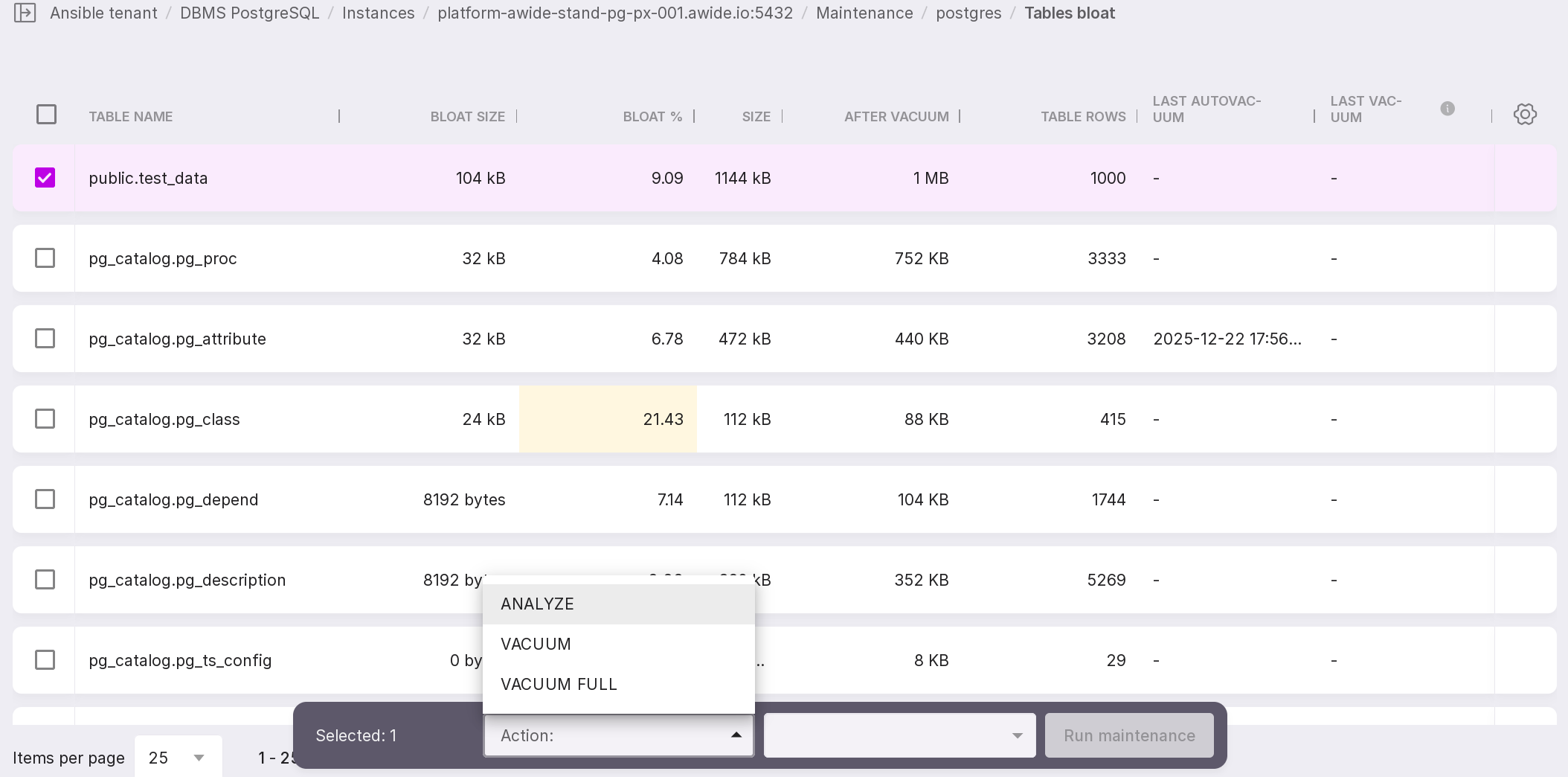
After selecting a table, a window will appear with the following actions:
ANALYZE — can only be executed with the SKIP_LOCKED parameter.
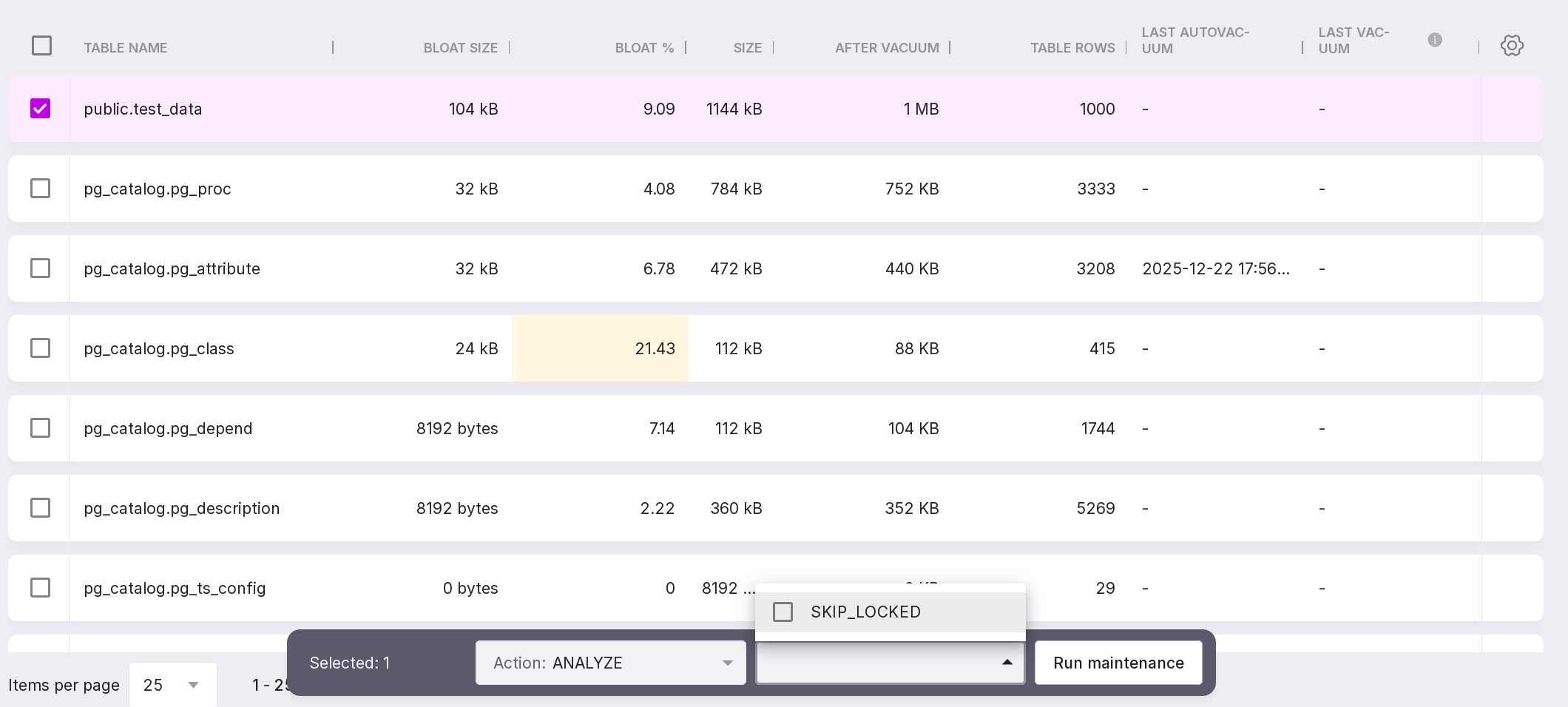
VACUUM — can be executed with the following parameters:
ANALYZE,
DISABLE_PAGE_SKIPPING,
FREEZE,
INDEX_CLEANUP,
SKIP_LOCKED,
TRUNCATE.
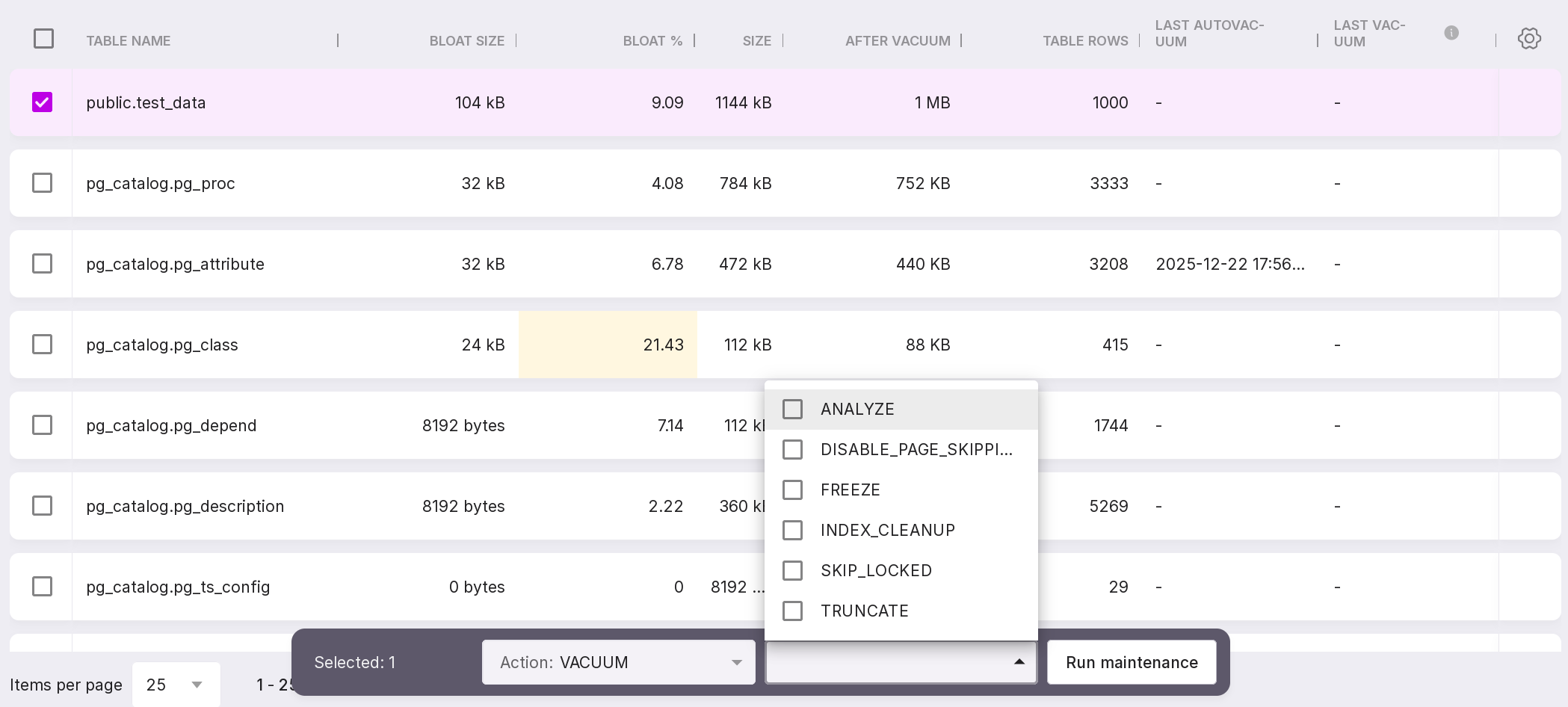
VACUUM FULL — can only be executed with the ANALYZE parameter.
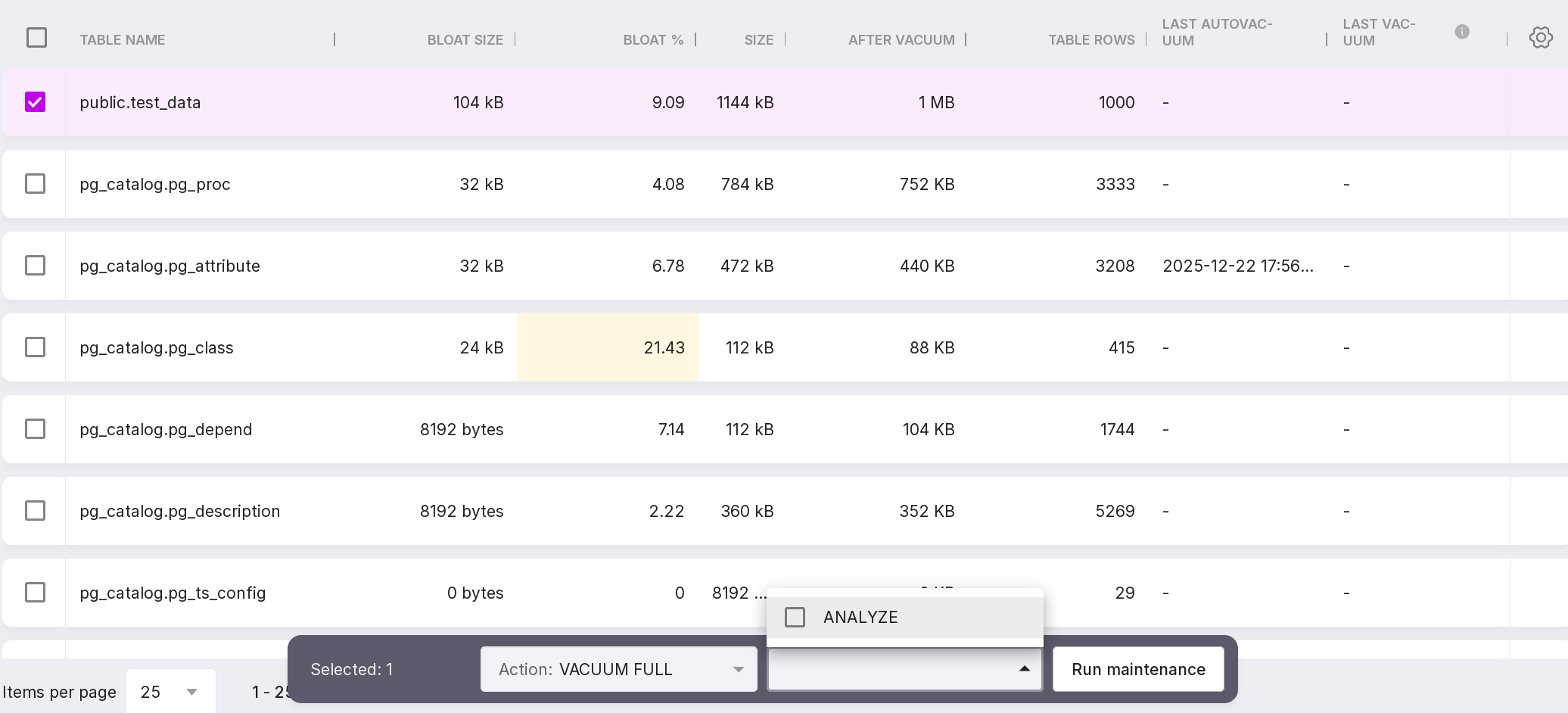
After selecting all necessary options, a button “Run Maintenance” will be activated, which can be used to start maintenance according to the selected actions and parameters.
Running maintenance
When clicking the “Run Maintenance” button, a modal window will appear on the screen to confirm the start of maintenance.
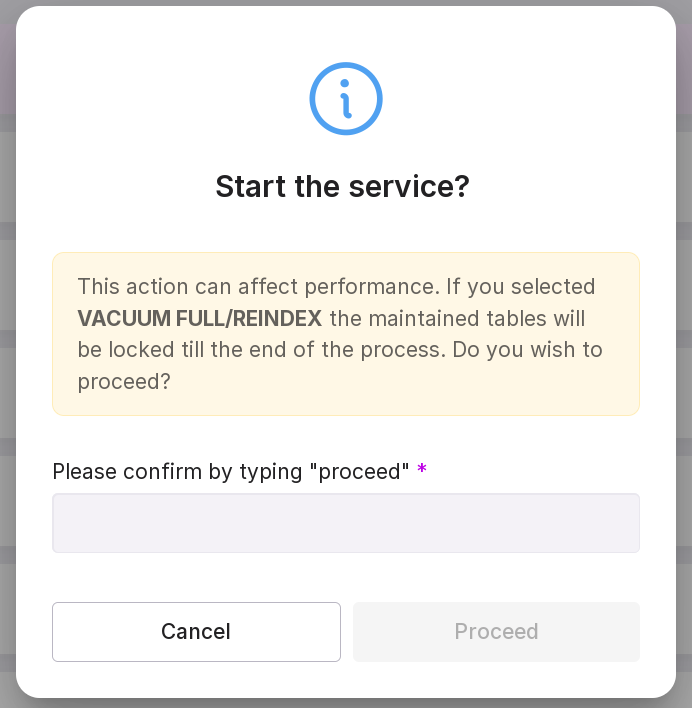
In the text field of the window, type in “Proceed” and click “Proceed”.
Warning
While maintenance is in progress, you cannot start the process with other actions and parameters.
The results can be seen in the “History” tab after the service is completed.