Replication
To open this page, click “Replication” in the left menu panel of the instance.
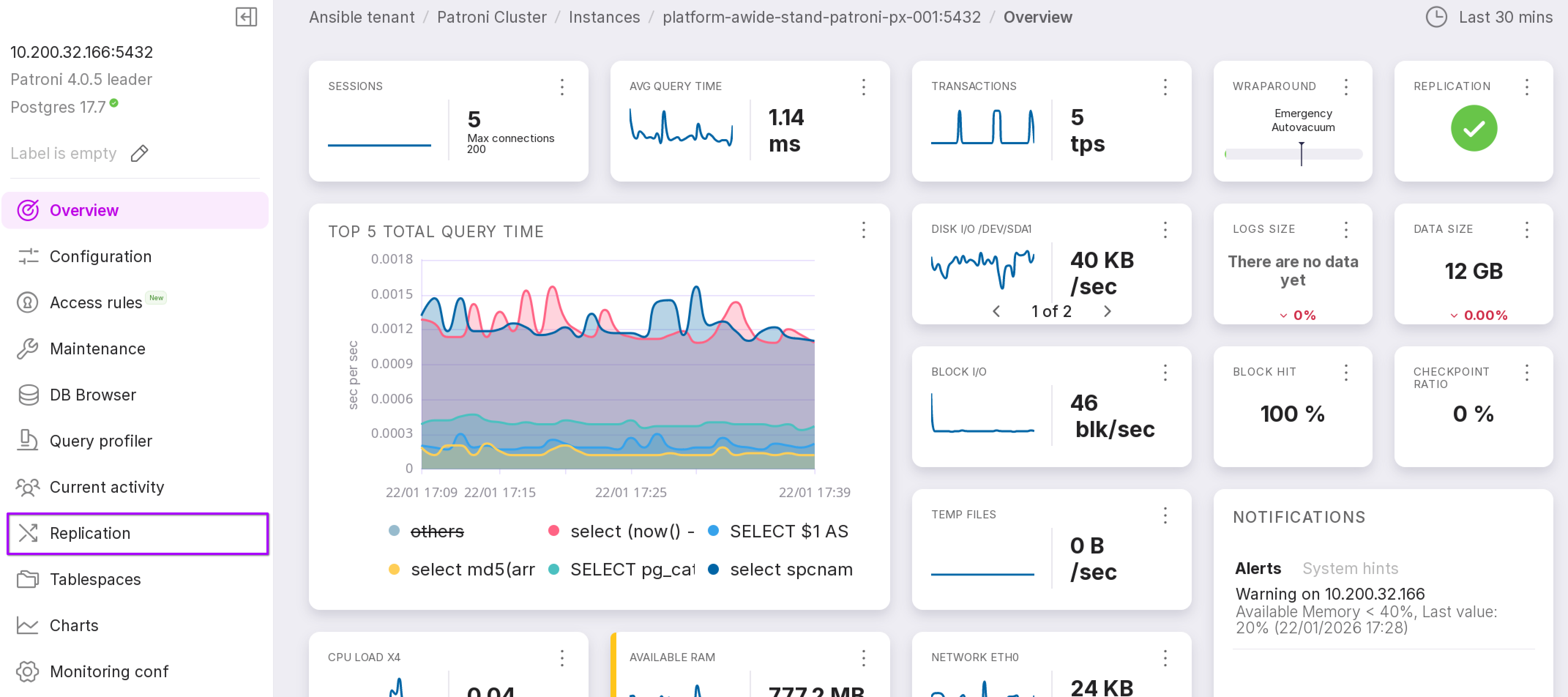
Leader server
The “Replication” page of the primary server contains two tabs: “Standby” and “Slots”.
The “Standby” tab
The “Standby” tab presents a table with a list of replicas and information on them.
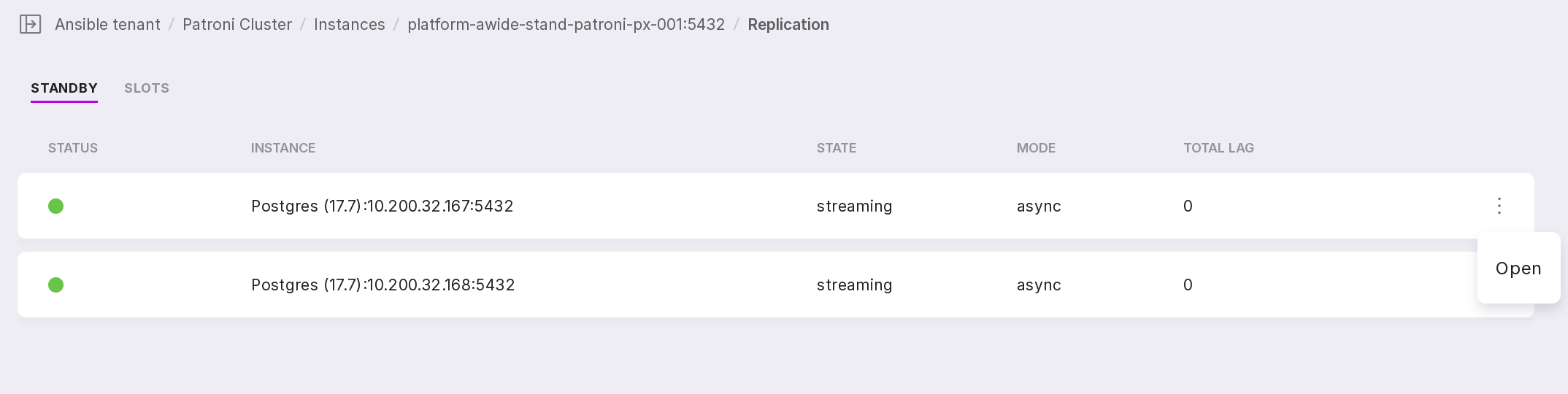
The first column displays the status of the replica:
green color — the replica is active;
gray color — the replica is inactive.
To see more information, click on the row or the “Open” button in the replica menu. The opened page presents detailed information on the replication server.
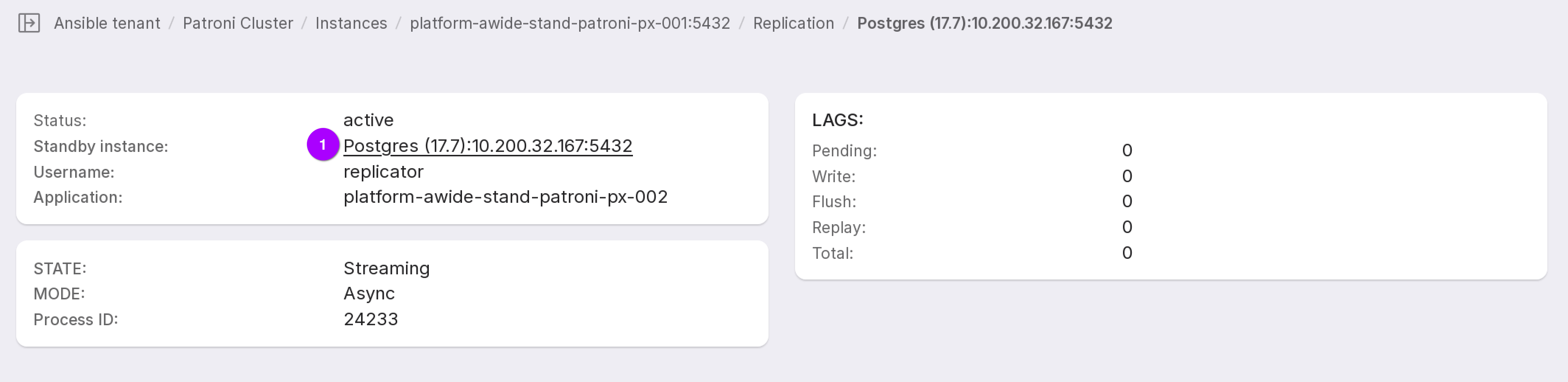
To go to the overview page of this replica, click on the address of the standby instance (number 1 in the figure above).
The “Slots” tab
The “Slots” tab presents a table with a list of slots of the primary server and information on them.
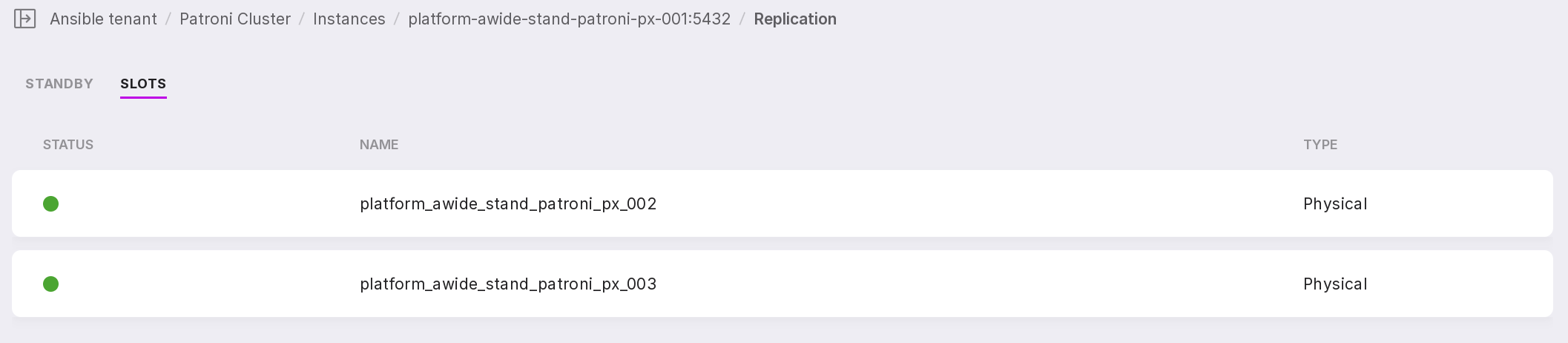
The first column displays the state of the slot:
green color — the slot is active;
gray color — the slot is inactive.
Replica server
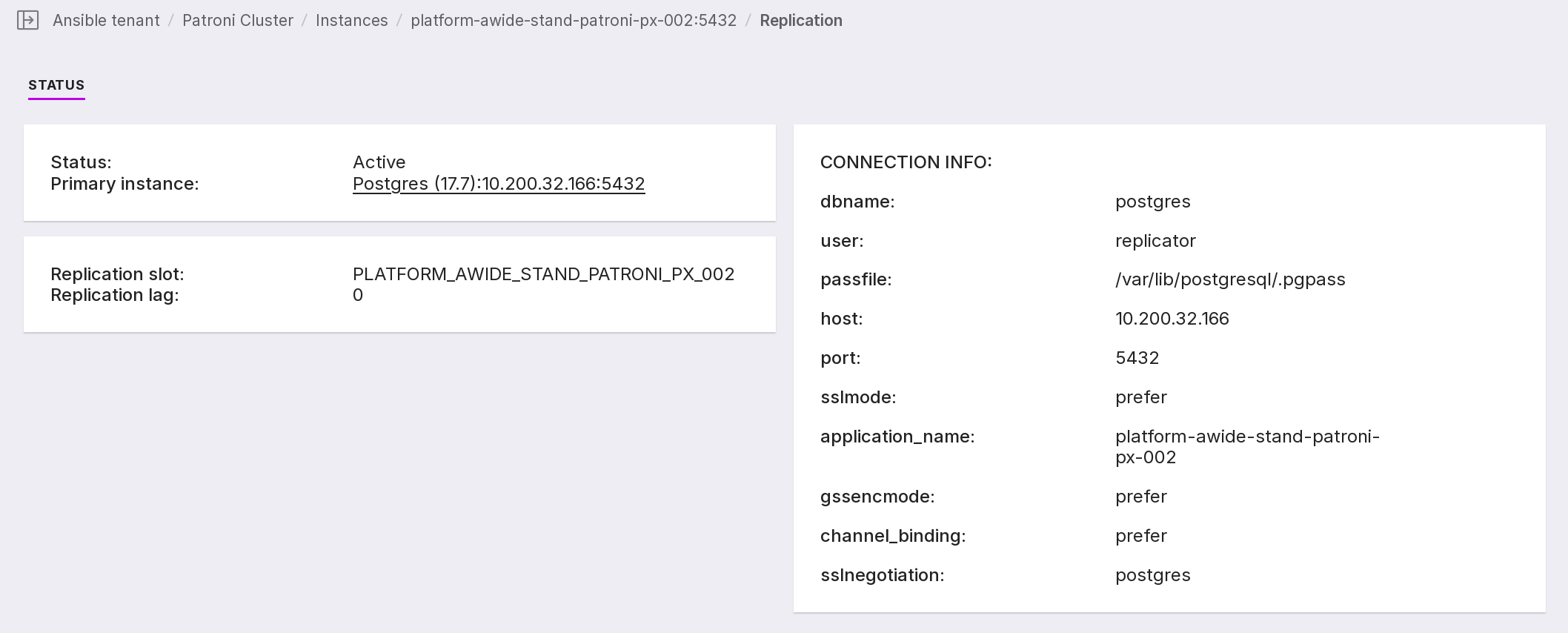
The “Replication” page of the replica contains information on the replica server and the replication state. To go to the leader overview page, click on the leader address (number 1 in the picture below).