Adding a new local user group
To add a new local user group:
On the user group management page, click “Add Local Group”. As a result, a window will appear for entering data for a new group:
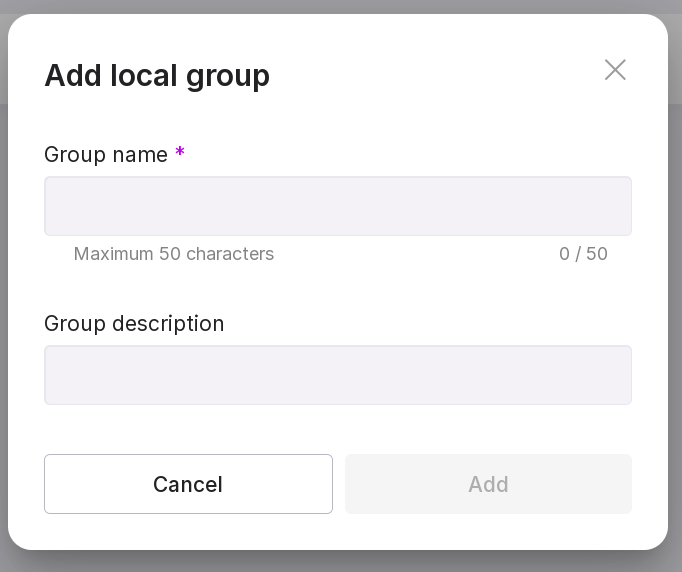
Specify the name of the new user group. This will simplify further identification of the group.
Add a description if necessary.
Note
The name and description of a user group can be changed on the group page.
Click “Add”. As a result, a new group of users will be added to Platform system. A row with information on the new group will appear in the table on the group management page.