Beginning of work
To start working with Platform, perform the following actions:
create Tenant,
create a workspace,
add a user account and grant permission to work with the namespace,
set up integration with notification channels and add rules for sending messages via the selected channel.
Platform Control Panel
The sidebar provides a set of options for navigating Platform and managing the display of information.
This section describes these options as numbered in the figure below:
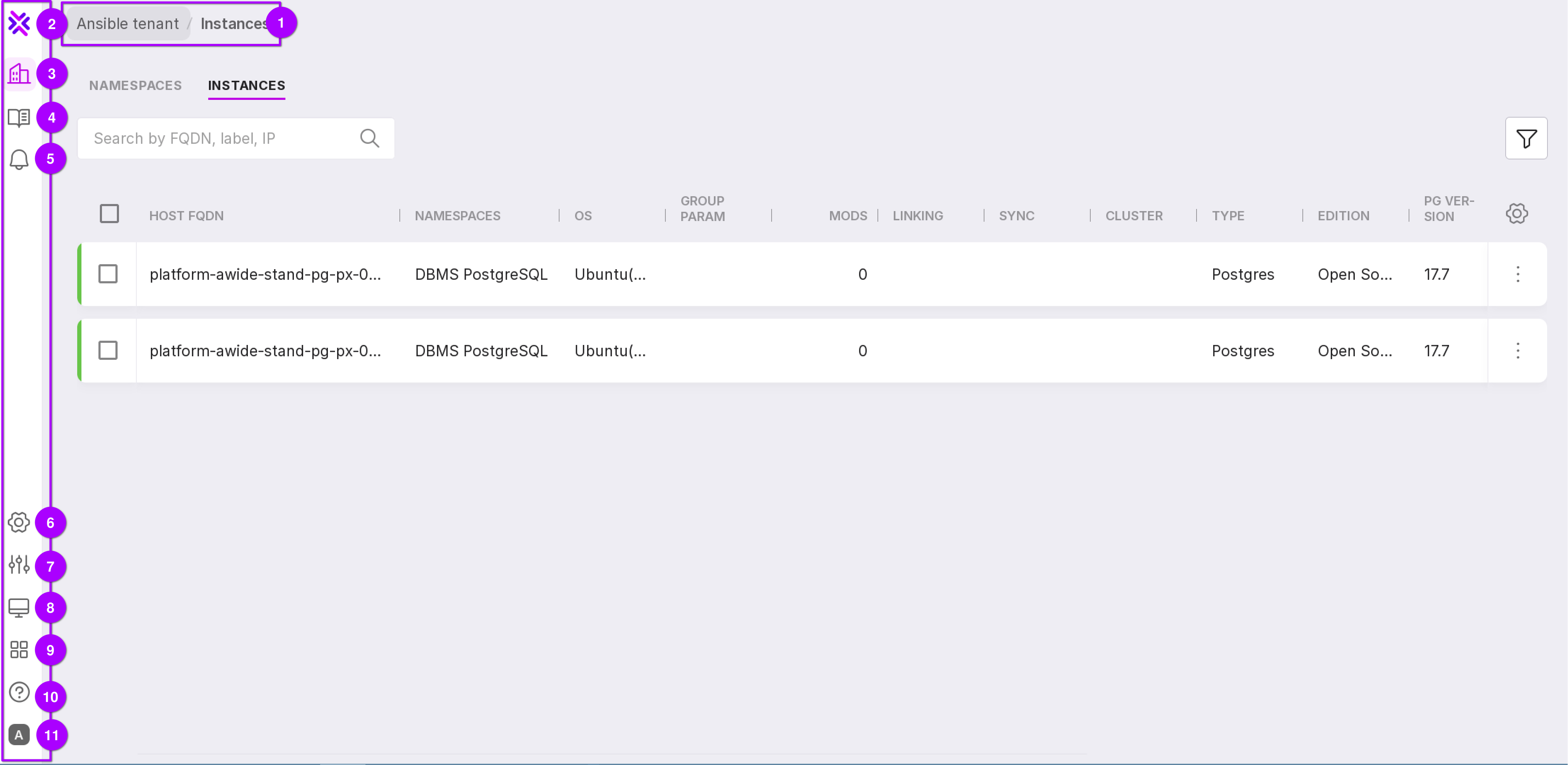
The navigation chain will help you return to the page or change the namespace. At the beginning of the navigation chain you see the name of the tenant you are in. Next in the navigation chain are the names of the sections you are in.
Button to go to the list of tenants.
Button to go to the tenant’s namespaces.
Event log — opens a page with logs of events related to this tenant.
Alerts — opens the “Alerts” window with the following options:
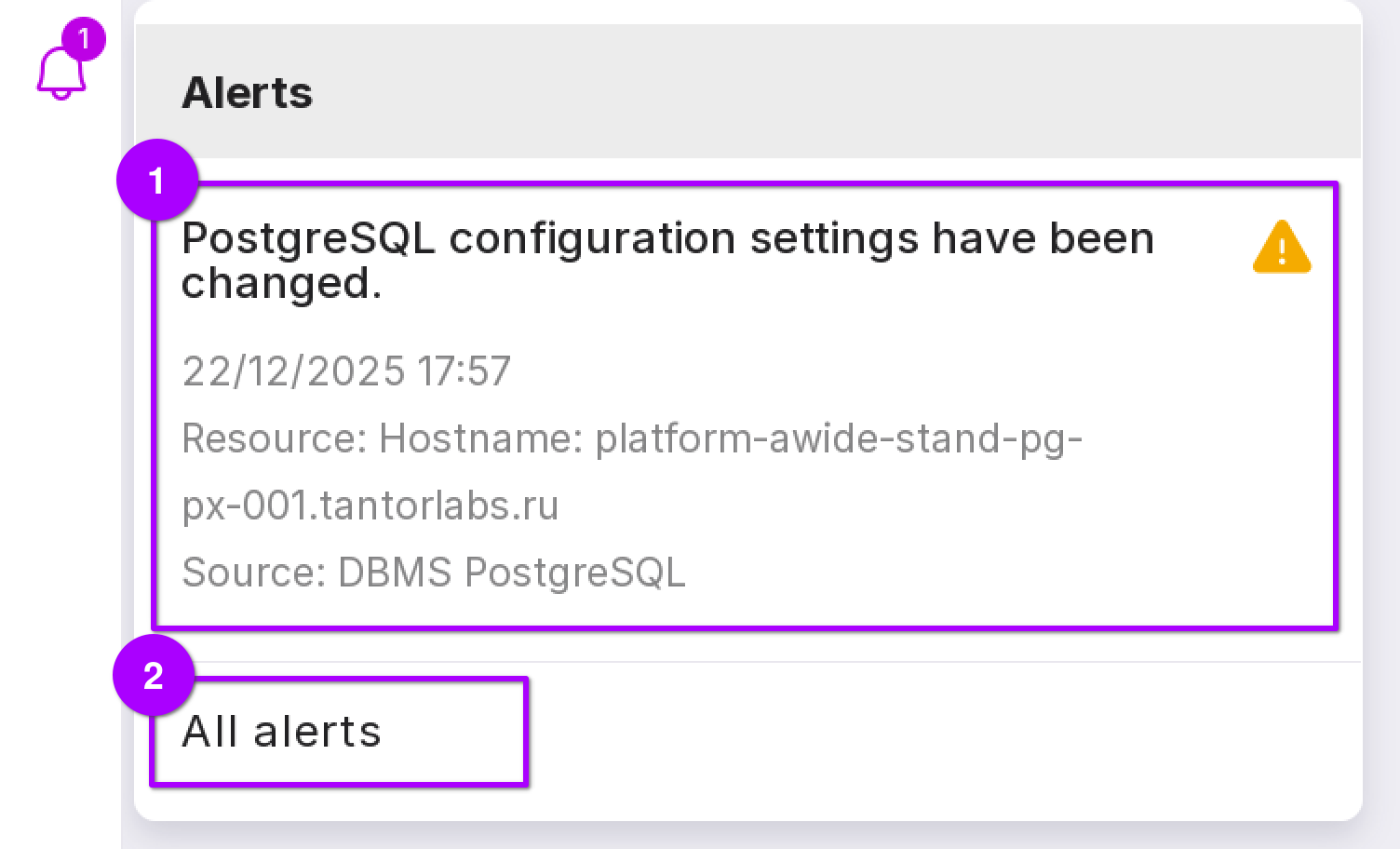
Clicking on an alert opens a page with the specific alert (number 1 in the figure above);
Clicking on the “All alerts” button will open the “Alerts” page with a list of all alerts related to this tenant (number 2 in the figure above).
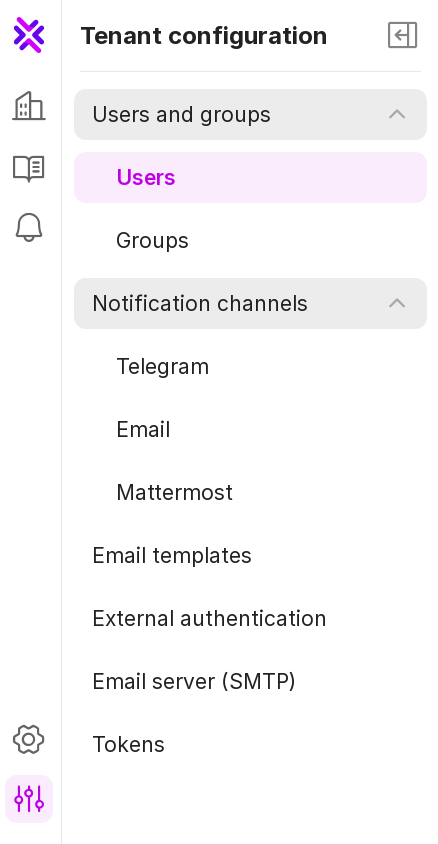
Tenant configuration — opens a panel with the following options:
Users and Groups — opens the user management page and the user groups management page.
Notification channels — opens the list of notification channels:
Telegram — opens the page with the list of Telegram channels;
Email — opens the page with the list of email channels;
Mattermost — opens the page with the list of Mattermost channels.
Email templates — opens the page for configuring the content of notifications.
External authentication — opens the page for configuring Active Directory integration.
Mail server (SMTP) — opens the page for configuring the connection to the mail server (SMTP).
Tokens — opens the list of added tokens.
Theme — allows you to select one of Platform’s themes:
light;
dark;
system — automatically changes Platform’s theme to light or dark depending on the theme on your PC.
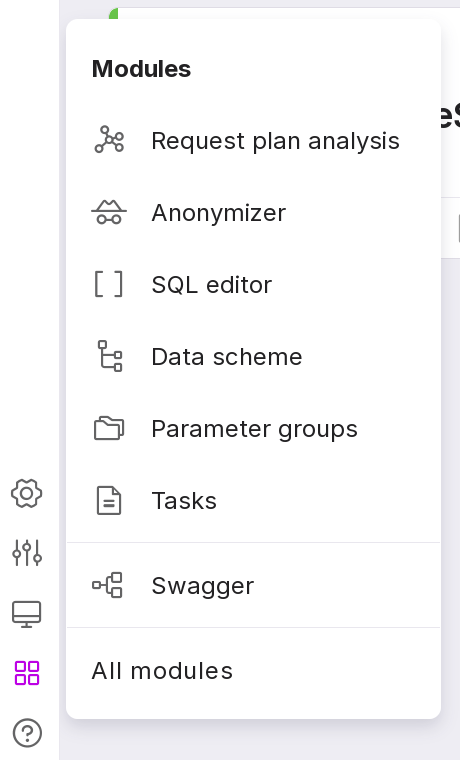
Platform modules:
Query plan analysis — calls the description of the query plan (module Query Plan Analyzer).
Anonymizer — opens the “Anonymizer” page, where you can configure and carry out the data anonymization process in the selected database.
SQL Editor - opens the database connection window.
Data schema - opens the database connection window.
Parameter groups — opens the page for managing PostgreSQL configuration parameter groups and modifiers.
Tasks — opens the list of tenant tasks.
Swagger — opens the documentation page in Swagger for the existing API methods related to Platform:
agents,
instances,
groups,
metrics,
tenants,
users,
namespaces.
All modules — opens the page with Platform modules.
Help — allows you to go to the Knowledge Base and documentation of Platform, and also opens a window with information on the installed version of Platform.
User account — opens the panel with the following options:
Profile — opens the user profile settings page;
License agreement — opens information on Platform’s licensing policy;
Logout — log out of the profile.