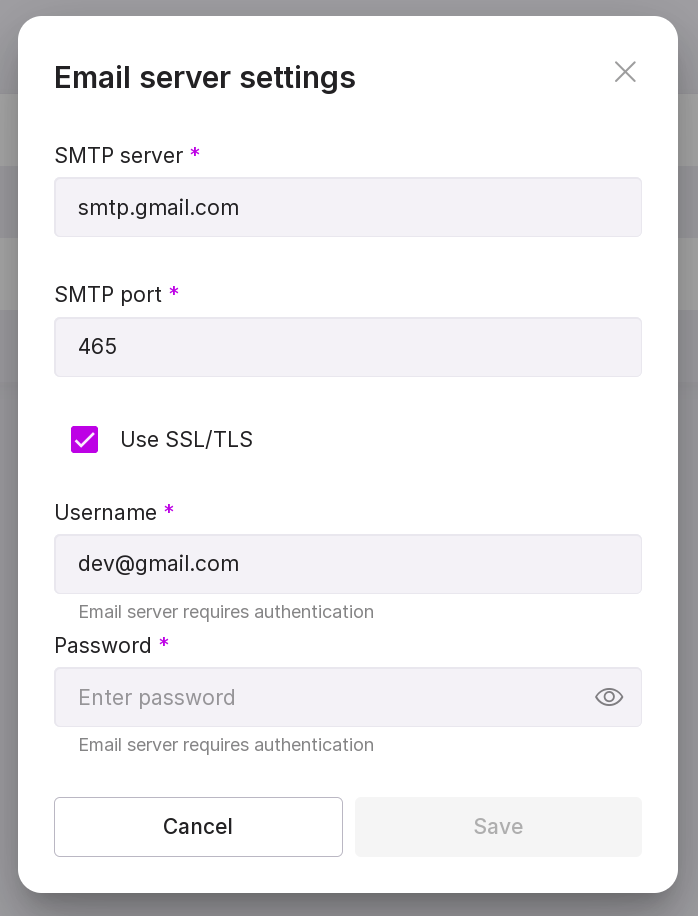
Mail server (SMTP)
Connecting to the mail server is configured:
in the system settings — to send emails to the system Owners, for example: messages about granting rights to the system Owner or about changing the password of a user with the rights of the system Owner.
in the tenant settings — to send emails within the tenant, for example, messages about changing the password of a user with the rights of the tenant Owner, System Administrator, or User with view-only rights.
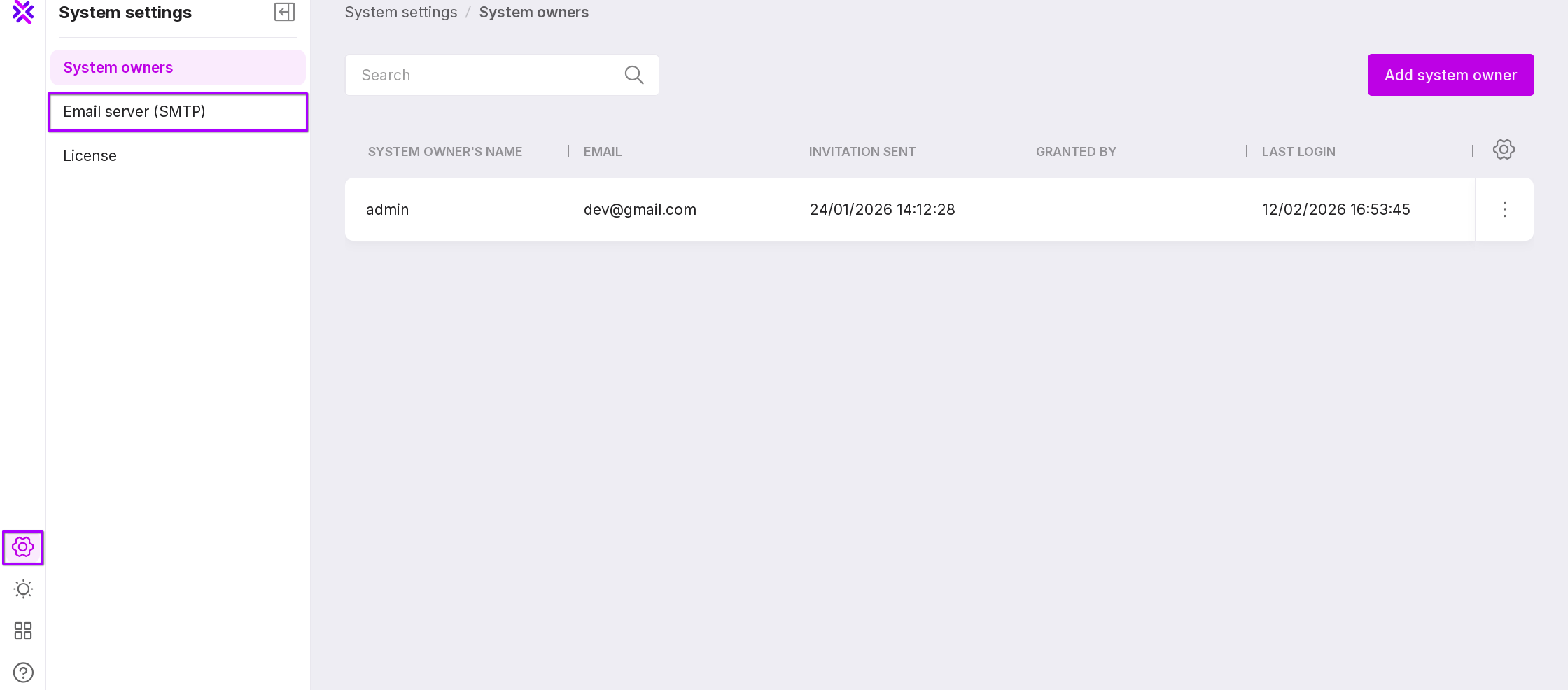
System settings
Warning
This page is only available to users with the role of System Owner.
To open the mail server connection settings page, in the left menu panel, click “System Settings” → “Mail Server (SMTP)”.
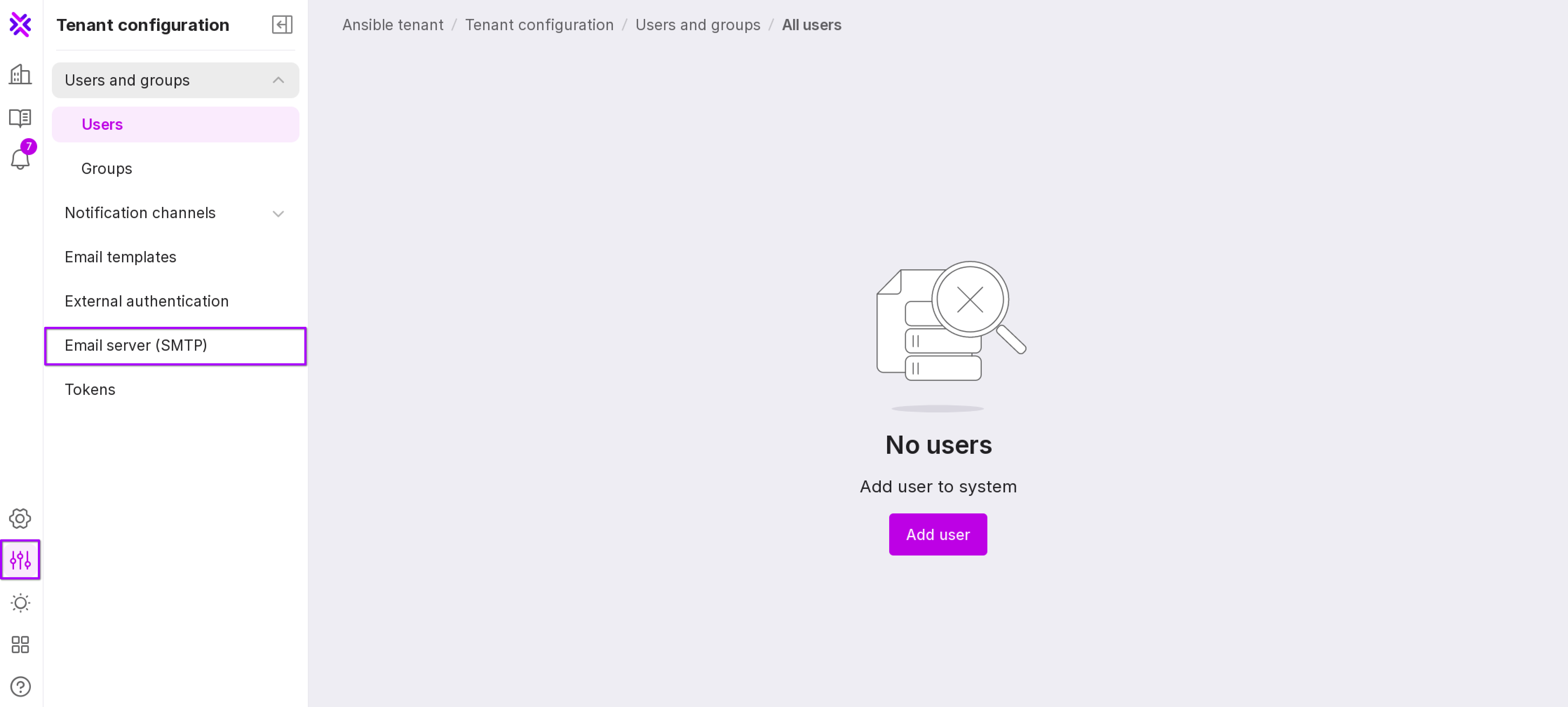
Tenant configuration
To open the “Mail Server” page, go to “Tenant configuration” → “Mail Server (SMTP)”.
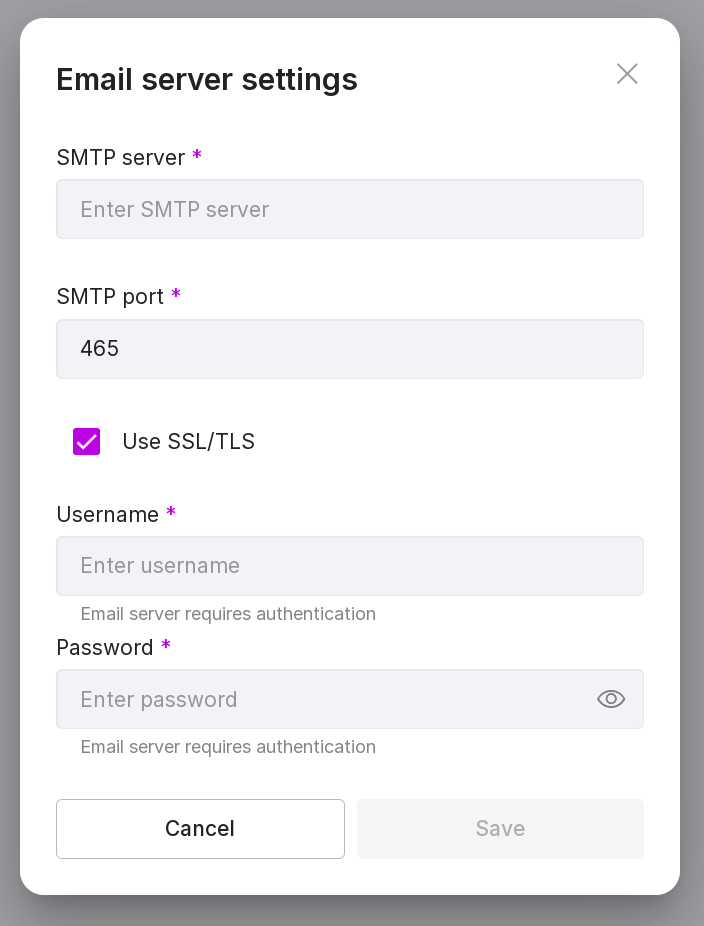
Configuring the mail server connection
To configure the mail server connection, click Setting button in the center of the page, and in the opened window fill in the following data:
SMTP server — the domain name of the SMTP server;
SMTP port;
Check the box “Use SSL/TLS” if necessary;
Username — the email address of the SMTP server user;
Password — the password of the SMTP server email user.
After adding the required data, the information on the mail server will appear on the page:
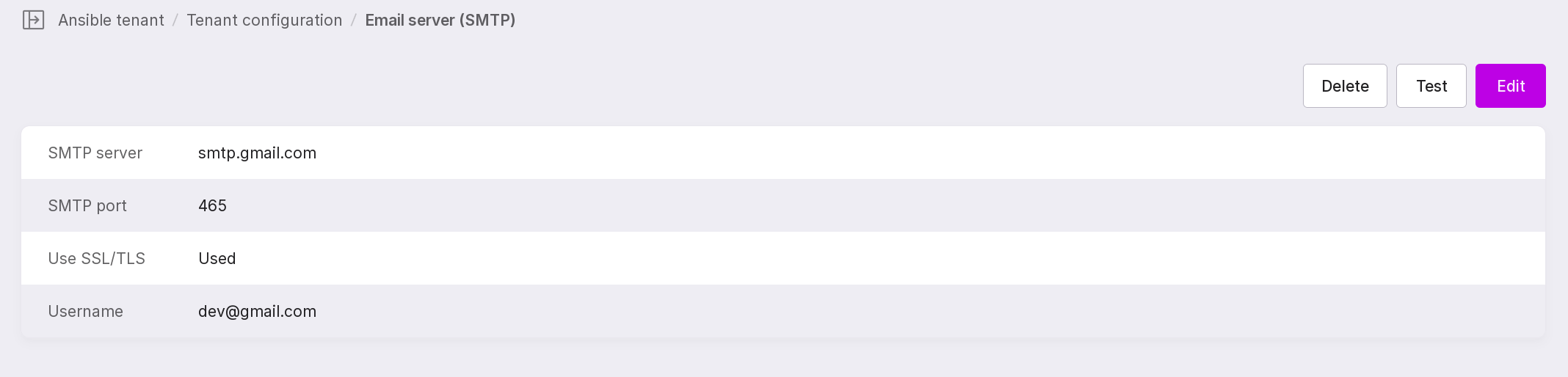
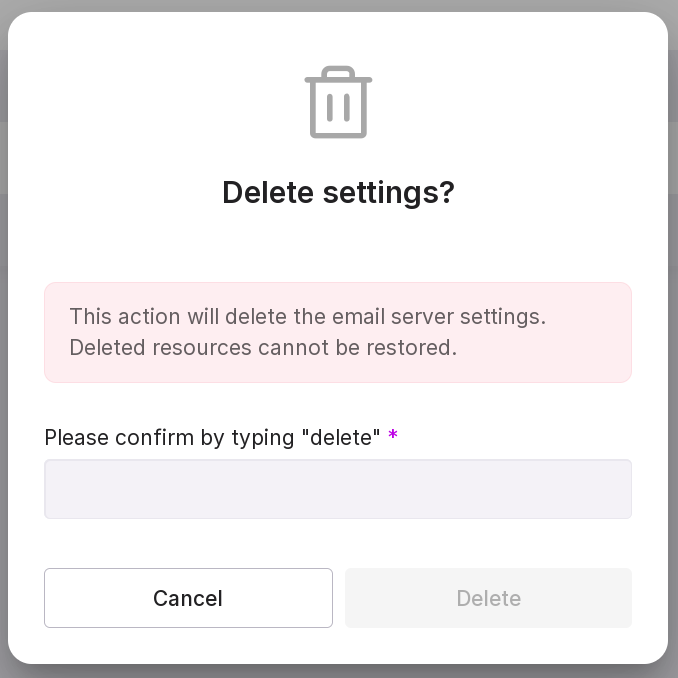
Delete — allows you to remove the settings of the added mail server. In the opened window, type in “delete” in the text field and click “Delete”.
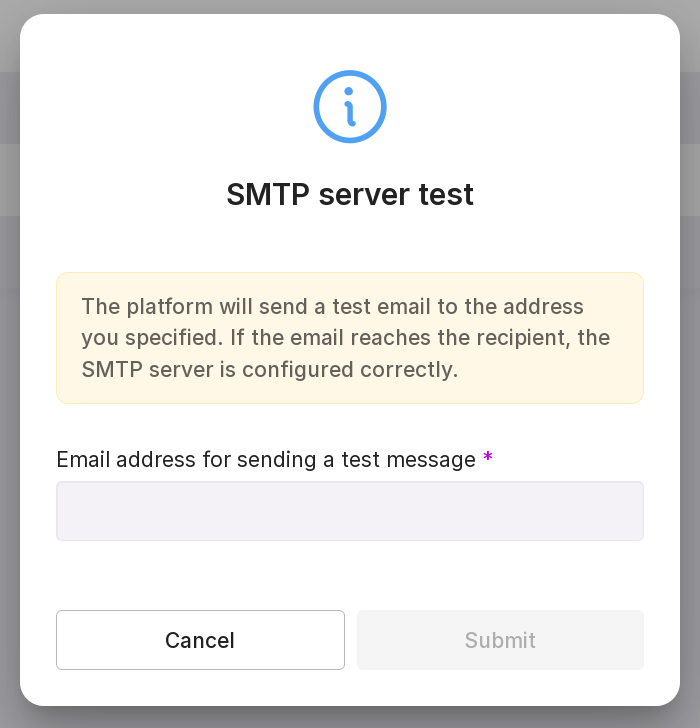
Test — allows you to check the operation of the SMTP server. In the opened window, enter the email to send the test email and click “Send”.
Edit - allows you to change the specified data. In the opened window, edit the data, enter the user’s password, and click “Save”.