User page
To go to the user page, select ‘Tenant configuration’ in the left panel, and on the opened page, click on the line with the required user.
Information tab
This tab displays the main information on the user. You can also manage the local user’s account here.
Activating and deactivating a user
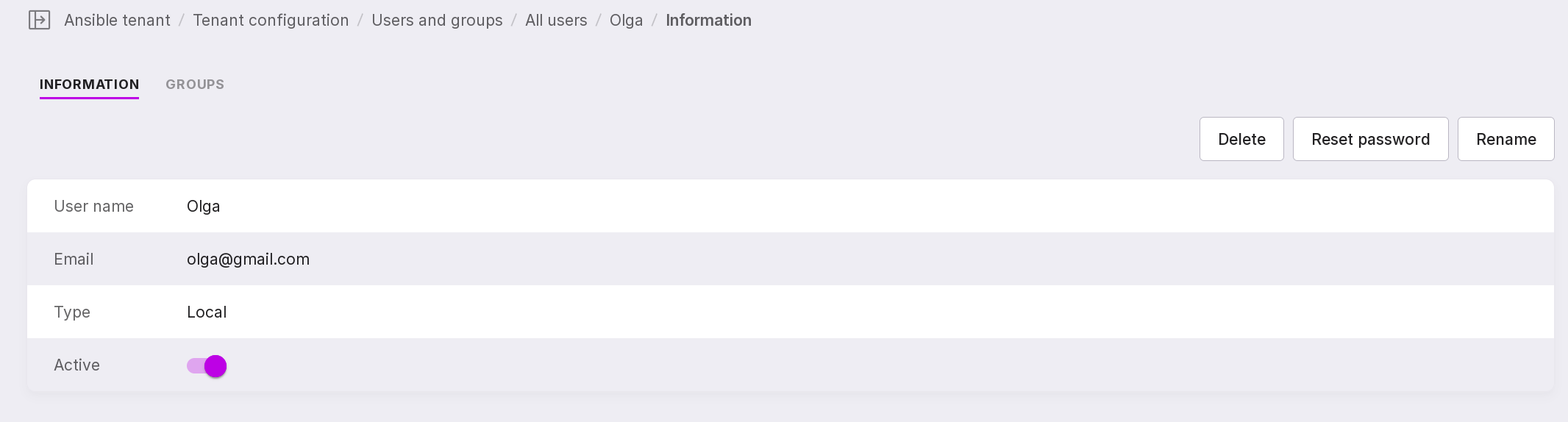
To allow a user to work on Platform, you need to activate their account. For an unactivated user, the ‘Active’ switch is gray. Click on it to activate the user’s account.
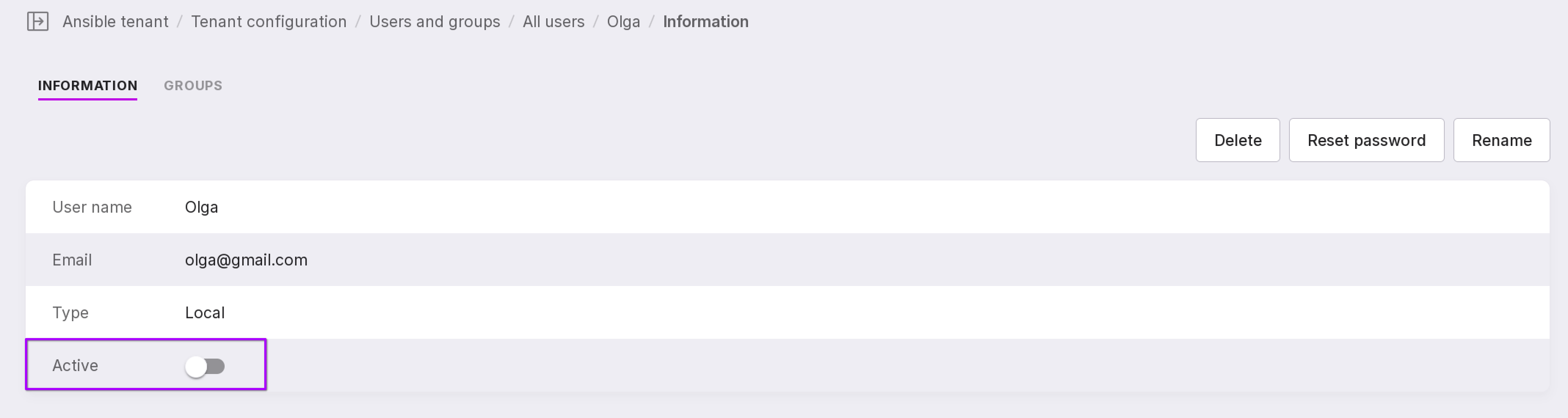
For an activated account, the ‘Active’ switch is red. Click on it to restrict the user’s access to Platform and deactivate their account.
Deleting a user
To delete a user’s account, click ‘Delete’.
Attention
You cannot delete an active user. Before deleting, deactivate the user’s account.
Changing password
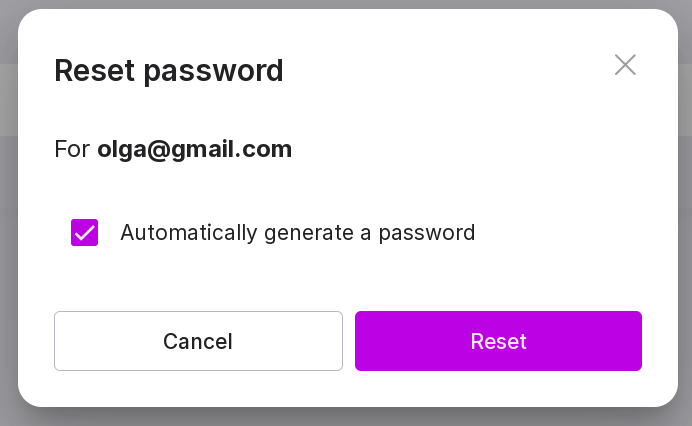
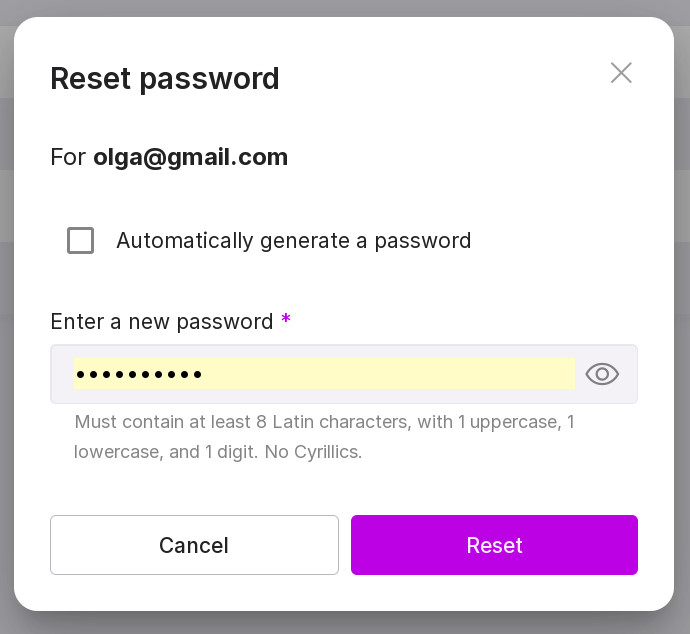
To change the password, click ‘Reset password’. By default, the ‘Automatically generate a password’ checkbox is checked. Uncheck it to manually set a new password. After that, click “Reset”.
Renaming a user
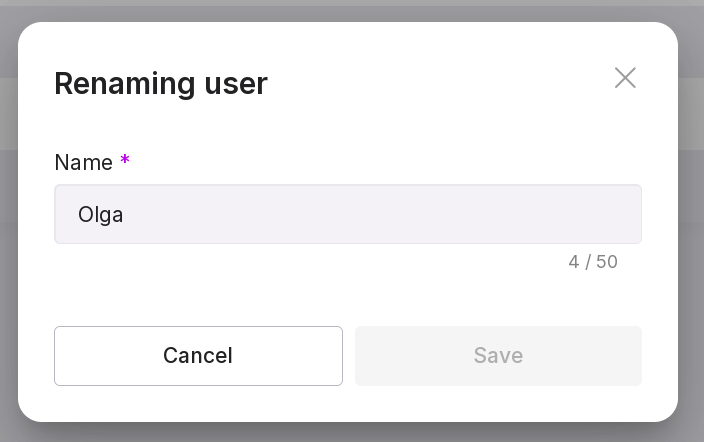
To change the username, click ‘Rename’. In the modal window, enter the new username and click ‘Save’.
Groups tab
On this tab, a list of all local groups is displayed for the local user, and external groups for the external user.
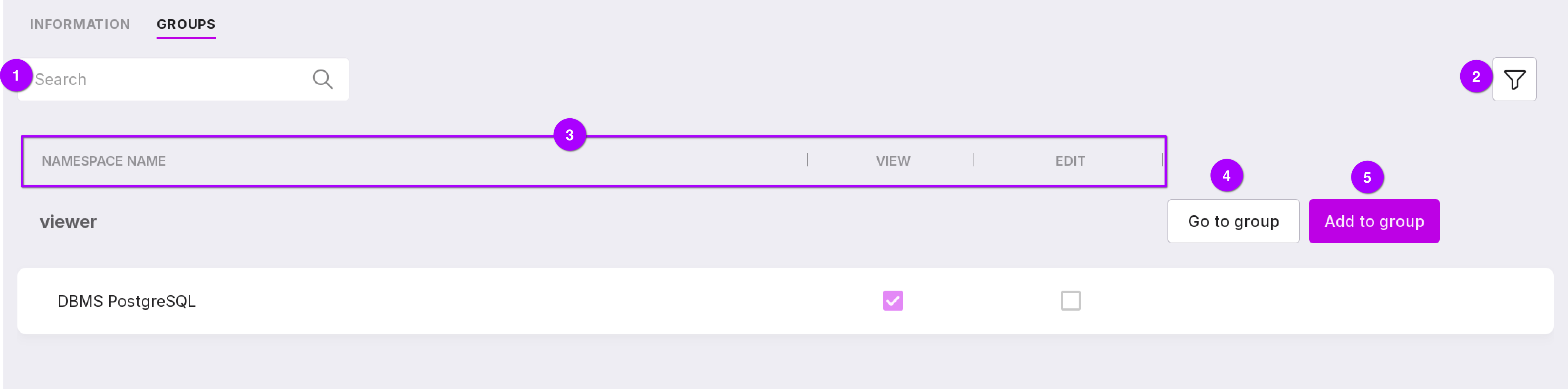
A search bar that allows groups to be searched by name.
Groups can be filtered by user state: whether the user is in a group or not.
Group information:
names of namespaces that the group has access to;
checkmarks indicate the group’s access to the namespace: for viewing and/or editing.
‘Go to group’ button opens the user group page.
‘Add to group’ button adds the user to the group.