Swagger UI
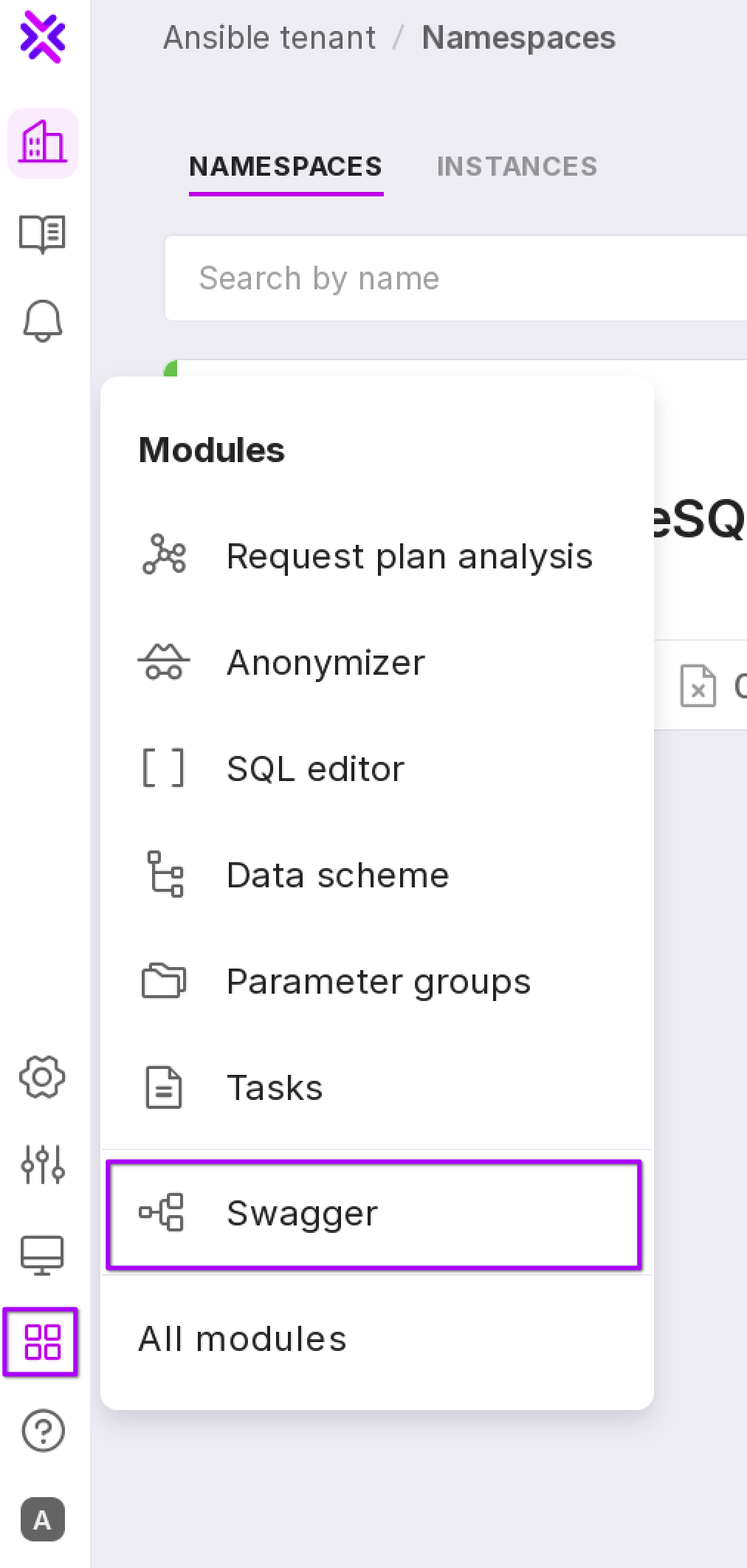
To open the documentation page in Swagger, click “Modules” → “Swagger” in the left panel.
Preparation
To use the API methods, you need to authorize through Swagger UI:
Create a token of the type you need depending on the API methods you will use, or use an existing token:
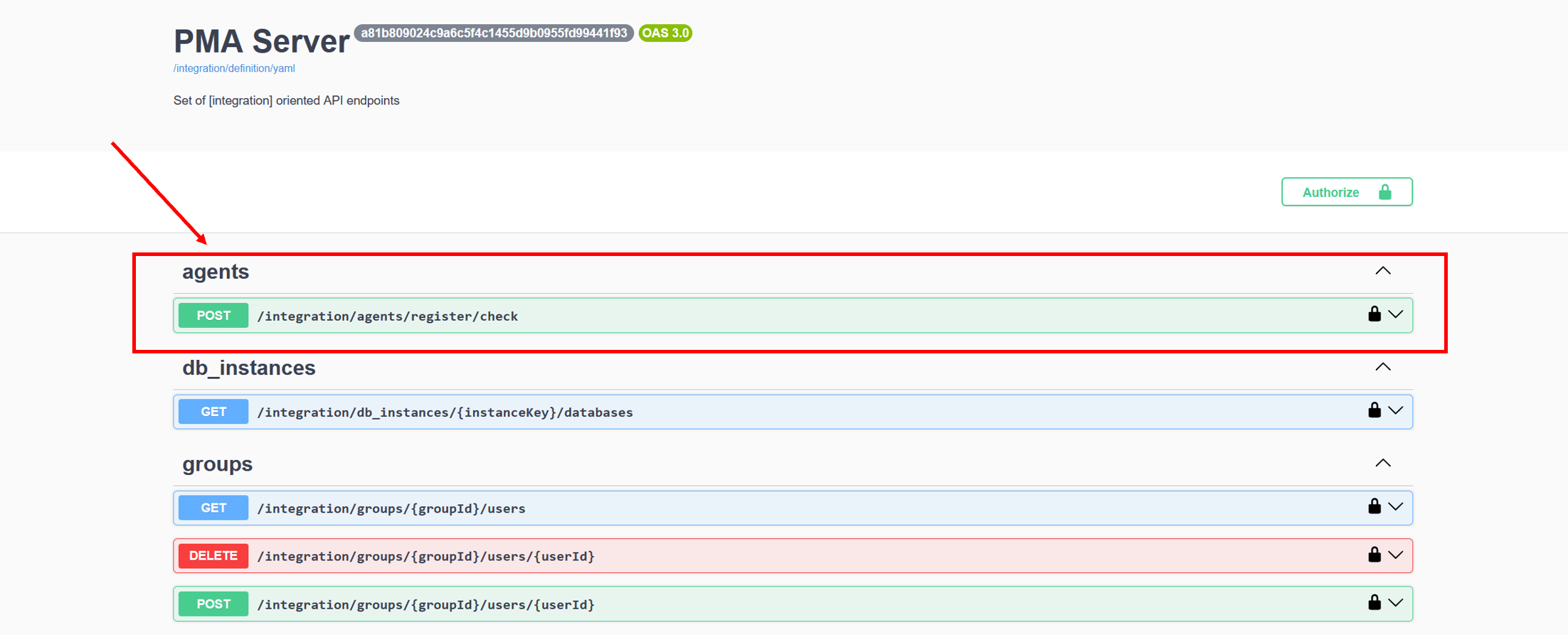
a setup type token is needed to use the method related to Agent;
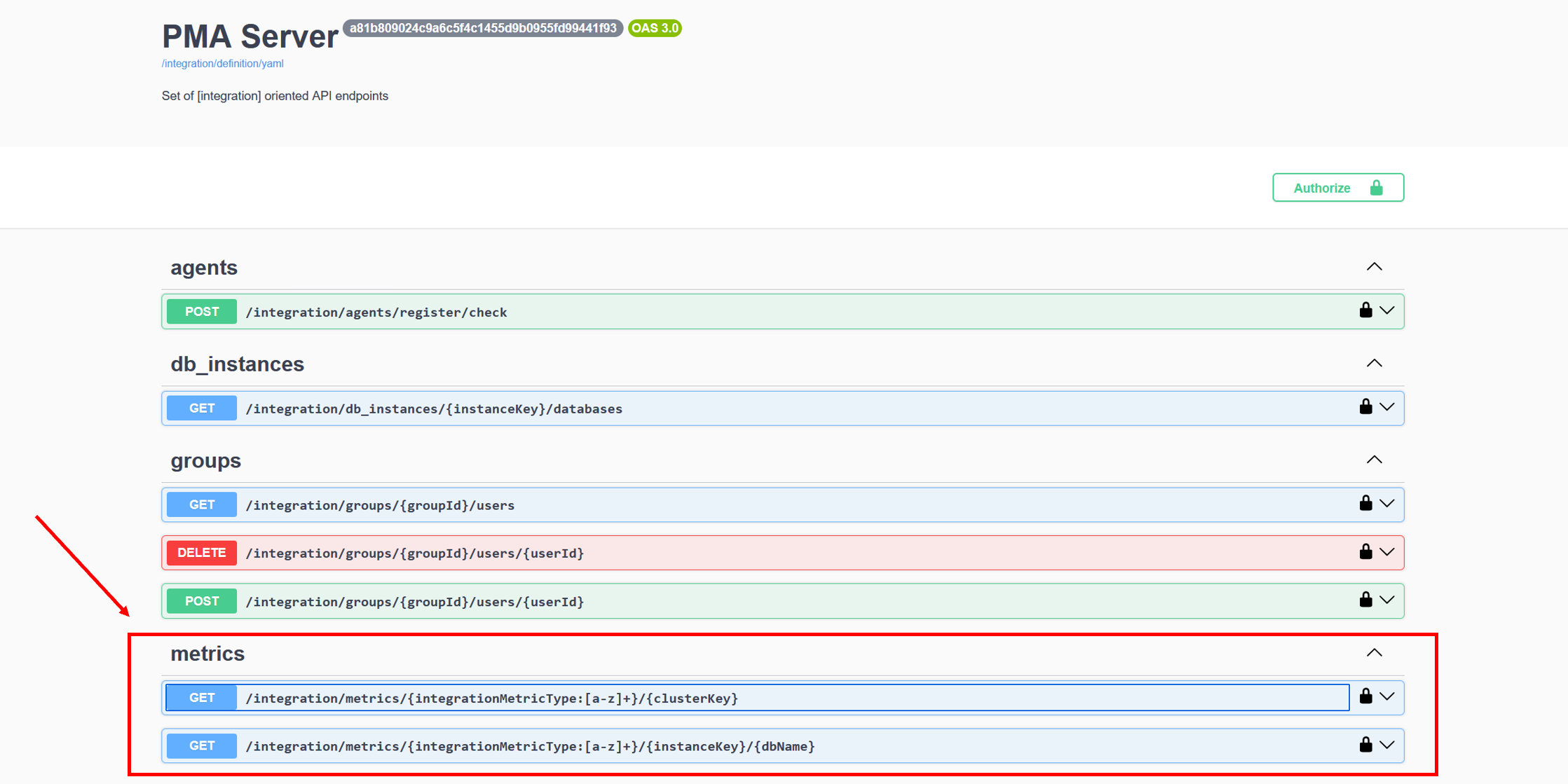
a metrics type token is needed to use methods related to metrics;
a datasets type token is needed to use methods related to datasets;
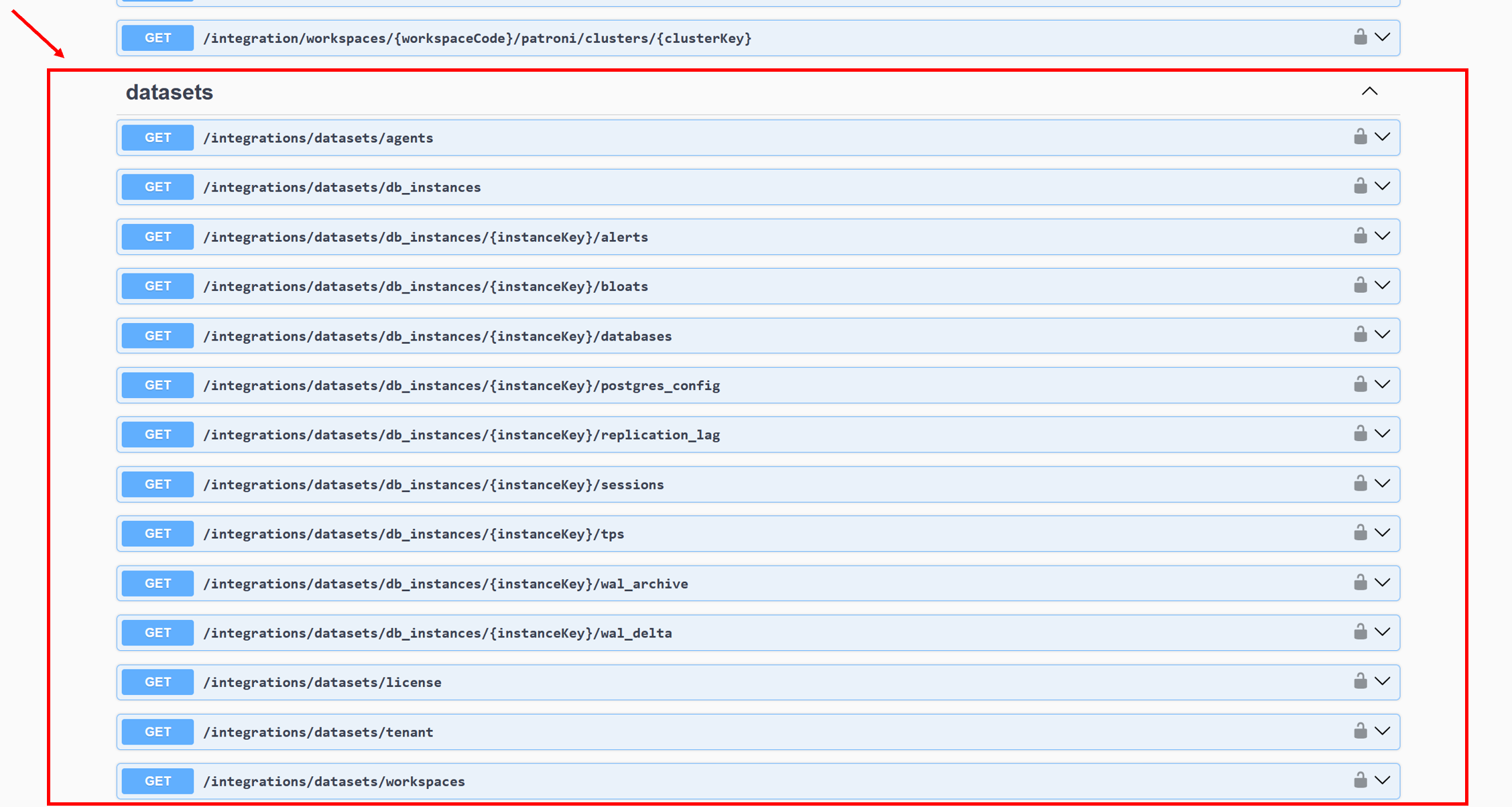
a public API type token is needed to use all other API methods.
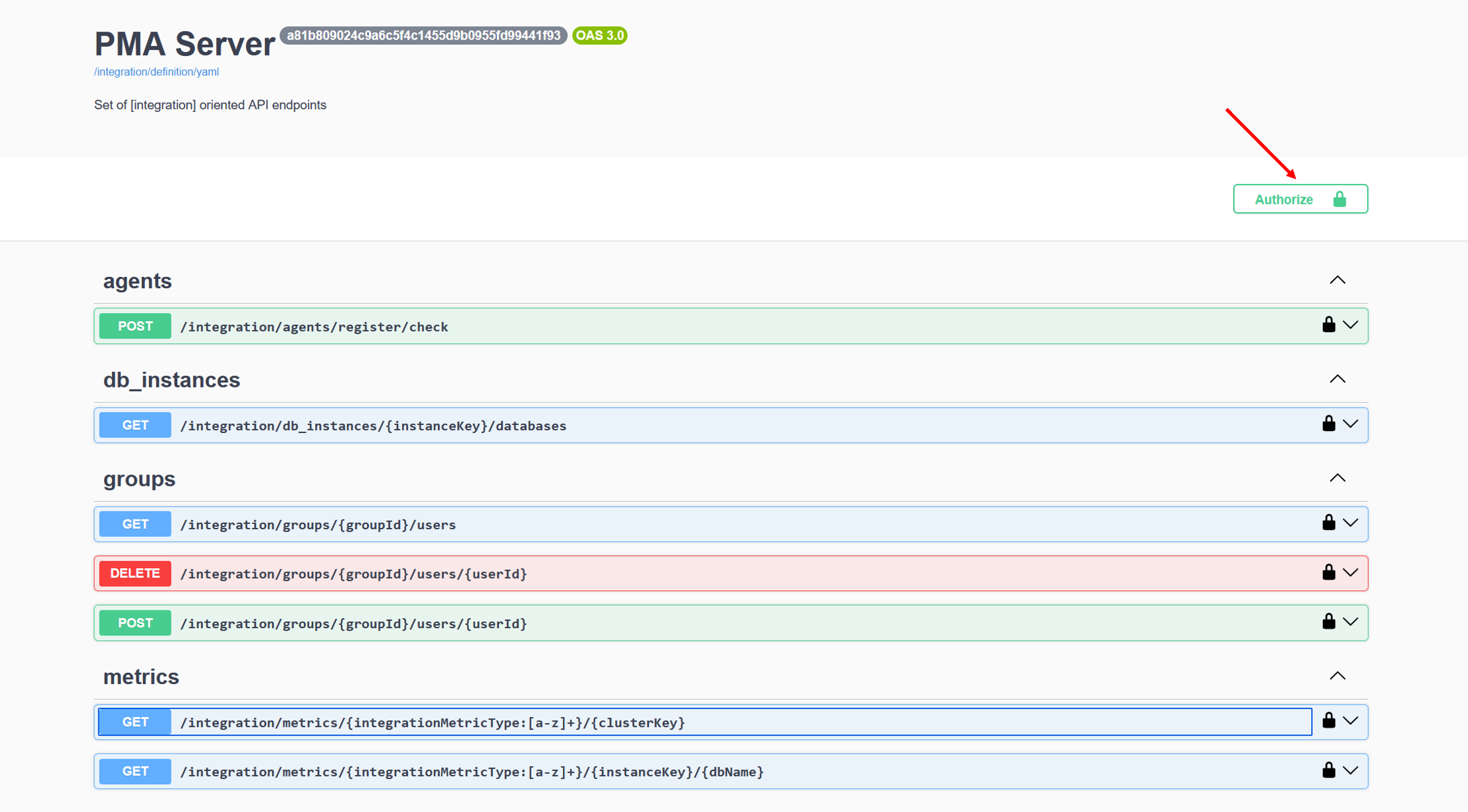
Click ‘Authorize’.
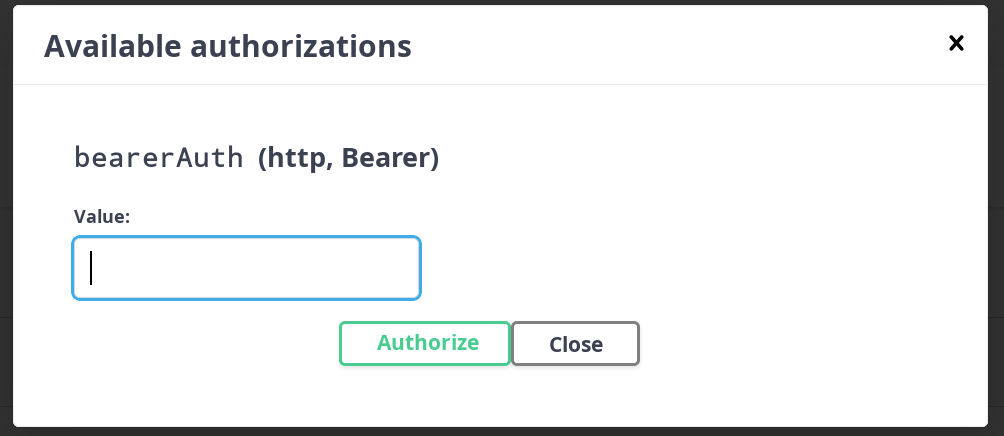
In the “Value” field of the appeared modal window, paste the key and click “Authorize”.
Usage
The algorithm for using API methods through Swagger UI:
Click on the arrow or any other element of the row of a specific API method to expand it.
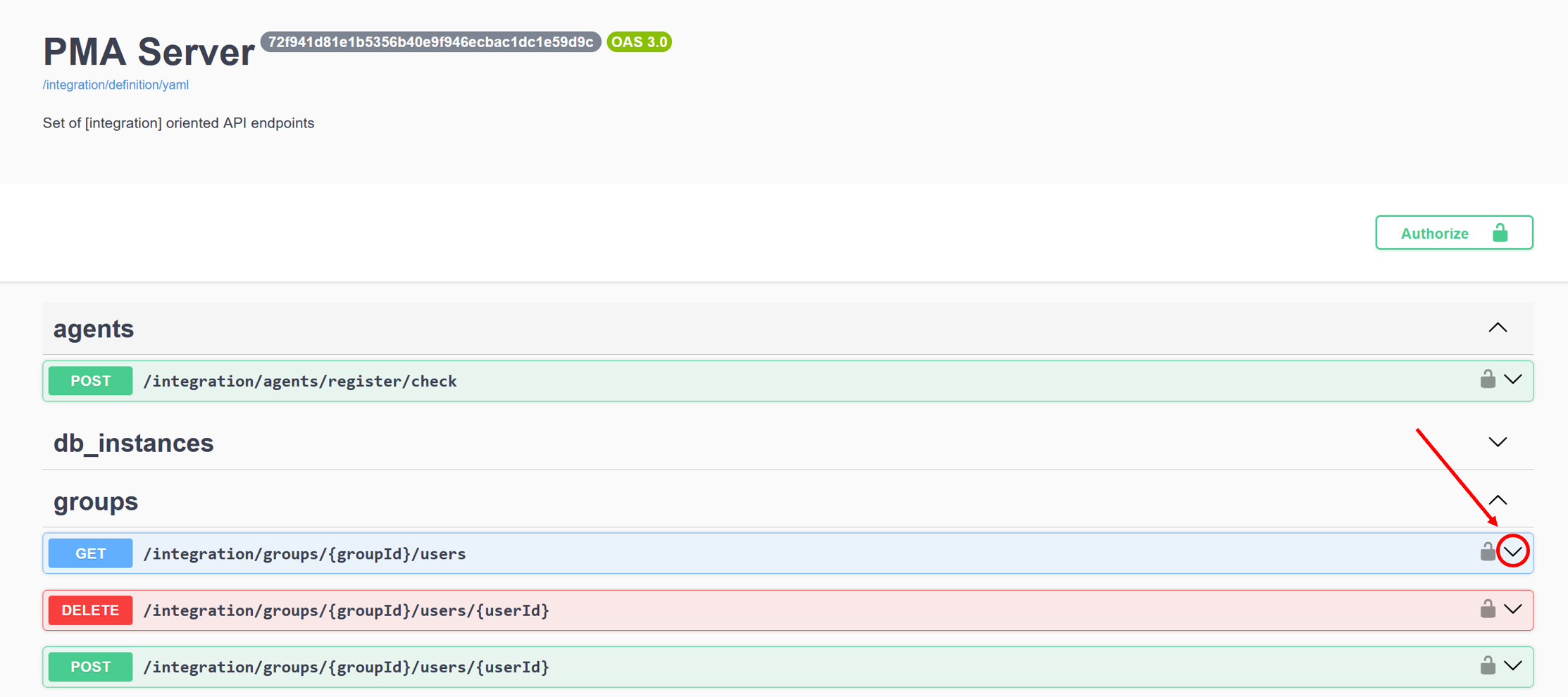
Click ‘Try it out’ (number 1 in the picture below).
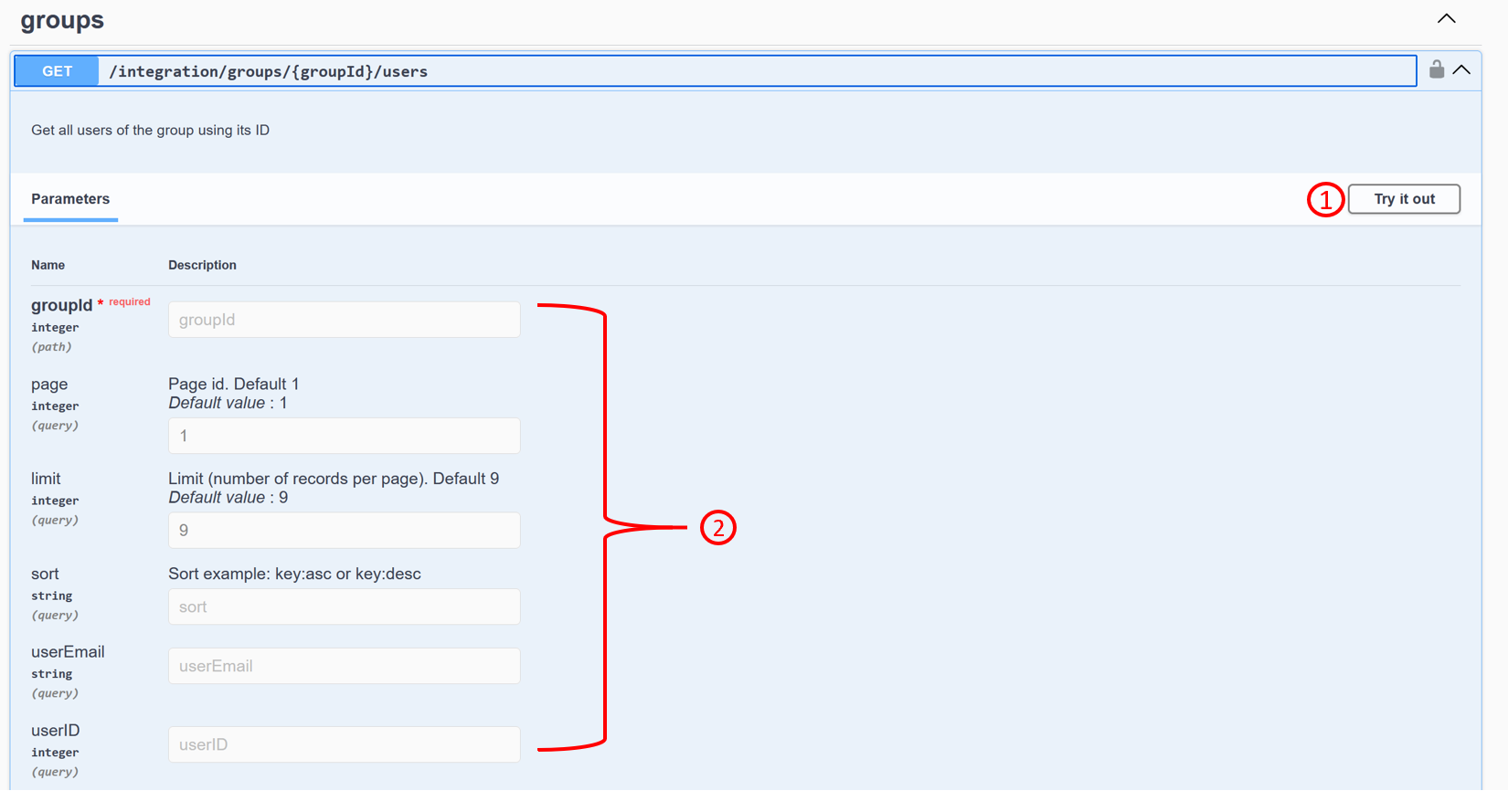
Enter the parameters (number 2 in the figure above), if required. To use the API method that requires input parameters, it is enough to fill in the mandatory fields marked with the red word “required.”
Click ‘Execute’.
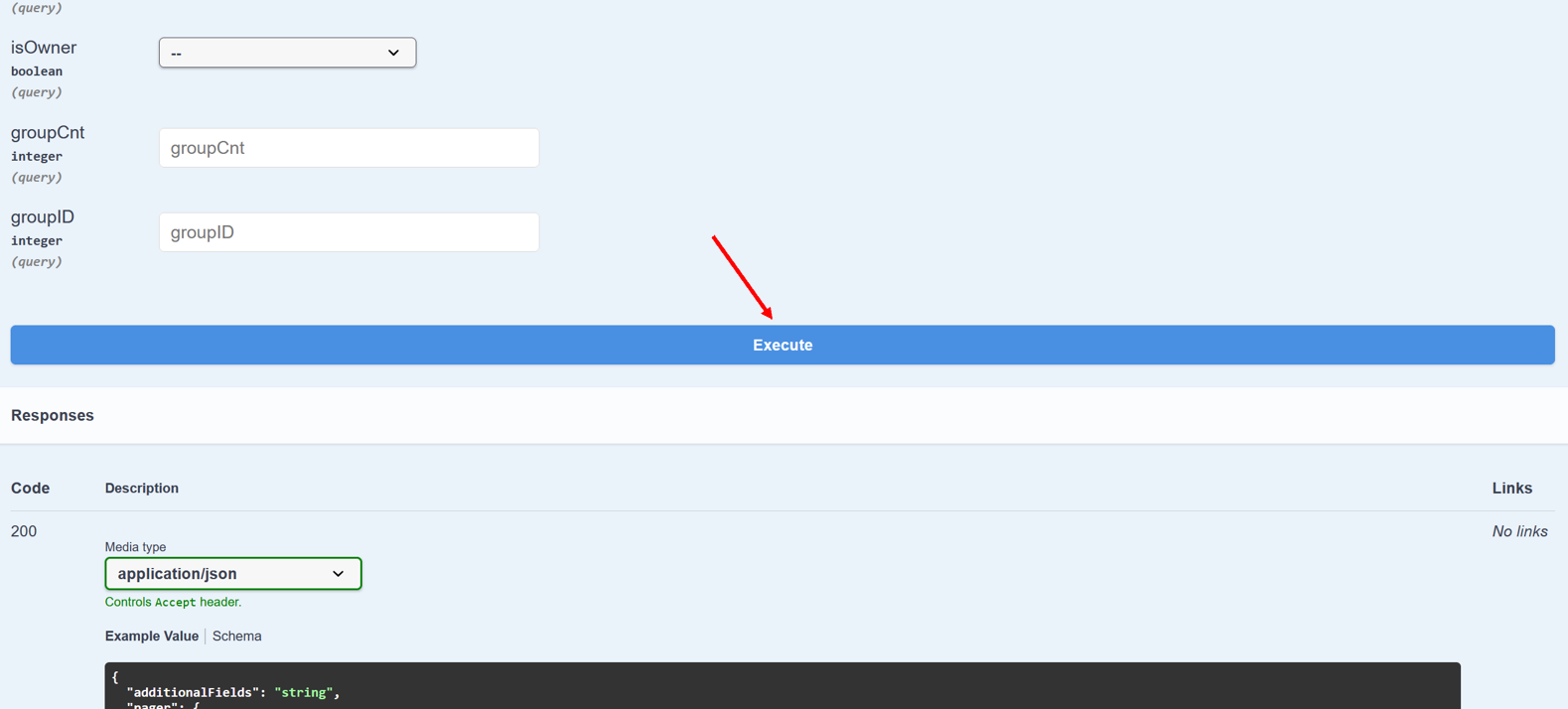
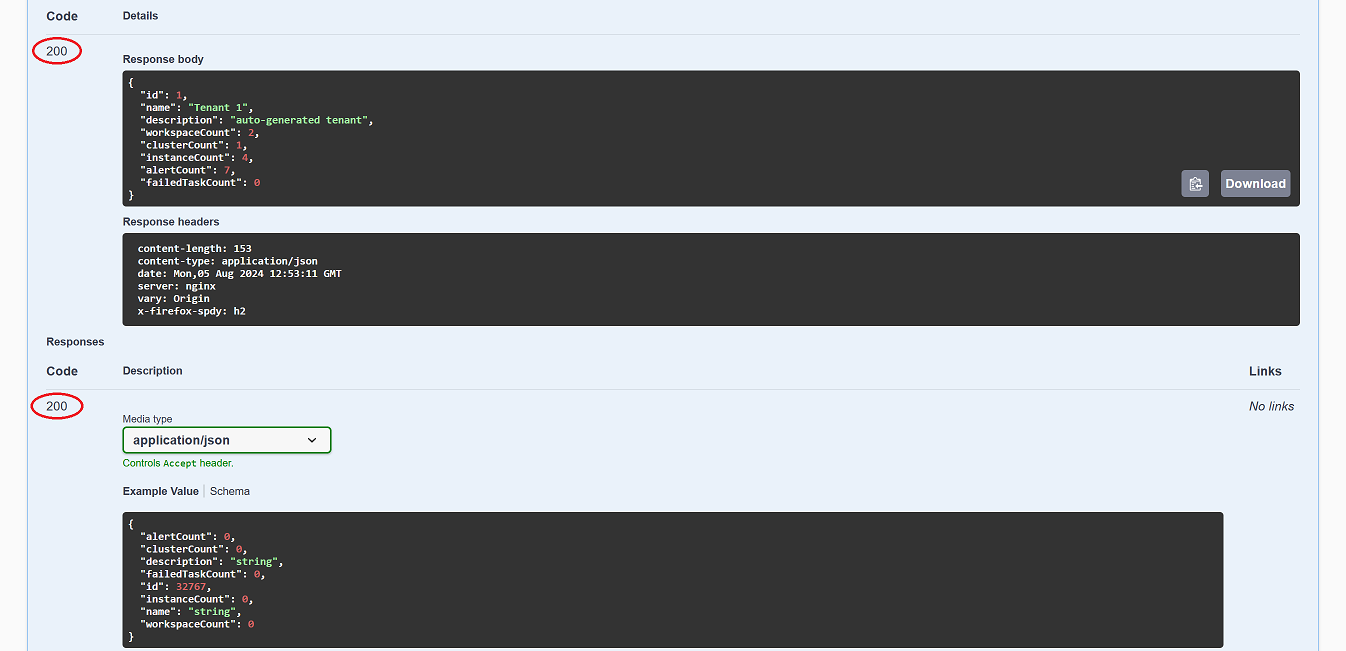
If the received response code matches the code from the example, the request was successful.
Main parameters
workspaceCode
More details
The namespace code can be obtained by using the API method to get all namespaces of this tenant.
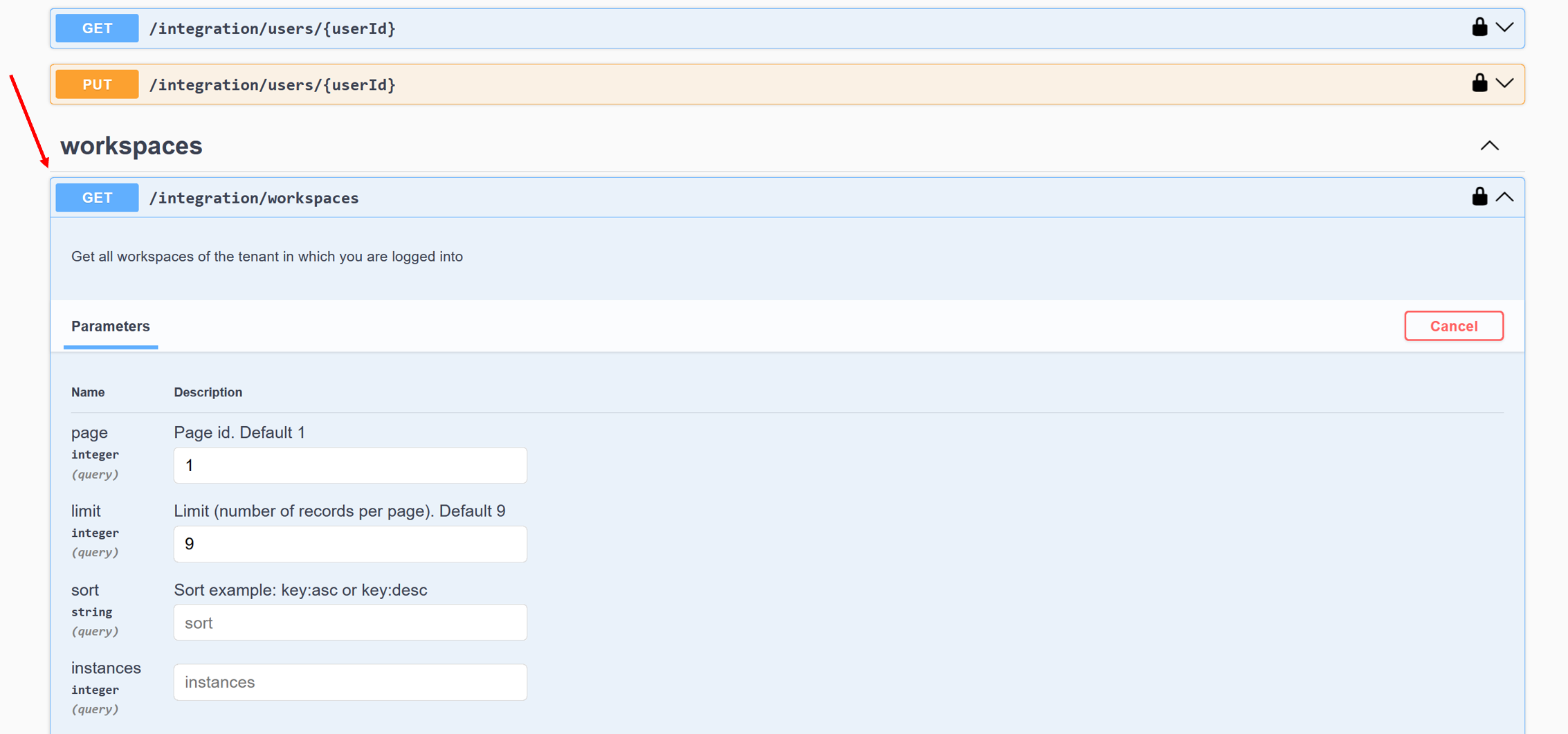
The response to the request will include all information on the namespaces of this tenant, including their code.
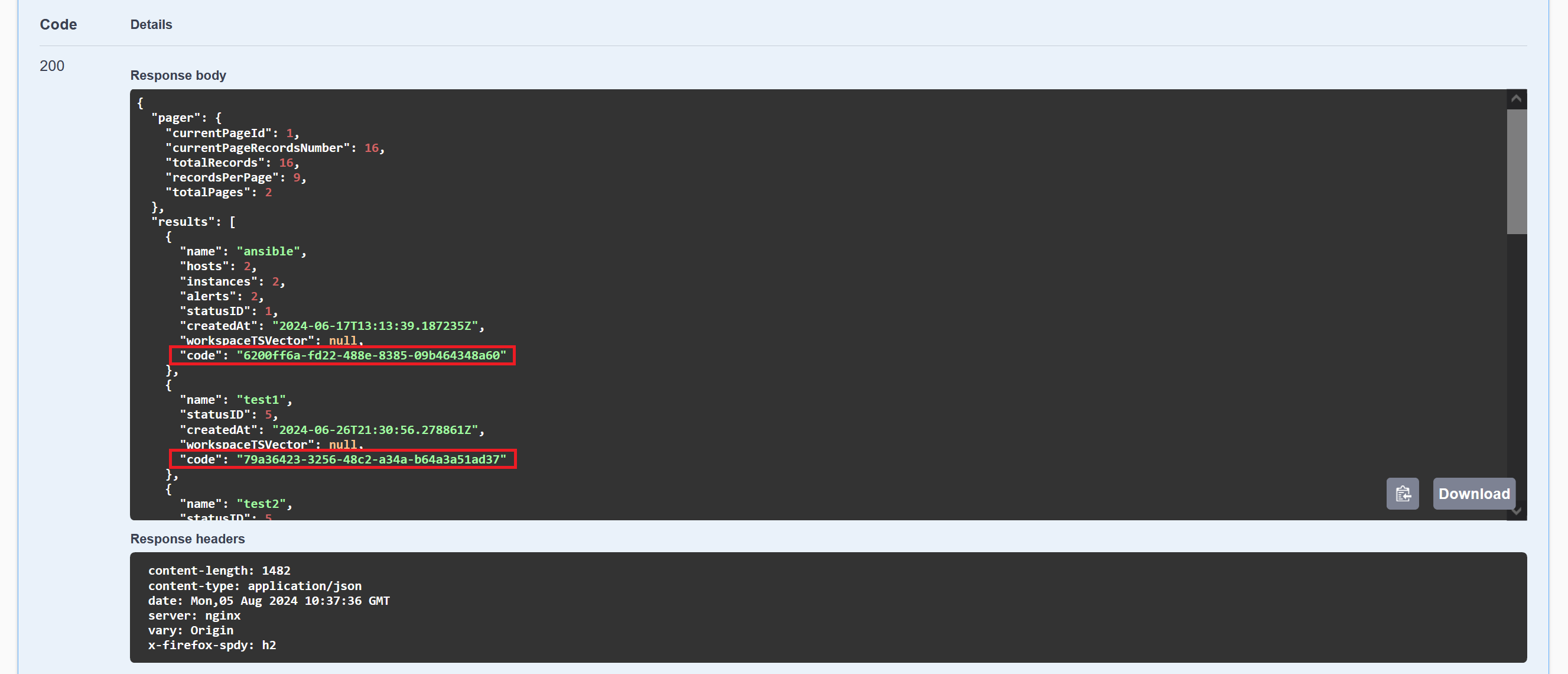
instanceKey
More details
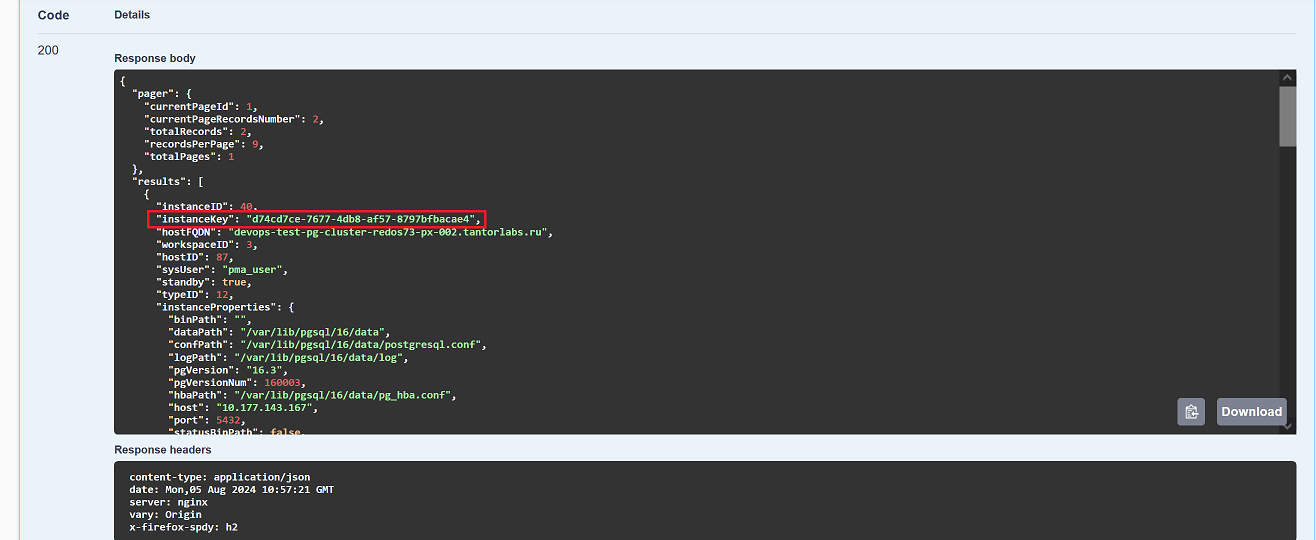
The database instance key can be obtained by using the API method to get all instances of this namespace.
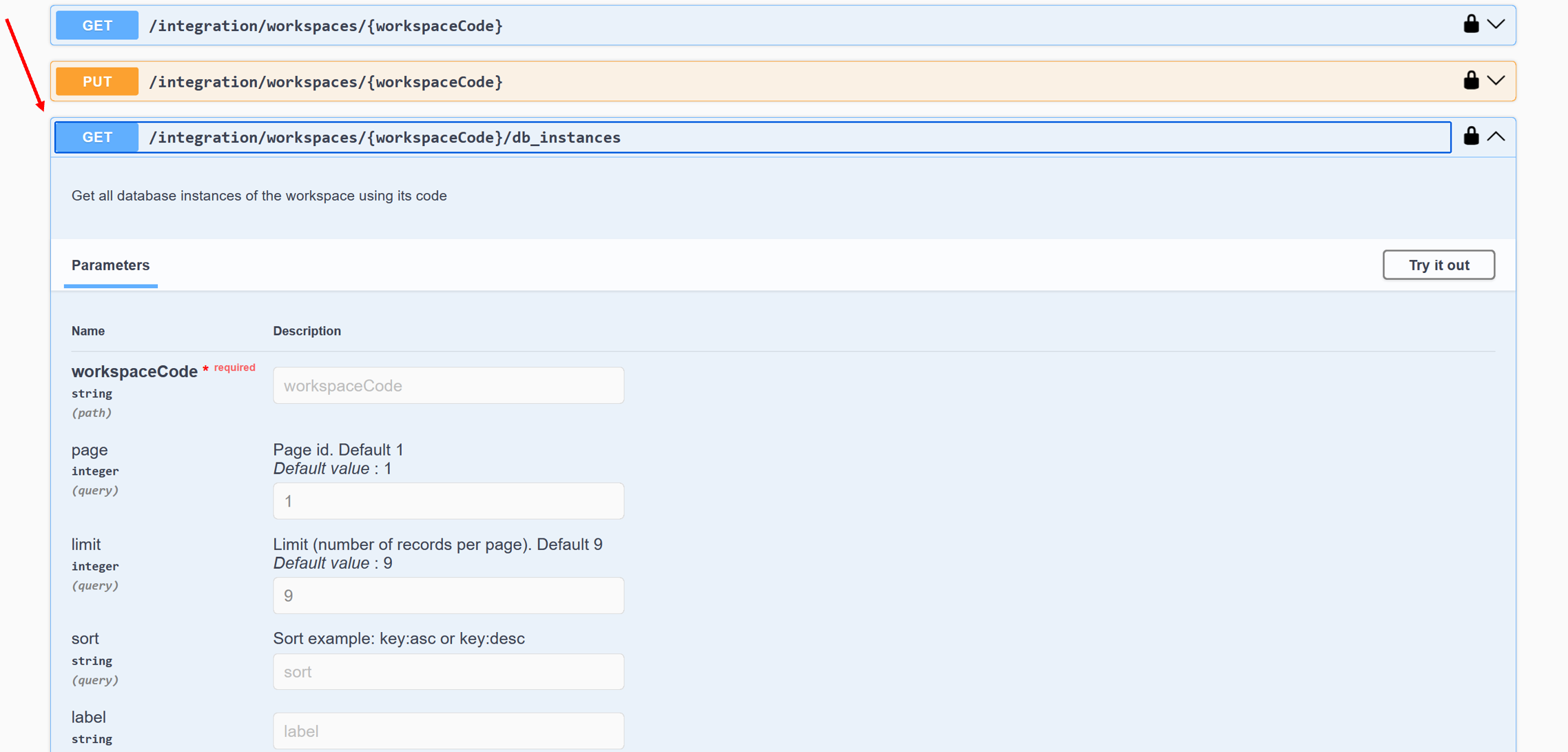
The response to the request will include all information on the instances of this namespace, including their key.
clusterKey
More details
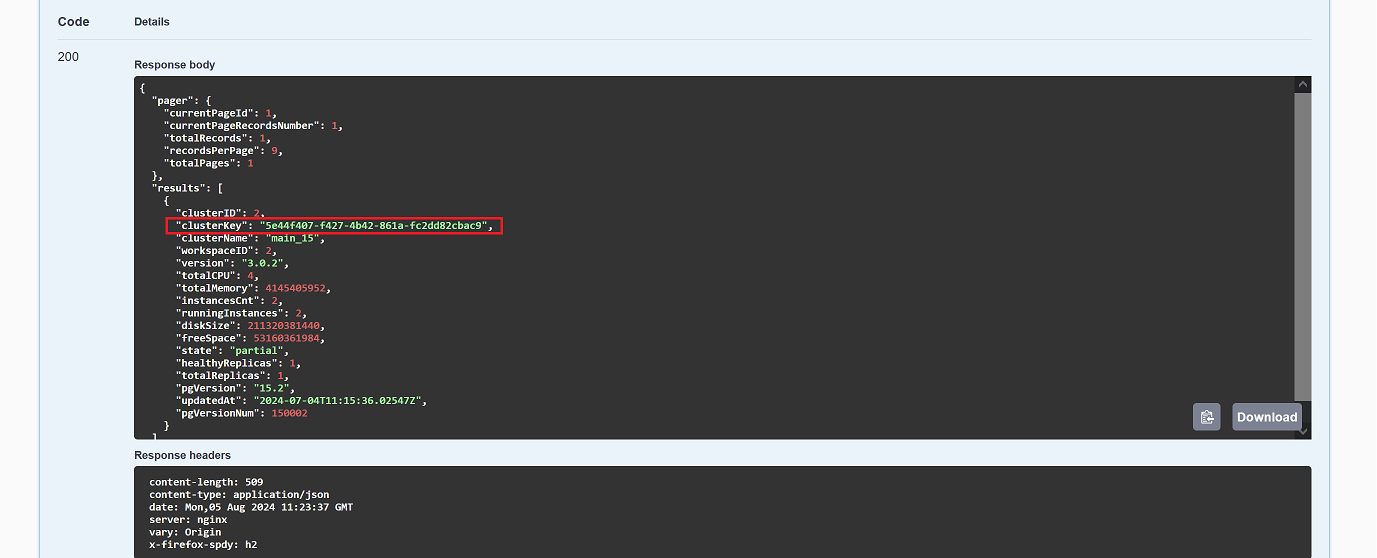
The cluster key can be obtained by using the API method to get all clusters of this namespace.
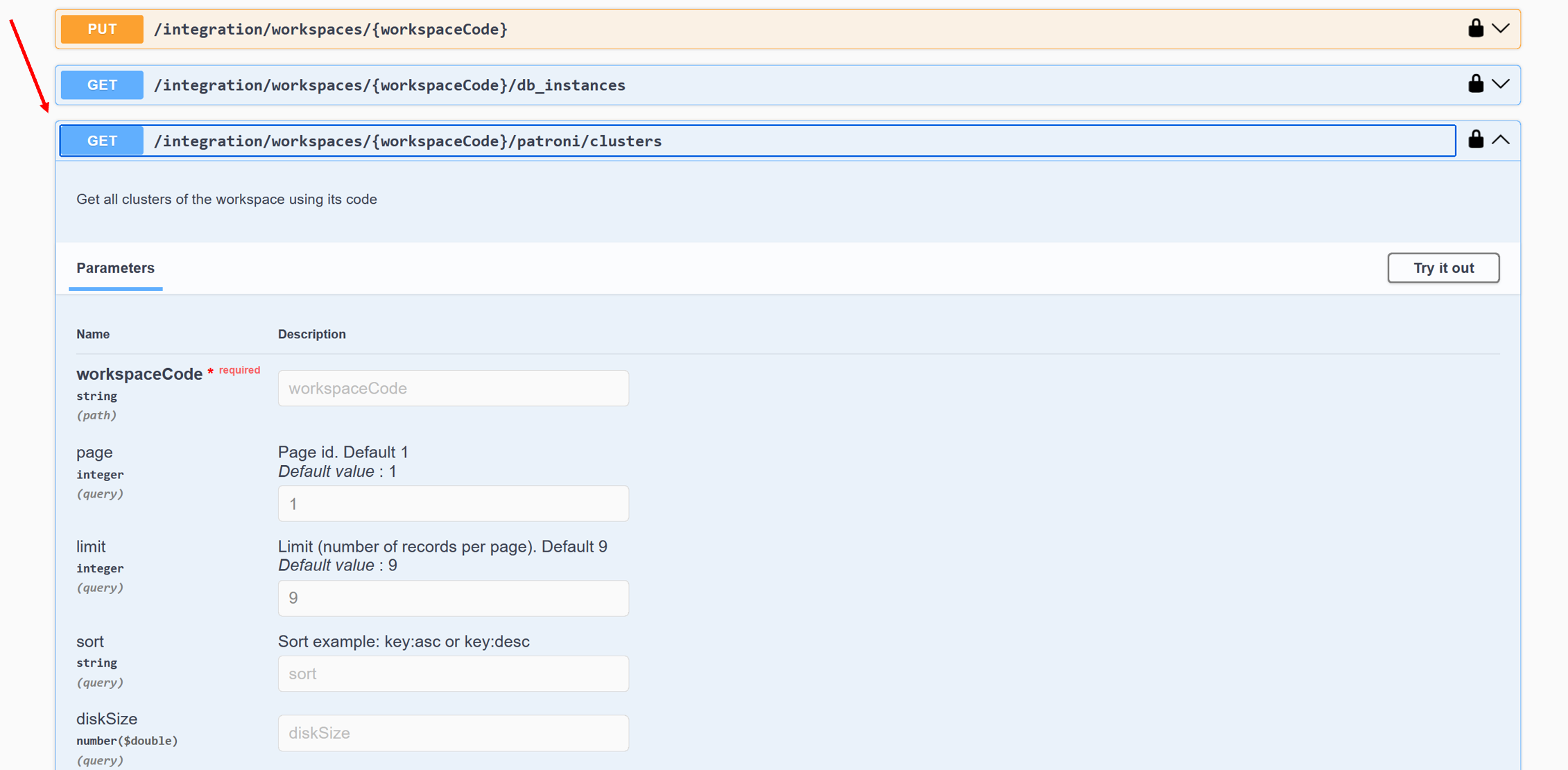
The response to the request will include all information on the clusters of this namespace, including their key.
integrationMetricType
More details
integrationMetricType is the name of the monitoring system that you need to use to output metrics. Currently, Platform has two such integrations:
prometheus
zabbix
dbName
More details
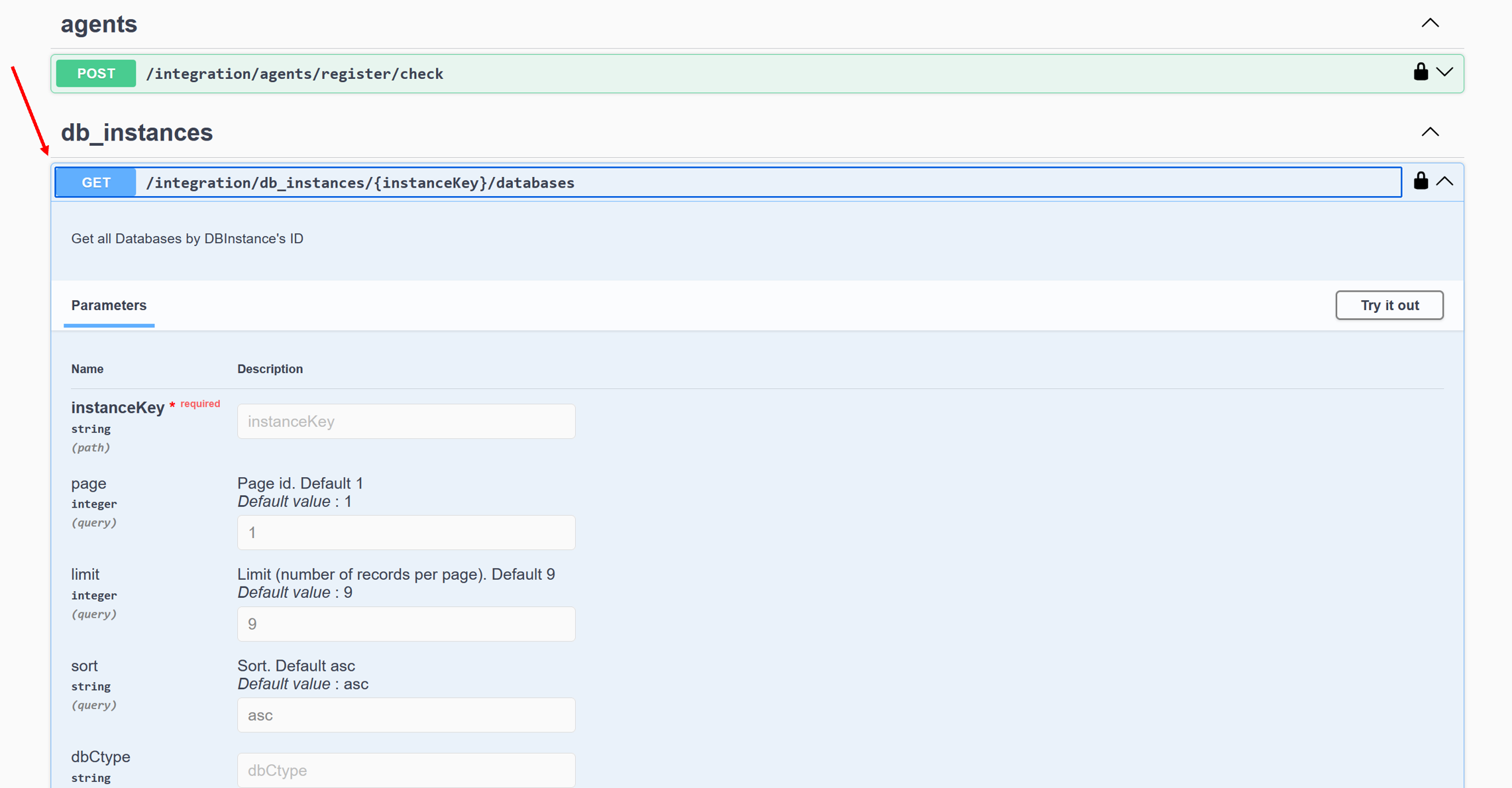
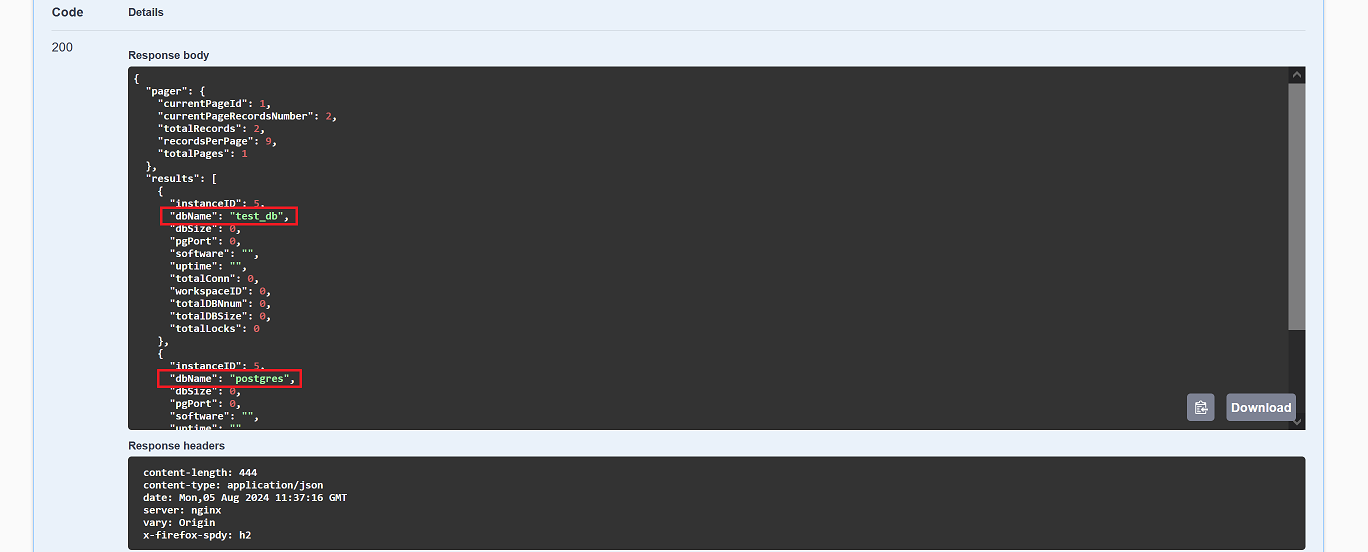
The database name can be obtained by using the API method to get all databases of this instance.
The response to the request will include all information on the databases of this instance, including their names.
userId
More details
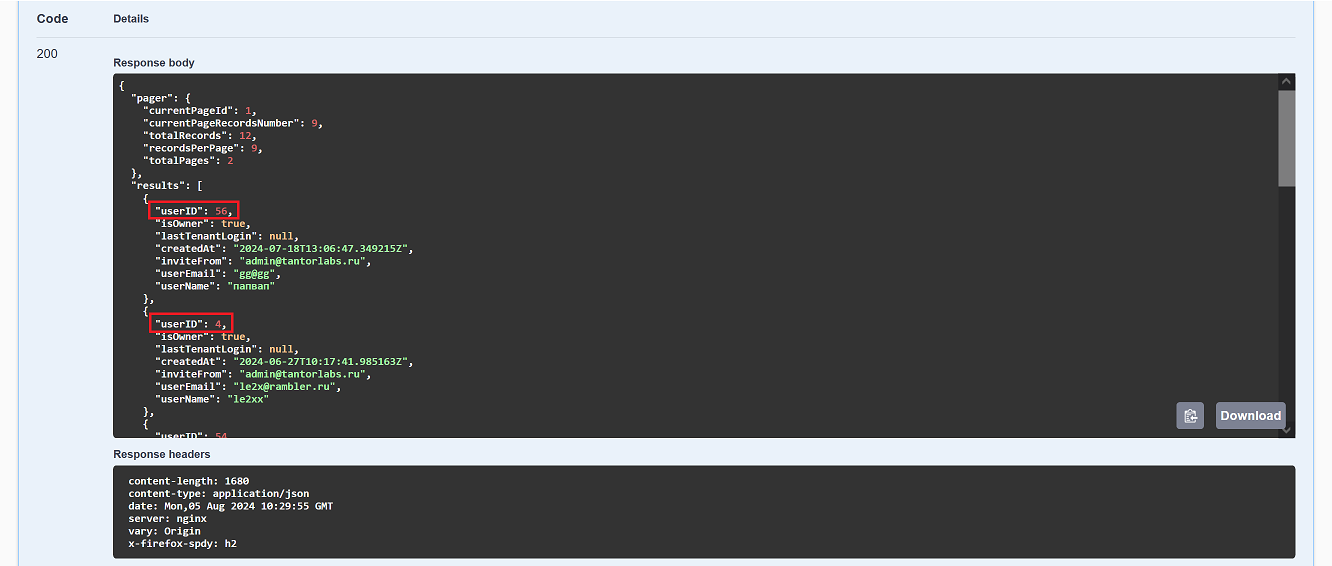
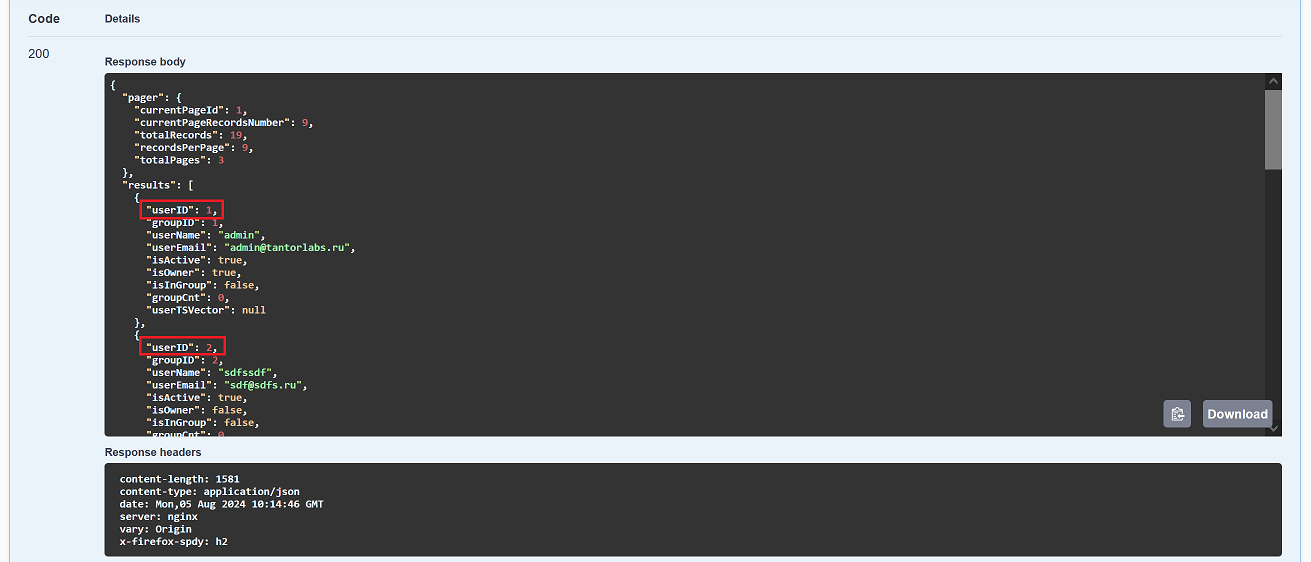
The user ID can be obtained by using the API method to get all users of this group by its ID.
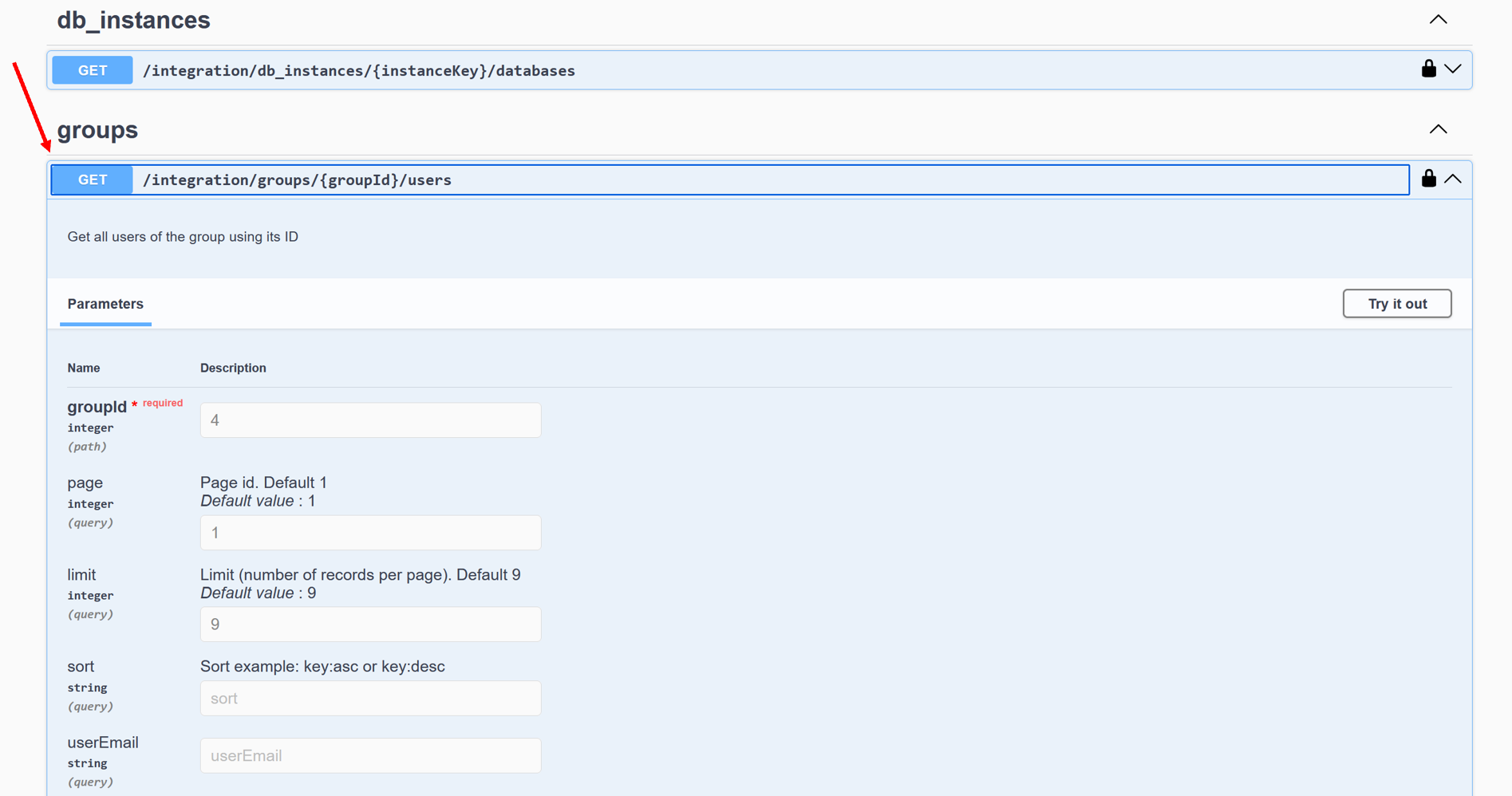
The response to the request will include all information on the users of this group, including their IDs.
userProps
More details
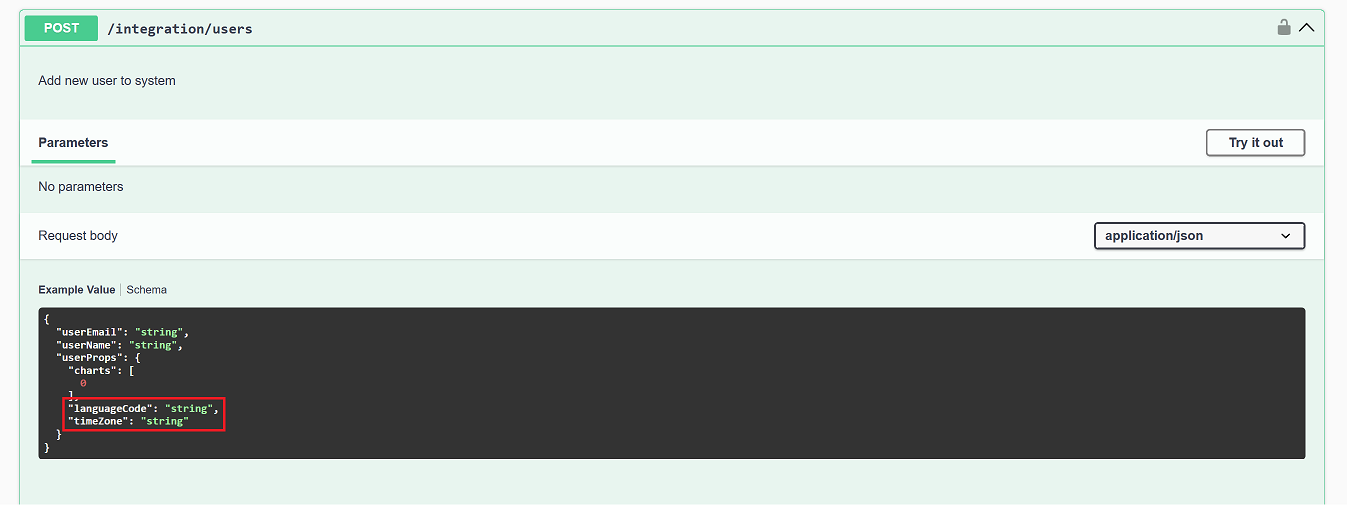
This parameter includes two fields:
languageCode is the user’s locale (“ru” or “en”).
timeZone is the user’s time zone in the format “Continent/region” (for example, “Europe/Moscow”).
ownerID
More details
The Tenant Owner ID is the user ID that has been granted Tenant Owner rights. You can obtain it by using the API method to get all Owners of this tenant.
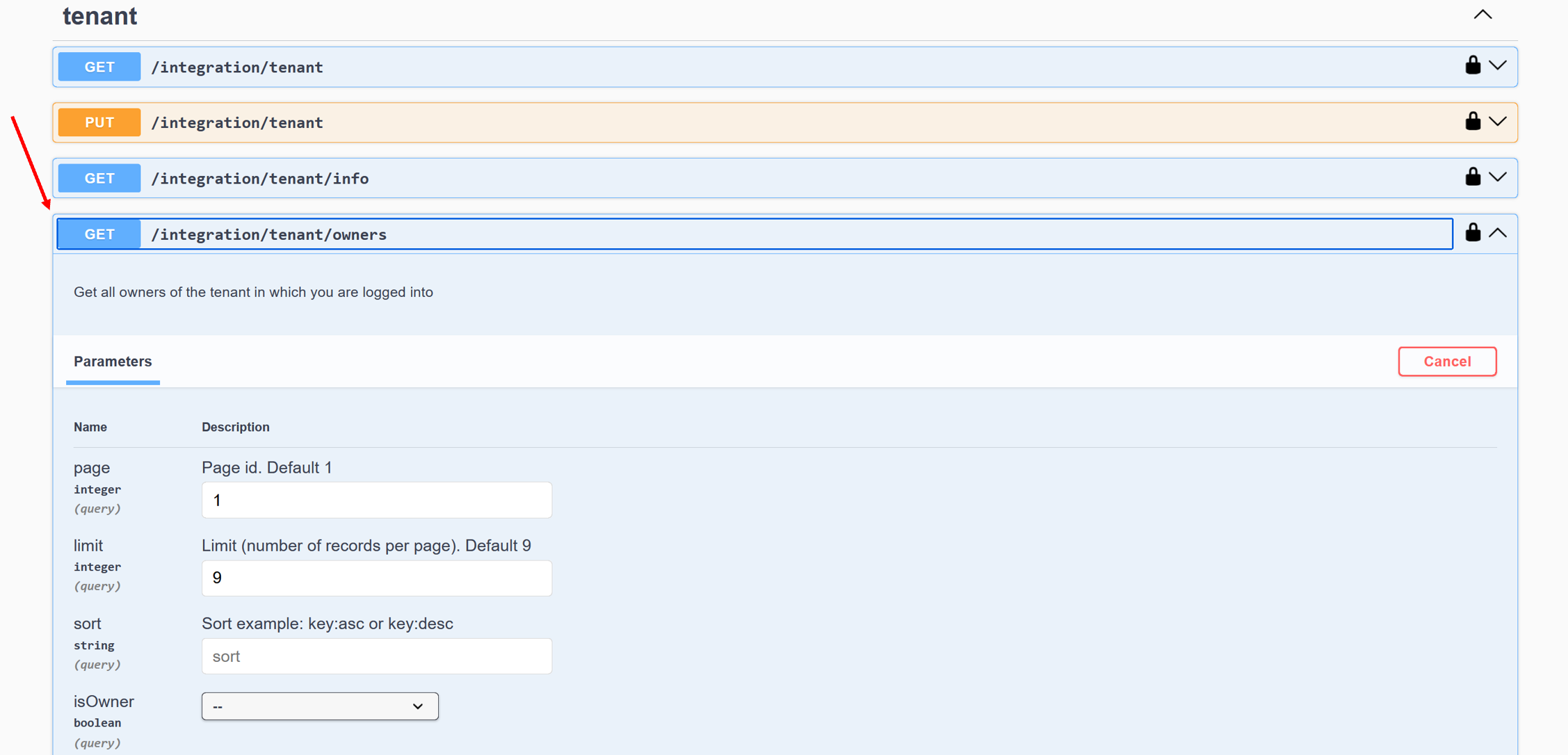
The response to the request will include all information on the Owners of this tenant, including their IDs.