Page Control Panel pg_monitor
This page contains the basic controls and displays of Advanced Analytics.
Page navigation bar pg_monitor
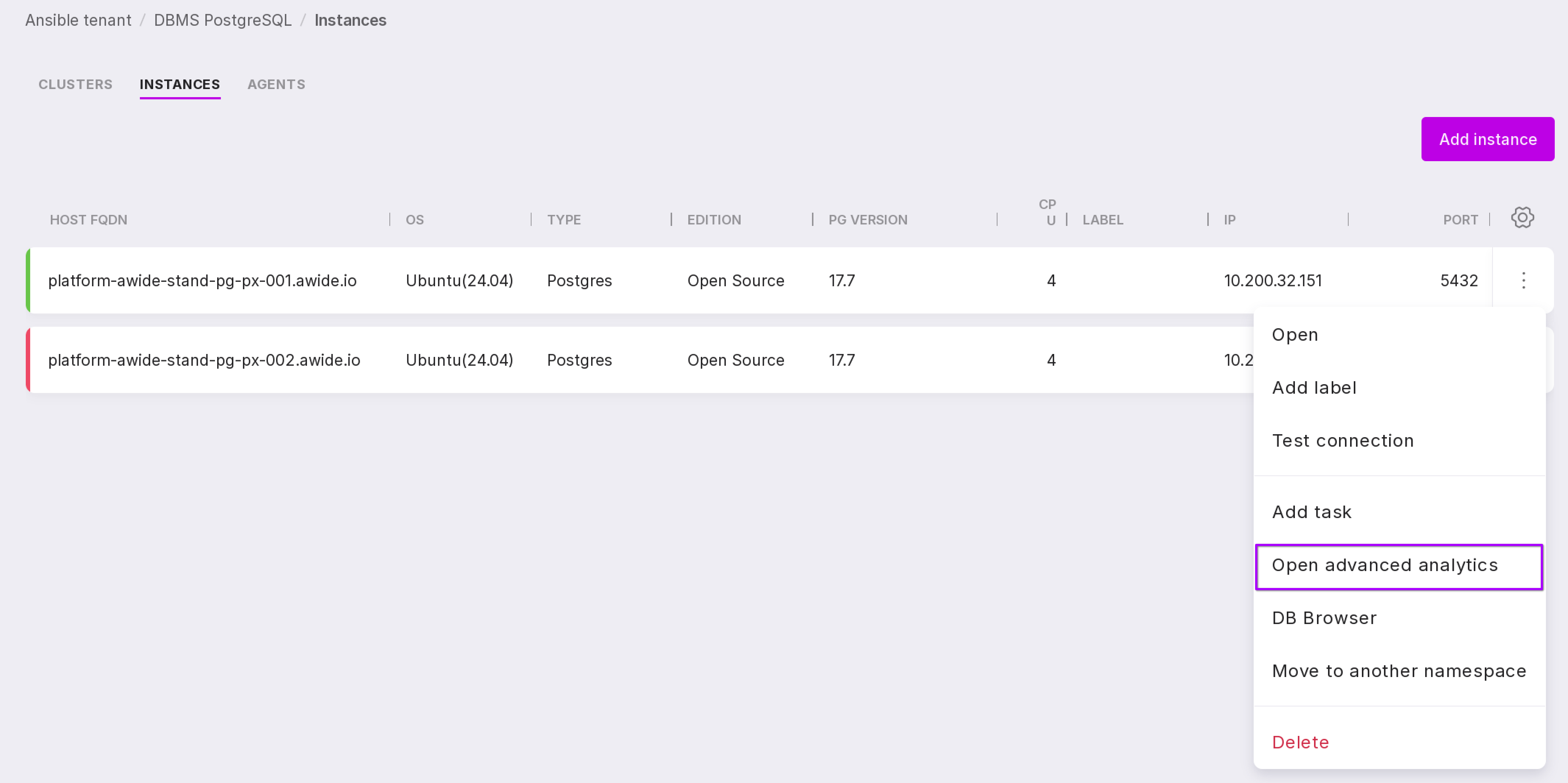
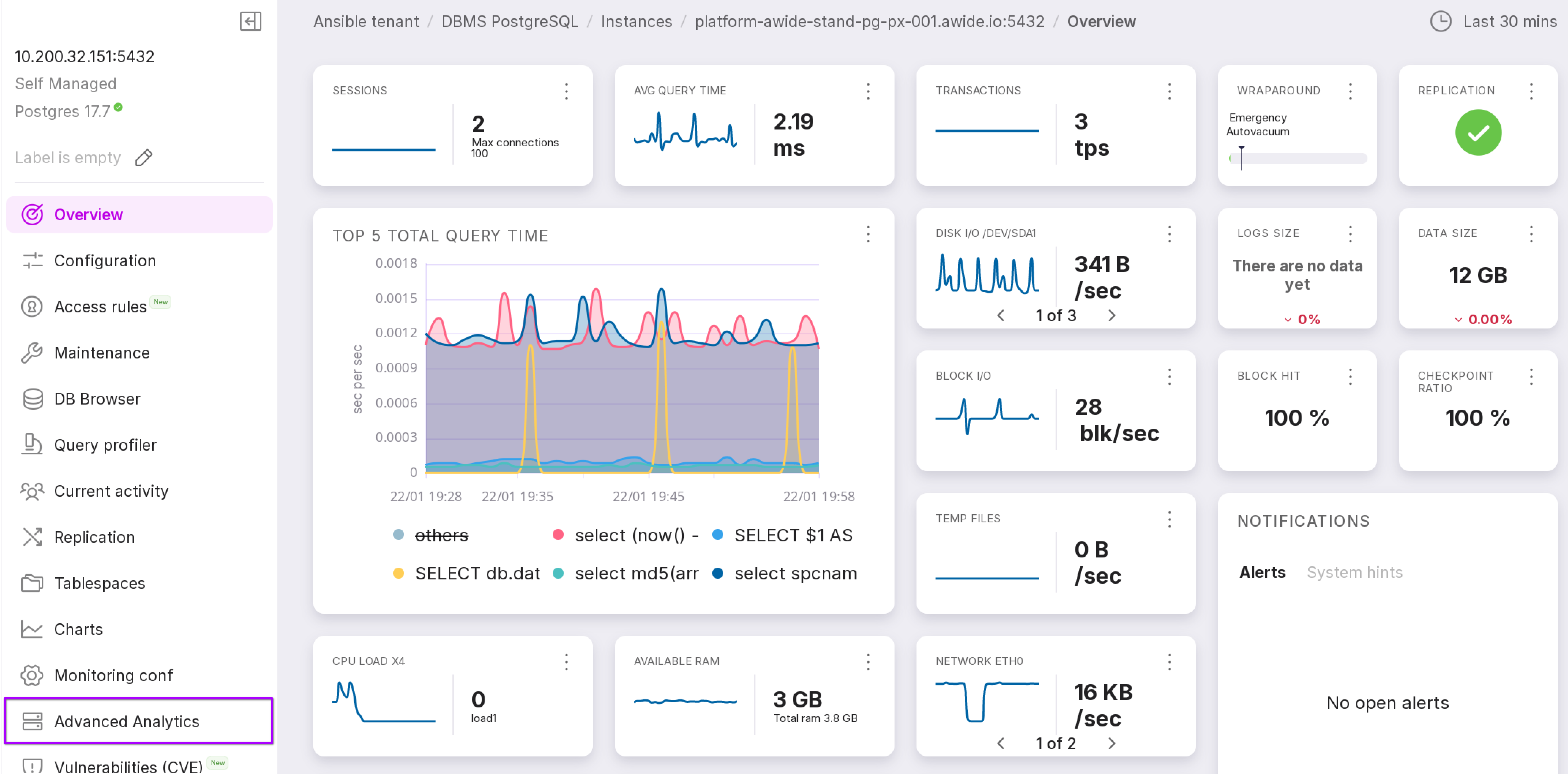
You can access the Advanced Analytics module in one of the following ways:
In the list of namespace instances, select “Open Advanced Analytics” from the menu of the required instance.
Go to the instance’s Overview page, select Advanced Analytics from the menu on the left.
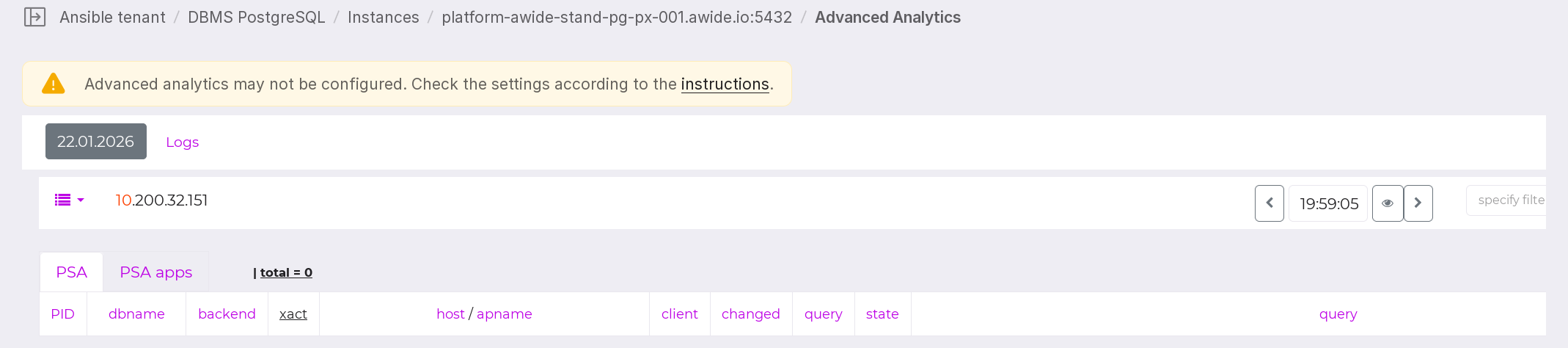
If there is no data on the page, a tooltip will appear with a link to instructions for installing and configuring the module.
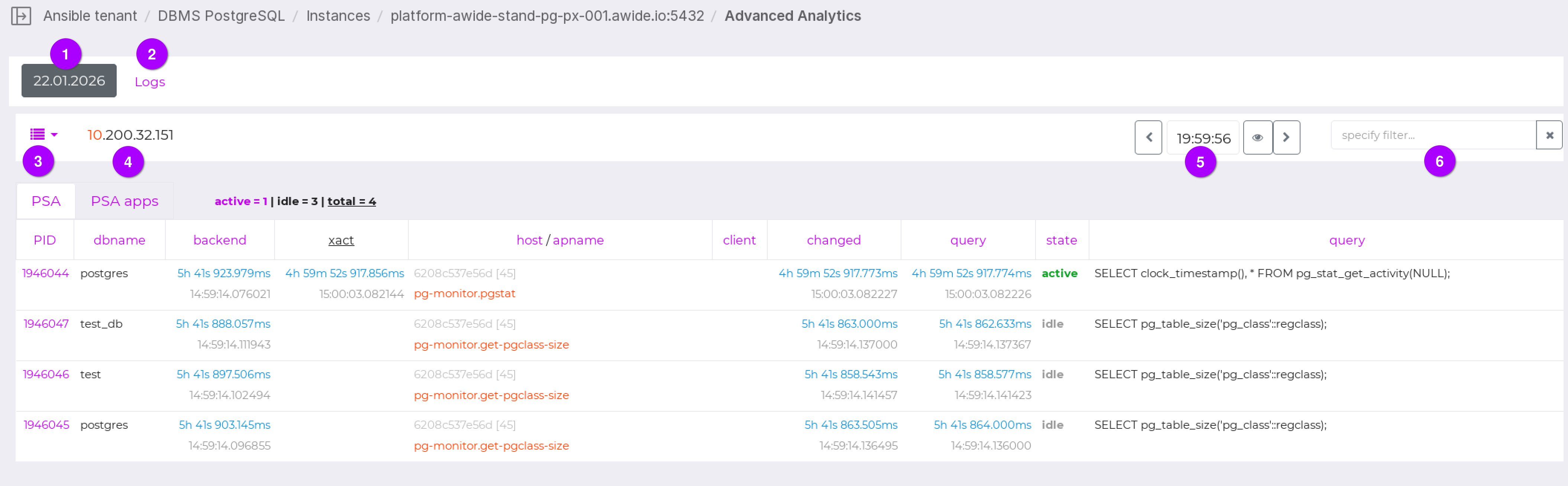
Let’s review the elements of the upper panel of the module, as numbered in the figure above:
Current date. You can change it by clicking on the date text box and selecting the required date in the calendar.
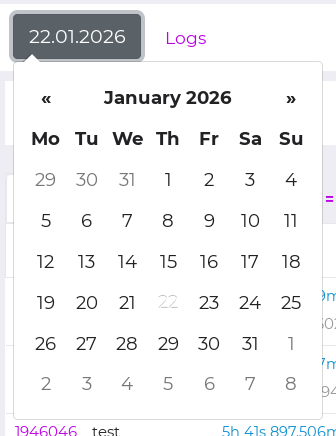
The “Logs” button. Clicking on it will open the log analyzer page.
Burger menu with links to the main categories of problematic queries. Next to each item is a number — the number of such requests for the current instance.
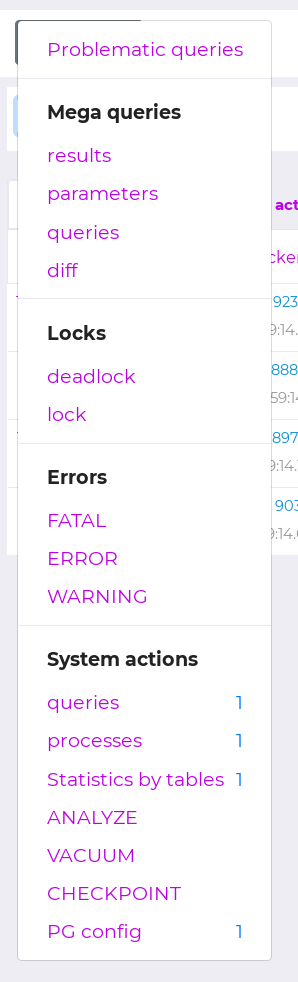
The burger menu contains the following items:
Problem queries are all database queries that have a negative impact on the performance, efficiency, or reliability of the system. These issues can be related to various aspects, such as long query execution, high load on the database server, suboptimal query execution plans, and others.
Mega Requests — Requests that exceed 1MB of ingress or egress.
Locks (“lock”) are mechanisms that temporarily grant access to certain data resources to only one transaction in order to prevent other transactions from modifying that data at the same time. If locks are misused, deadlock (“deadlock”) can occur, which is a situation where two or more transactions lock each other while waiting for resources to be released.
Errors — situations where a database query cannot be executed due to certain problems:
“FATAL” (“Fatal Error”) is critical and causes the request or transaction to be aborted. A fatal error can occur, for example, due to a lack of necessary resources or access to a database under a non-existent role.
“ERROR” — Can cause the query to fail, but is usually less critical than a fatal error. It can be caused, for example, by incorrect data or an attempt to perform an operation without the necessary access rights.
“WARNING” (“Warning”) indicates potential problems or unwanted events, but does not interrupt the execution of the request.
The “System Actions” block includes:
“PSA/PS” (pg_stat_activity) is a cumulative statistics system for Postgres that collects information related to the current activity of this process;
“ANALYZE” is the process of collecting statistics from Postgres databases;
“VACUUM” is the process required when updating or deleting table entries to read and account for changes made. It frees memory occupied by “dead tuples” — data structures that have been deleted or stale as a result of an update that are not physically removed from the table without this process. At different parameters, VACUUM works differently;
“CHECKPOINT” are “checkpoints” that are placed when inserting a large number of records into a table or performing long transactions. They allow you to write a large amount of data in “chunks” so as not to load the disk system. These portions can be distributed both by the amount of data to be inserted and by the time intervals of insertion. Checkpoints are calculated so that they do not exceed “write buffers”, a parameter configured in the Postgres configuration or adjusted in the operating system settings settings.
The IP address of the server where the current instance resides. The name of the page you are on can be separated by a “/”.
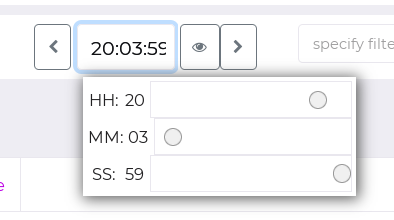
A time slot selection panel for a given day. It allows you to:
shift the time interval with the [] buttons<], [=””>.</],> For example, with a step of 5 min (5m) selected, both values of the temporal parcel boundary will receive the +5 min modifier;
set the values of the time interval boundaries yourself. This can be done in two ways:
enter values in the text fields;
click on the text fields and select the required values of hours, minutes or seconds with the sliders.
Filter to sort page content by text fields. In this example, the text fields are the “host/apname” and “query” columns.
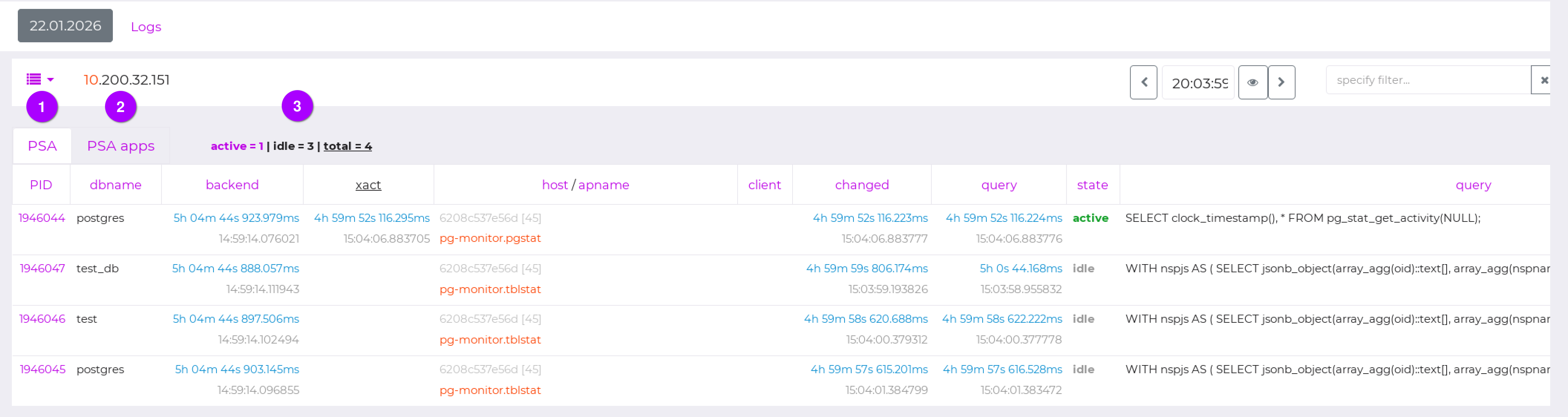
The next panel, located just below, includes tabs:
PSA (pg_stat_activity) — This tab provides information on the processes — all database connections within the instance.
PSA apps are specific pg_stat_activity applications that access the database. This tab provides information for each application that is connected to the databases.
Process Counter:
active is the number of active processes on this server;
idle is the number of processes that are in an inactive state;
wait is the number of processes in the waiting state;
Total is the total number of processes on the server that occur during the period selected in the time interval panel.